3-9-2-volume基础使用
1. volume基础
在说k8s上的volume的使用前 , 我们先来回顾下docker里的volume ; 对于docker容器来说 , 镜像是分层构建的且每一层都是只读的 , 只读就意味着不能修改数据 ; 只有当一个镜像运行为容器以后 , 在镜像的最顶端才会加上一个可写层 , 一旦这个容器被删除 , 对应可写层上的数据也随之被删除 ; 为了解决docker容器上的数据持久化的问题 ; docker使用了volume ; 在docker上volume有两种管理方式 , 第一种是用户手动指定把宿主机(对于宿主机上的目录可能是挂载存储系统上的某目录)上的某个目录挂载到容器某个目录 , 这种管理方式叫做绑定挂载卷 ; 还有一种就是docker自身维护把某个目录挂载到容器某个目录 , 这种叫docker自己管理的卷 ; 不管使用哪种方式管理的volume , 它都是容器直接关联宿主机上的某个目录或文件 ; docker中的volume解决了容器生命周期内产生的数据在容器终止后能够持久化保存的问题 ; 同样k8s也有同样的烦恼 , 不同的是k8s面对的是pod ; 我们知道pod是k8s上最小调度单元 , 一个pod被删除以后 , pod里运行的容器也随之被删除 , 那么pod里容器产生的数据该如何被持久化呢?要想解决这个问题 , 我们先来看看pod的组成
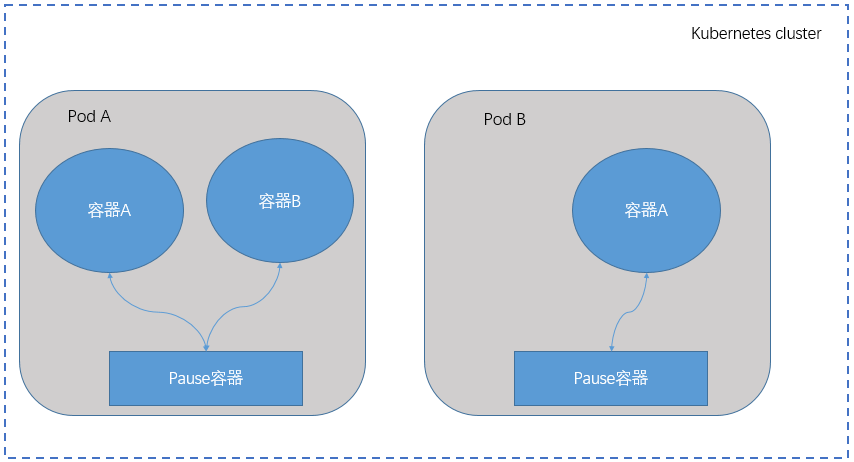
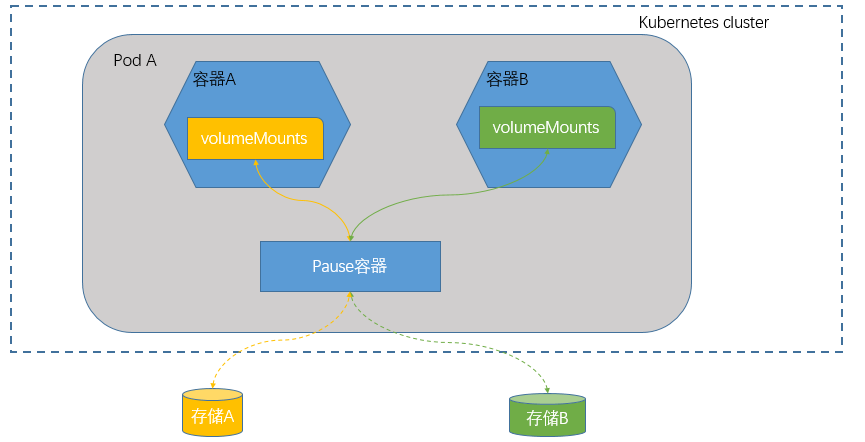
提示: 在k8s上pod里可以运行一个或多个容器 , 运行多个容器 , 其中一个容器我们叫主容器 , 其他的容器是用来辅助主容器 , 我们叫做sidecar ; 对于pod来说 , 不管里面运行多少个容器 , 在最底层都会运行一个pause容器 , 该容器最主要用来为pod提供基础架构支撑 ; 并且位于同一个pod中的容器都共享pause容器的网络名称空间以及IPC和UTS ; 这样一来我们要想给pod里的容器提供存储卷 , 首先要把存储卷关联到pause容器 , 然后在容器里挂载pause里的存储卷即可 ; 如下图所示
2. volumes类型
我们知道要想在k8s上使用存储卷 , 我们需要在对应的节点上提供对应存储系统的驱动 , 对应运行在该节点上的所有pod就可以使用对应的存储系统 , 那么问题来了 , pod怎么使用对应的存储系统呢?该怎么向其驱动程序传递参数呢?我们知道在k8s上一切皆对象 , 要在k8s上使用存储卷 , 我们还需要把对应的驱动抽象成k8s上的资源 ; 在使用时 , 我们直接初始化对应的资源为对象即可 ; 为了在k8s上简化使用存储卷的复杂度 , k8s内置了一些存储接口 , 对于不同类型的存储 , 其使用的接口、传递的参数也有所不同 ; 除此之外在k8s上也支持用户使用自定义存储 , 通过csi接口来定义 ;
查看k8s上支持的volumes接口
[root@master01 ~]# kubectl explain pod.spec.volumes
KIND:     Pod
VERSION:  v1

RESOURCE: volumes <[]Object>

DESCRIPTION:
     List of volumes that can be mounted by containers belonging to the pod.
     More info: https://kubernetes.io/docs/concepts/storage/volumes

     Volume represents a named volume in a pod that may be accessed by any
     container in the pod.

FIELDS:
   awsElasticBlockStore <Object>
     AWSElasticBlockStore represents an AWS Disk resource that is attached to a
     kubelet's host machine and then exposed to the pod. More info:
     https://kubernetes.io/docs/concepts/storage/volumes#awselasticblockstore

   azureDisk    <Object>
     AzureDisk represents an Azure Data Disk mount on the host and bind mount to
     the pod.

   azureFile    <Object>
     AzureFile represents an Azure File Service mount on the host and bind mount
     to the pod.

   cephfs       <Object>
     CephFS represents a Ceph FS mount on the host that shares a pod's lifetime

   cinder       <Object>
     Cinder represents a cinder volume attached and mounted on kubelets host
     machine. More info: https://examples.k8s.io/mysql-cinder-pd/README.md

   configMap    <Object>
     ConfigMap represents a configMap that should populate this volume

   csi  <Object>
     CSI (Container Storage Interface) represents ephemeral storage that is
     handled by certain external CSI drivers (Beta feature).

   downwardAPI  <Object>
     DownwardAPI represents downward API about the pod that should populate this
     volume

   emptyDir     <Object>
     EmptyDir represents a temporary directory that shares a pod's lifetime.
     More info: https://kubernetes.io/docs/concepts/storage/volumes#emptydir

   ephemeral    <Object>
     Ephemeral represents a volume that is handled by a cluster storage driver
     (Alpha feature). The volume's lifecycle is tied to the pod that defines it
     - it will be created before the pod starts, and deleted when the pod is
     removed.

     Use this if: a) the volume is only needed while the pod runs, b) features
     of normal volumes like restoring from snapshot or capacity tracking are
     needed, c) the storage driver is specified through a storage class, and d)
     the storage driver supports dynamic volume provisioning through a
     PersistentVolumeClaim (see EphemeralVolumeSource for more information on
     the connection between this volume type and PersistentVolumeClaim).

     Use PersistentVolumeClaim or one of the vendor-specific APIs for volumes
     that persist for longer than the lifecycle of an individual pod.

     Use CSI for light-weight local ephemeral volumes if the CSI driver is meant
     to be used that way - see the documentation of the driver for more
     information.

     A pod can use both types of ephemeral volumes and persistent volumes at the
     same time.

   fc   <Object>
     FC represents a Fibre Channel resource that is attached to a kubelet's host
     machine and then exposed to the pod.

   flexVolume   <Object>
     FlexVolume represents a generic volume resource that is
     provisioned/attached using an exec based plugin.

   flocker      <Object>
     Flocker represents a Flocker volume attached to a kubelet's host machine.
     This depends on the Flocker control service being running

   gcePersistentDisk    <Object>
     GCEPersistentDisk represents a GCE Disk resource that is attached to a
     kubelet's host machine and then exposed to the pod. More info:
     https://kubernetes.io/docs/concepts/storage/volumes#gcepersistentdisk

   gitRepo      <Object>
     GitRepo represents a git repository at a particular revision. DEPRECATED:
     GitRepo is deprecated. To provision a container with a git repo, mount an
     EmptyDir into an InitContainer that clones the repo using git, then mount
     the EmptyDir into the Pod's container.

   glusterfs    <Object>
     Glusterfs represents a Glusterfs mount on the host that shares a pod's
     lifetime. More info: https://examples.k8s.io/volumes/glusterfs/README.md

   hostPath     <Object>
     HostPath represents a pre-existing file or directory on the host machine
     that is directly exposed to the container. This is generally used for
     system agents or other privileged things that are allowed to see the host
     machine. Most containers will NOT need this. More info:
     https://kubernetes.io/docs/concepts/storage/volumes#hostpath

   iscsi        <Object>
     ISCSI represents an ISCSI Disk resource that is attached to a kubelet's
     host machine and then exposed to the pod. More info:
     https://examples.k8s.io/volumes/iscsi/README.md

   name <string> -required-
     Volume's name. Must be a DNS_LABEL and unique within the pod. More info:
     https://kubernetes.io/docs/concepts/overview/working-with-objects/names/#names

   nfs  <Object>
     NFS represents an NFS mount on the host that shares a pod's lifetime More
     info: https://kubernetes.io/docs/concepts/storage/volumes#nfs

   persistentVolumeClaim        <Object>
     PersistentVolumeClaimVolumeSource represents a reference to a
     PersistentVolumeClaim in the same namespace. More info:
     https://kubernetes.io/docs/concepts/storage/persistent-volumes#persistentvolumeclaims

   photonPersistentDisk <Object>
     PhotonPersistentDisk represents a PhotonController persistent disk attached
     and mounted on kubelets host machine

   portworxVolume       <Object>
     PortworxVolume represents a portworx volume attached and mounted on
     kubelets host machine

   projected    <Object>
     Items for all in one resources secrets, configmaps, and downward API

   quobyte      <Object>
     Quobyte represents a Quobyte mount on the host that shares a pod's lifetime

   rbd  <Object>
     RBD represents a Rados Block Device mount on the host that shares a pod's
     lifetime. More info: https://examples.k8s.io/volumes/rbd/README.md

   scaleIO      <Object>
     ScaleIO represents a ScaleIO persistent volume attached and mounted on
     Kubernetes nodes.

   secret       <Object>
     Secret represents a secret that should populate this volume. More info:
     https://kubernetes.io/docs/concepts/storage/volumes#secret

   storageos    <Object>
     StorageOS represents a StorageOS volume attached and mounted on Kubernetes
     nodes.

   vsphereVolume        <Object>
     VsphereVolume represents a vSphere volume attached and mounted on kubelets
     host machine
提示: 从上面的帮助信息可以看到k8s上支持的存储接口还是很多 , 每一个存储接口都是一种类型 ; 对于这些存储类型我们大致可以分为云存储 , 分布式存储 , 网络存储、临时存储 , 节点本地存储 , 特殊类型存储、用户自定义存储等等 ; 比如awsElasticBlockStore、azureDisk、azureFile、gcePersistentDisk、vshperVolume、cinder这些类型划分为云存储 ; cephfs、glusterfs、rbd这些划分为分布式存储 ; nfs、iscsi、fc这些划分为网络存储 ; emptyDIR划分为临时存储 ; hostPath、local划分为本地存储 ; 自定义存储csi ; 特殊存储configMap、secret、downwardAPId ; 持久卷申请persistentVolumeClaim等等 ;
3. volumes的使用
3.1 示例 : 创建使用hostPath类型存储卷Pod
root@k8s-master01:/opt/k8s-data/yaml/volume/hostpath# cat hostPath-demo.yaml
apiVersion: v1
kind: Pod
metadata:
name: vol-hostpath-demo
namespace: default
spec:
containers:
- name: nginx
image: nginx:1.14-alpine
volumeMounts:
- name: webhtml
mountPath: /usr/share/nginx/html
readOnly: true
volumes:
- name: webhtml
hostPath:
path: /vol/html/
type: DirectoryOrCreate
提示: 以上配置清单表示创建一个名为nginx的pod , 对应使用nginx:1.14-alpine的镜像 ; 并且定义了一个存储卷 , 该存储卷的名称为webhtml , 其类型为hostPath ; 在定义存储卷时 , 我们需要在spec字段下使用volumes字段来指定 , 该字段的值为一个对象列表 ; 其中name是必须字段 , 用于指定存储卷的名称 , 方便容器挂载其存储卷时引用的标识符 ; 其次我们需要对应的存储卷类型来表示使用对应的存储接口 ; hostPath表示使用hostPath类型存储接口 ; 该类型存储接口需要我们手动传递两个参数 ,
第一个是
path指定宿主机的某个目录或文件路径 ;type用来指定当宿主机上的指定的路径不存在时该怎么办 , 这个值有7个值 ;DirectoryOrCteate表示对应path字段指定的文件必须是一个目录 , 当这个目录在宿主机上不存在时就创建 ;Directory表示对应path字段指定的文件必须是一个已存在的目录 ;FileOrCreate表示对应path字段指定的文件必须是一个文件 , 如果文件不存在就创建 ;File表示对应path字段必须为一个已存在的文件 ;Socket表示对应path必须为一个已存在的Socket文件 ;CharDevice表示对应path字段指定的文件必须是一个已存在的字符设备 ;BlockDevice表示对应path字段指定的是一个已存在的块设备 ;
定义volumes相当于把外部存储关联到对应pod的pause容器 , 至于pod里的其他容器是否要使用 , 怎么使用 , 取决于volumeMounts字段是否定义 ; spec.containers.volumeMounts字段用于指定对应pod里的容器存储卷挂载配置 , 其中name和mountPath是必选字段 ,
name字段用于指定引用的存储卷名称 ;mountPath字段用于指定在容器内部的挂载点 ,readOnly用于指定是否为只读 , 默认是读写 , 即readOnly的值为false;
应用配置清单
root@k8s-master01:/opt/k8s-data/yaml/volume/hostpath# kubectl apply -f hostPath-demo.yaml
pod/vol-hostpath-demo created
root@k8s-master01:/opt/k8s-data/yaml/volume/hostpath# kubectl get pod
NAME READY STATUS RESTARTS AGE
vol-hostpath-demo 1/1 Running 0 23m
root@k8s-master01:/opt/k8s-data/yaml/volume/hostpath# kubectl describe pods/vol-hostpath-demo
Name: vol-hostpath-demo
Namespace: default
Priority: 0
Service Account: default
Node: k8s-node01.cbear.top/192.168.71.35
Start Time: Sun, 02 Jun 2024 07:06:35 +0000
Labels: <none>
Annotations: <none>
Status: Running
IP: 172.20.3.20
IPs:
IP: 172.20.3.20
Containers:
nginx:
Container ID: containerd://faf8a141035b9a6c52d785ea80275450db84105b7d0d80b5da654810a5da26f7
Image: nginx:1.14-alpine
Image ID: docker.io/library/nginx@sha256:485b610fefec7ff6c463ced9623314a04ed67e3945b9c08d7e53a47f6d108dc7
Port: <none>
Host Port: <none>
State: Running
Started: Sun, 02 Jun 2024 07:07:01 +0000
Ready: True
Restart Count: 0
Environment: <none>
Mounts:
/usr/share/nginx/html from webhtml (ro)
/var/run/secrets/kubernetes.io/serviceaccount from kube-api-access-v98gt (ro)
Conditions:
Type Status
PodReadyToStartContainers True
Initialized True
Ready True
ContainersReady True
PodScheduled True
Volumes:
webhtml:
Type: HostPath (bare host directory volume)
Path: /vol/html/
HostPathType: DirectoryOrCreate
kube-api-access-v98gt:
Type: Projected (a volume that contains injected data from multiple sources)
TokenExpirationSeconds: 3607
ConfigMapName: kube-root-ca.crt
ConfigMapOptional: <nil>
DownwardAPI: true
QoS Class: BestEffort
Node-Selectors: <none>
Tolerations: node.kubernetes.io/not-ready:NoExecute op=Exists for 300s
node.kubernetes.io/unreachable:NoExecute op=Exists for 300s
Events:
Type Reason Age From Message
---- ------ ---- ---- -------
Normal Scheduled 23m default-scheduler Successfully assigned default/vol-hostpath-demo to k8s-node01.cbear.top
Normal Pulling 23m kubelet Pulling image "nginx:1.14-alpine"
Normal Pulled 23m kubelet Successfully pulled image "nginx:1.14-alpine" in 24.43s (24.43s including waiting)
Normal Created 22m kubelet Created container nginx
Normal Started 22m kubelet Started container nginx
提示: 可以看到对应pod里以只读方式挂载了webhtml存储卷 , 对应webhtm存储卷类型为HostPath , 对应path是/vol/html/ ;
查看对应pod所在节点
root@k8s-master01:/opt/k8s-data/yaml/volume/hostpath# kubectl get pods -o wide
NAME READY STATUS RESTARTS AGE IP NODE NOMINATED NODE READINESS GATES
vol-hostpath-demo 1/1 Running 0 26m 172.20.3.20 k8s-node01.cbear.top <none> <none>
在k8s-node01.cbear.top上查看对应目录是否创建
root@k8s-node01:~# ll /
total 1384532
drwxr-xr-x 21 root root 4096 Jun 2 07:06 ./
drwxr-xr-x 21 root root 4096 Jun 2 07:06 ../
lrwxrwxrwx 1 root root 7 Feb 16 18:37 bin -> usr/bin/
drwxr-xr-x 4 root root 4096 May 27 11:42 boot/
dr-xr-xr-x 2 root root 4096 Feb 16 23:52 cdrom/
drwxr-xr-x 20 root root 4020 May 27 19:12 dev/
drwxr-xr-x 107 root root 4096 May 27 11:47 etc/
drwxr-xr-x 3 root root 4096 Apr 5 05:34 home/
lrwxrwxrwx 1 root root 7 Feb 16 18:37 lib -> usr/lib/
lrwxrwxrwx 1 root root 9 Feb 16 18:37 lib32 -> usr/lib32/
lrwxrwxrwx 1 root root 9 Feb 16 18:37 lib64 -> usr/lib64/
lrwxrwxrwx 1 root root 10 Feb 16 18:37 libx32 -> usr/libx32/
drwx------ 2 root root 16384 Apr 5 05:19 lost+found/
drwxr-xr-x 2 root root 4096 Feb 16 18:37 media/
drwxr-xr-x 2 root root 4096 Feb 16 18:37 mnt/
drwxr-xr-x 5 root root 4096 May 27 11:45 opt/
dr-xr-xr-x 254 root root 0 May 27 19:12 proc/
drwx------ 8 root root 4096 May 30 10:25 root/
drwxr-xr-x 34 root root 1060 Jun 2 07:34 run/
lrwxrwxrwx 1 root root 8 Feb 16 18:37 sbin -> usr/sbin/
drwxr-xr-x 6 root root 4096 Feb 16 18:52 snap/
drwxr-xr-x 2 root root 4096 Feb 16 18:37 srv/
-rw------- 1 root root 1417674752 Apr 5 05:24 swap.img
dr-xr-xr-x 13 root root 0 May 27 19:12 sys/
drwxrwxrwt 14 root root 4096 Jun 2 07:13 tmp/
drwxr-xr-x 14 root root 4096 Feb 16 18:37 usr/
drwxr-xr-x 13 root root 4096 Feb 16 18:46 var/
drwxr-xr-x 3 root root 4096 Jun 2 07:06 vol/
root@k8s-node01:~# ll /vol/
total 12
drwxr-xr-x 3 root root 4096 Jun 2 07:06 ./
drwxr-xr-x 21 root root 4096 Jun 2 07:06 ../
drwxr-xr-x 2 root root 4096 Jun 2 07:06 html/
root@k8s-node01:~# ll /vol/html/
total 8
drwxr-xr-x 2 root root 4096 Jun 2 07:06 ./
drwxr-xr-x 3 root root 4096 Jun 2 07:06 ../
可以看到对应节点上已经创建/vol/html/目录 , 对应目录下没有任何文件 ;
在对应节点对应目录下创建一个网页文件 , 访问对应pod看看是否对应网页文件是否能够被访问到
root@k8s-node01:~# echo "this is test page from k8s-node01 /vol/html/test.html" > /vol/html/test.html
root@k8s-master01:/opt/k8s-data/yaml/volume/hostpath# kubectl get pods -o wide
NAME READY STATUS RESTARTS AGE IP NODE NOMINATED NODE READINESS GATES
vol-hostpath-demo 1/1 Running 0 32m 172.20.3.20 k8s-node01.cbear.top <none> <none>
root@k8s-master01:/opt/k8s-data/yaml/volume/hostpath# curl 172.20.3.20
<html>
<head><title>403 Forbidden</title></head>
<body bgcolor="white">
<center><h1>403 Forbidden</h1></center>
<hr><center>nginx/1.14.2</center>
</body>
</html>
root@k8s-master01:/opt/k8s-data/yaml/volume/hostpath# curl 172.20.3.20/test.html
this is test page from k8s-node01 /vol/html/test.html
可以看到在对应节点上创建网页文件 , 访问pod能够正常被访问到 ;
删除pod , 看看对应节点上的目录是否会被删除
root@k8s-master01:/opt/k8s-data/yaml/volume/hostpath# kubectl delete -f hostPath-demo.yaml
pod "vol-hostpath-demo" deleted
root@k8s-master01:/opt/k8s-data/yaml/volume/hostpath# ssh root@k8s-node01.cbear.top
root@k8s-node01:~# ll /vol/html/test.html
-rw-r--r-- 1 root root 54 Jun 2 07:38 /vol/html/test.html
root@k8s-node01:~# cat /vol/html/test.html
this is test page from k8s-node01 /vol/html/test.html
可以看到删除了pod以后 , 在对应节点上的目录并不会被删除 ; 对应的网页文件还是完好无损 ;
重新引用配置清单 , 访问对应的pod , 看看是否能够访问到对应的网页文件内容
root@k8s-master01:/opt/k8s-data/yaml/volume/hostpath# kubectl apply -f hostPath-demo.yaml
pod/vol-hostpath-demo created
root@k8s-master01:/opt/k8s-data/yaml/volume/hostpath# kubectl get pods -o wide
NAME READY STATUS RESTARTS AGE IP NODE NOMINATED NODE READINESS GATES
vol-hostpath-demo 1/1 Running 0 5s 172.20.3.21 k8s-node01.cbear.top <none> <none>
root@k8s-master01:/opt/k8s-data/yaml/volume/hostpath# curl 172.20.3.21/test.html
this is test page from k8s-node01 /vol/html/test.html
可以看到对应pod被调度到node03上了 , 访问对应的pod能够访问到我们创建的网页文件 ; 假如我们明确指定将此pod运行在node02上 , 对应pod是否还可以访问到对应的网页文件呢 ?
绑定pod运行在 k8s-node02.cbear.top上
root@k8s-master01:/opt/k8s-data/yaml/volume/hostpath# cat hostPath-demo.yaml
apiVersion: v1
kind: Pod
metadata:
  name: vol-hostpath-demo
  namespace: default
spec:
  nodeName: k8s-node02.cbear.top
  containers:
  - name: nginx
    image: nginx:1.14-alpine
    volumeMounts:
    - name: webhtml
      mountPath: /usr/share/nginx/html
      readOnly: true
  volumes:
  - name: webhtml
    hostPath:
      path: /vol/html/
      type: DirectoryOrCreate
绑定pod运行为某个节点上 , 我们可以在spec字段中用nodeName字段来指定对应节点的主机名即可 ;
删除原有pod , 重新应用新资源清单
root@k8s-master01:/opt/k8s-data/yaml/volume/hostpath# kubectl delete pods/vol-hostpath-demo
pod "vol-hostpath-demo" deleted
root@k8s-master01:/opt/k8s-data/yaml/volume/hostpath# kubectl apply -f hostPath-demo.yaml
pod/vol-hostpath-demo created
root@k8s-master01:/opt/k8s-data/yaml/volume/hostpath# kubectl get pods -o wide
NAME                READY   STATUS    RESTARTS   AGE     IP            NODE                   NOMINATED NODE   READINESS GATES
vol-hostpath-demo   1/1     Running   0          2m29s   172.20.4.13   k8s-node02.cbear.top   <none>           <none>
可以看到重新应用新资源清单 , 对应pod运行在k8s-node02.cbear.top上 ;
访问对应pod , 看看test.html是否能够被访问到
root@k8s-master01:/opt/k8s-data/yaml/volume/hostpath# curl 172.20.4.13/test.html
<html>
<head><title>404 Not Found</title></head>
<body bgcolor="white">
<center><h1>404 Not Found</h1></center>
<hr><center>nginx/1.14.2</center>
</body>
</html>可以看到现在访问pod , 对应网页文件就不能被访问到 ; 其实原因很简单 ; hostPath类型存储卷是将宿主机上的某个目录或文件当作存储卷映射进pause容器 , 然后供pod里的容器挂载使用 ; 这种类型的存储卷不能跨节点 ; 所以在k8s-node02.cbear.top上创建的pod , k8s-node01.cbear.top上的文件肯定是不能被访问到的 ; 为此 , 如果要使用hostPath类型的存储卷 , 我们就必须绑定节点 ; 除此之外我们就应该在k8s节点上创建相同的文件或目录 ;
3.2 示例: 创建使用emptyDir类型存储卷pod
root@k8s-master01:/opt/k8s-data/yaml/volume/emptyDir# cat emptyDir-demo.yaml
apiVersion: v1
kind: Pod
metadata:
  name: vol-emptydir-demo
  namespace: default
spec:
  containers:
  - name: nginx
    image: nginx:1.14-alpine
    volumeMounts:
    - name: web-cache-dir
      mountPath: /usr/share/nginx/html
      readOnly: true
  - name: alpine
    image: alpine
    volumeMounts:
    - name: web-cache-dir
      mountPath: /nginx/html
    command: ["/bin/sh", "-c"]
    args:
    - while true; do
        echo $(hostname) $(date) >> /nginx/html/index.html;
        sleep 10;
      done
  volumes:
  - name: web-cache-dir
    emptyDir:
      medium: Memory
sizeLimit: "10Mi"以上清单表示定义运行一个名为vol-emptydir-demo的pod ; 在其pod内部运行两个容器 , 一个名为nginx , 一个名为alpine ; 同时这两个容器都同时挂载一个名为web-cache-dir的存储卷 , 其类型为emptyDir , 如下图所示 ; 定义empytDir类型的存储卷 , 我们需要在spec.volumes字段下使用name指定其存储卷的名称 ; 用emptyDir指定其存储卷类型为emptyDir ; 对于empytDir类型存储卷 , 它有两个属性 , medium字段用于指定媒介类型 , Memory表示使用内存作为存储媒介 ; 默认该字段的值为“” , 表示使用默认的对应节点默认的存储媒介 ; sizeLimit字段是用来限制其对应存储大小 , 默认是空 , 表示不限制 ;
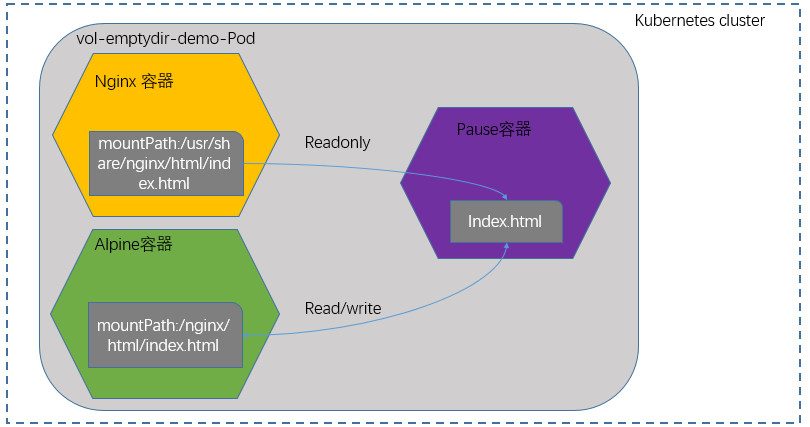
如上图 , 其pod内部有两个容器 , 一个名为alpine的容器 , 它会每隔10往/nginx/html/inde.html文件中写入对应主机名+时间 ; 而nginx容器挂载对应的empytDir类型存储卷到本地的网页存储目录 ; 简单讲就是alpine容器往/nginx/html/index.html写数据 , nginx容器挂载对应文件到网页目录 ;
应用资源清单
root@k8s-master01:/opt/k8s-data/yaml/volume/emptyDir# kubectl apply -f emptyDir-demo.yaml
pod/vol-emptydir-demo created
root@k8s-master01:/opt/k8s-data/yaml/volume/emptyDir# kubectl get pods
NAME                READY   STATUS    RESTARTS   AGE
vol-emptydir-demo   2/2     Running   0          43s
root@k8s-master01:/opt/k8s-data/yaml/volume/emptyDir# kubectl describe pods vol-emptydir-demo
Name:             vol-emptydir-demo
Namespace:        default
Priority:         0
Service Account:  default
Node:             k8s-node01.cbear.top/192.168.71.35
Start Time:       Sun, 02 Jun 2024 08:13:48 +0000
Labels:           <none>
Annotations:      <none>
Status:           Running
IP:               172.20.3.22
IPs:
  IP:  172.20.3.22
Containers:
  nginx:
    Container ID:   containerd://41a6474a6783af6e3238da63358668e4d394dbb3d3f6d23f3faee10fefd00d3a
    Image:          nginx:1.14-alpine
    Image ID:       docker.io/library/nginx@sha256:485b610fefec7ff6c463ced9623314a04ed67e3945b9c08d7e53a47f6d108dc7
    Port:           <none>
    Host Port:      <none>
    State:          Running
      Started:      Sun, 02 Jun 2024 08:13:49 +0000
    Ready:          True
    Restart Count:  0
    Environment:    <none>
    Mounts:
      /usr/share/nginx/html from web-cache-dir (ro)
      /var/run/secrets/kubernetes.io/serviceaccount from kube-api-access-hlxfh (ro)
  alpine:
    Container ID:  containerd://21ab0d05ef6d0d2f3a3a6c3d7c7a66d7f1b1950520924d5de71a2bc7681d9312
    Image:         alpine
    Image ID:      docker.io/library/alpine@sha256:21a3deaa0d32a8057914f36584b5288d2e5ecc984380bc0118285c70fa8c9300
    Port:          <none>
    Host Port:     <none>
    Command:
      /bin/sh
      -c
    Args:
      while true; do echo $(hostname) $(date) >> /nginx/html/index.html; sleep 10; done
    State:          Running
      Started:      Sun, 02 Jun 2024 08:14:12 +0000
    Ready:          True
    Restart Count:  0
    Environment:    <none>
    Mounts:
      /nginx/html from web-cache-dir (rw)
      /var/run/secrets/kubernetes.io/serviceaccount from kube-api-access-hlxfh (ro)
Conditions:
  Type                        Status
  PodReadyToStartContainers   True
  Initialized                 True
  Ready                       True
  ContainersReady             True
  PodScheduled                True
Volumes:
  web-cache-dir:
    Type:       EmptyDir (a temporary directory that shares a pod's lifetime)
    Medium:     Memory
    SizeLimit:  10Mi
  kube-api-access-hlxfh:
    Type:                    Projected (a volume that contains injected data from multiple sources)
    TokenExpirationSeconds:  3607
    ConfigMapName:           kube-root-ca.crt
    ConfigMapOptional:       <nil>
    DownwardAPI:             true
QoS Class:                   BestEffort
Node-Selectors:              <none>
Tolerations:                 node.kubernetes.io/not-ready:NoExecute op=Exists for 300s
                             node.kubernetes.io/unreachable:NoExecute op=Exists for 300s
Events:
  Type    Reason     Age    From               Message
  ----    ------     ----   ----               -------
  Normal  Scheduled  9m6s   default-scheduler  Successfully assigned default/vol-emptydir-demo to k8s-node01.cbear.top
  Normal  Pulled     9m6s   kubelet            Container image "nginx:1.14-alpine" already present on machine
  Normal  Created    9m6s   kubelet            Created container nginx
  Normal  Started    9m6s   kubelet            Started container nginx
  Normal  Pulling    9m6s   kubelet            Pulling image "alpine"
  Normal  Pulled     8m43s  kubelet            Successfully pulled image "alpine" in 22.989s (22.989s including waiting)
  Normal  Created    8m43s  kubelet            Created container alpine
Normal Started 8m43s kubelet Started container alpine可以看到对应pod已经正常运行起来 , 其内部有2个容器 ; 其中nginx容器一只读方式挂载名为web-cache-dir的存储卷 , alpine以读写方式挂载web-cache-dir的存储卷 ; 对应存储卷类型为emptyDir ;
访问对应pod , 看看是否能够访问到对应存储卷中index.html的内容
root@k8s-master01:/opt/k8s-data/yaml/volume/emptyDir# curl 172.20.3.22
vol-emptydir-demo Sun Jun 2 08:14:12 UTC 2024
vol-emptydir-demo Sun Jun 2 08:14:22 UTC 2024
vol-emptydir-demo Sun Jun 2 08:14:32 UTC 2024
vol-emptydir-demo Sun Jun 2 08:14:42 UTC 2024
vol-emptydir-demo Sun Jun 2 08:14:52 UTC 2024
vol-emptydir-demo Sun Jun 2 08:15:02 UTC 2024
vol-emptydir-demo Sun Jun 2 08:15:12 UTC 2024
.....可以看到能够访问到index.html文件内容 , 并且该文件内容是alpine容器动态生成的内容 ; 从上面的示例 , 不难理解 , 在同一个pod内部可以共享同一存储卷 ;
3.3 示例: 创建使用nfs类型的存储卷pod
root@k8s-master01:/opt/k8s-data/yaml/volume/nfs# cat nfs-demo.yaml
apiVersion: v1
kind: Pod
metadata:
  name: vol-nfs-demo
  namespace: default
spec:
  containers:
  - name: nginx
    image: nginx:1.14-alpine
    volumeMounts:
    - name: webhtml
      mountPath: /usr/share/nginx/html
      readOnly: true
  volumes:
  - name: webhtml
    nfs:
      path: /data/html/
server: 192.168.71.34定义nfs类型存储卷 , 对应spec.volumes.nfs字段下必须定义path字段 , 该字段用于指定其nfs文件系统的导出文件路径 ; server字段是用于指定其nfs服务器地址 ; 在使用nfs存储作为pod的后端存储 , 首先我们要准备好nfs服务器 , 并导出对应的目录 ; 这里已经提前配置好nfs共享目录
应用资源清单
root@k8s-master01:/opt/k8s-data/yaml/volume/nfs# kubectl apply -f nfs-demo.yaml
pod/vol-nfs-demo created

root@k8s-master01:/opt/k8s-data/yaml/volume/nfs# kubectl get pods -o wide
NAME           READY   STATUS    RESTARTS   AGE    IP            NODE                   NOMINATED NODE   READINESS GATES
vol-nfs-demo   1/1     Running   0          6m9s   172.20.3.23   k8s-node01.cbear.top   <none>           <none>
root@k8s-master01:/opt/k8s-data/yaml/volume/nfs# kubectl describe pods vol-nfs-demo
Name:             vol-nfs-demo
Namespace:        default
Priority:         0
Service Account:  default
Node:             k8s-node01.cbear.top/192.168.71.35
Start Time:       Sun, 02 Jun 2024 08:41:26 +0000
Labels:           <none>
Annotations:      <none>
Status:           Running
IP:               172.20.3.23
IPs:
  IP:  172.20.3.23
Containers:
  nginx:
    Container ID:   containerd://1292275ac053fc72045859273b5fa4e8c4793112dde17d3aa74eca4d14861849
    Image:          nginx:1.14-alpine
    Image ID:       docker.io/library/nginx@sha256:485b610fefec7ff6c463ced9623314a04ed67e3945b9c08d7e53a47f6d108dc7
    Port:           <none>
    Host Port:      <none>
    State:          Running
      Started:      Sun, 02 Jun 2024 08:41:27 +0000
    Ready:          True
    Restart Count:  0
    Environment:    <none>
    Mounts:
      /usr/share/nginx/html from webhtml (ro)
      /var/run/secrets/kubernetes.io/serviceaccount from kube-api-access-h99dh (ro)
Conditions:
  Type                        Status
  PodReadyToStartContainers   True
  Initialized                 True
  Ready                       True
  ContainersReady             True
  PodScheduled                True
Volumes:
  webhtml:
    Type:      NFS (an NFS mount that lasts the lifetime of a pod)
    Server:    192.168.71.34
    Path:      /data/html/
    ReadOnly:  false
  kube-api-access-h99dh:
    Type:                    Projected (a volume that contains injected data from multiple sources)
    TokenExpirationSeconds:  3607
    ConfigMapName:           kube-root-ca.crt
    ConfigMapOptional:       <nil>
    DownwardAPI:             true
QoS Class:                   BestEffort
Node-Selectors:              <none>
Tolerations:                 node.kubernetes.io/not-ready:NoExecute op=Exists for 300s
                             node.kubernetes.io/unreachable:NoExecute op=Exists for 300s
Events:
  Type    Reason     Age    From               Message
  ----    ------     ----   ----               -------
  Normal  Scheduled  7m13s  default-scheduler  Successfully assigned default/vol-nfs-demo to k8s-node01.cbear.top
  Normal  Pulled     7m12s  kubelet            Container image "nginx:1.14-alpine" already present on machine
  Normal  Created    7m12s  kubelet            Created container nginx
Normal Started 7m12s kubelet Started container nginx可以看到对应pod已经正常运行 , 并且其内部容器已经正常挂载对应目录 ;
在nfs服务器对应目录 , 创建一个index.html文件
root@harbor:~# echo "this is test file from nfs server ip addr is 192.168.71.34" > /data/html/index.html访问对应pod , 看看是否能够访问到对应文件内容
root@k8s-master01:/opt/k8s-data/yaml/volume/nfs# kubectl get pods -o wide
NAME           READY   STATUS    RESTARTS   AGE   IP            NODE                   NOMINATED NODE   READINESS GATES
vol-nfs-demo   1/1     Running   0          10m   172.20.3.23   k8s-node01.cbear.top   <none>           <none>
root@k8s-master01:/opt/k8s-data/yaml/volume/nfs# curl 172.20.3.23
this is test file from nfs server ip addr is 192.168.71.34可以看到对应文件内容能够通过pod访问到 ;
删除pod
root@k8s-master01:/opt/k8s-data/yaml/volume/nfs# kubectl delete -f ./
pod "vol-nfs-demo" deleted绑定pod运行在k8s-node02.cbear.top上 , 重新应用配置文件创建pod , 再次访问对应pod , 看看对应文件是否能够正常访问到
root@k8s-master01:/opt/k8s-data/yaml/volume/nfs# cat nfs-demo.yaml
apiVersion: v1
kind: Pod
metadata:
  name: vol-nfs-demo
  namespace: default
spec:
  nodeName: k8s-node02.cbear.top
  containers:
  - name: nginx
    image: nginx:1.14-alpine
    volumeMounts:
    - name: webhtml
      mountPath: /usr/share/nginx/html
      readOnly: true
  volumes:
  - name: webhtml
    nfs:
      path: /data/html/
      server: 192.168.71.34

root@k8s-master01:/opt/k8s-data/yaml/volume/nfs# kubectl apply -f nfs-demo.yaml
pod/vol-nfs-demo created
root@k8s-master01:/opt/k8s-data/yaml/volume/nfs# kubectl get pods -o wide
NAME           READY   STATUS    RESTARTS   AGE   IP            NODE                   NOMINATED NODE   READINESS GATES
vol-nfs-demo   1/1     Running   0          6s    172.20.4.14   k8s-node02.cbear.top   <none>           <none>

root@k8s-master01:/opt/k8s-data/yaml/volume/nfs# curl 172.20.4.14
this is test file from nfs server ip addr is 192.168.71.34可以看到把对应pod绑定到k8s-node02.cbear.top上 , 访问对应pod也能正常访问到nfs服务器上的文件 ; 从上述测试过程来看 , nfs这种类型的存储卷能够脱离pod的生命周期 , 跨节点将pod里容器产生的数据持久化到对应的nfs文件系统服务器上 ; 当然nfs此时是单点 , 一旦nfs服务器宕机挂掉 , 对应pod运行时产生的数据将全部丢失 ; 所以对应外部存储系统 , 我们应该选择一个对数据有冗余 , 且k8s集群支持的类型的存储系统 , 比如cephfs , glusterfs等等 ;
参考链接
Kubernetes学习之路(十六)之存储卷 - 烟雨浮华 - 博客园 (cnblogs.com)