
5-6-配置 SSL、TLS 以及 HTTPS 来确保 Elasticsearch、Kibana、Beats 和 Logstash 的安全
Elastic Stack 6.8和 7.1 开始, Elastic 在默认分发包(基础许可证)中发布了一些免费安全功能。 新推出的功能包括: 使用 SSL 对网络流量进行加密、创建和管理用户、定义角色来保护索引级和集群级访问权限, 以及为 Kibana 提供全面保护。
请注意 , 尽管在 HTTP 层启用 TLS 并非硬性要求 , 但我们强烈建议如此做以实现端到端安全 , 进而保护数据 , 尤其是保护用户名/密码信息免遭泄露(这种情况可致使集群不安全)。
1. 证书准备
使用命令生成对应的CA证书:
root@elasticsearch01:~# /usr/share/elasticsearch/bin/elasticsearch-certutil ca通过CA证书提取CA的公钥私钥文件。
root@elasticsearch01:~# openssl pkcs12 -in /etc/elasticsearch/certs/http-elastic-ca.p12 -out ca.crt -clcerts -nokeys
之后会在/root目录下面生成一个ca.crt证书文件
同时通过这个生成的CA的p12证书, 生成所有服务器的证书文件
在每个节点中运行以下命令, 可以提前信任CA颁发的证书
在运行之前,我们把证书拷贝到 Ubuntu 机器的如下地址:
sudo cp ca.crt /usr/local/share/ca-certificates
然后,我们使用如下的方法来进行更新:
sudo update-ca-certificates创建
instances.ynl文件root@elasticsearch01:~# cat /usr/share/elasticsearch/instances.yml instances: - name: elasticsearch01 ip: - "192.168.71.29" - name: elasticsearch02 ip: - "192.168.71.30" - name: elasticsearch03 ip: - "192.168.71.31" - name: logstash01 ip: - "192.168.71.32" - name: "logstash02" ip: - "192.168.71.35" - name: "logstash03" ip: - "192.168.71.41" - name: "logstash04" ip: - "192.168.71.42" - name: kibana ip: - "192.168.71.34" - name: nginx01 ip: - "192.168.71.37" dns: - "nginx01" - "localhost" - name: filebeat ip: - "192.168.71.37" 通过
instances.yml文件生成所有服务器的证书文件#生成所有服务器的p12证书 root@elasticsearch01:/usr/share/elasticsearch# /usr/share/elasticsearch/bin/elasticsearch-certutil cert -ca /etc/elasticsearch/certs/http-elastic-ca.p12 -out cert02.zip -in instances.yml root@elasticsearch01:/usr/share/elasticsearch# unzip cert02.zip Archive: cert02.zip inflating: elasticsearch01/elasticsearch01.p12 inflating: elasticsearch02/elasticsearch02.p12 inflating: elasticsearch03/elasticsearch03.p12 inflating: logstash01/logstash01.p12 inflating: logstash02/logstash02.p12 inflating: logstash03/logstash03.p12 inflating: logstash04/logstash04.p12 inflating: kibana/kibana.p12 inflating: nginx01/nginx01.p12 inflating: filebeat/filebeat.p12 #生成所有服务器的pem证书 root@elasticsearch01:~# /usr/share/elasticsearch/bin/elasticsearch-certutil cert -ca /etc/elasticsearch/certs/http-elastic-ca.p12 --pem -out cert.zip -in instances.yml root@elasticsearch01:/usr/share/elasticsearch# unzip cert.zip Archive: cert.zip creating: elasticsearch01/ inflating: elasticsearch01/elasticsearch01.crt inflating: elasticsearch01/elasticsearch01.key creating: elasticsearch02/ inflating: elasticsearch02/elasticsearch02.crt inflating: elasticsearch02/elasticsearch02.key creating: elasticsearch03/ inflating: elasticsearch03/elasticsearch03.crt inflating: elasticsearch03/elasticsearch03.key creating: logstash01/ inflating: logstash01/logstash01.crt inflating: logstash01/logstash01.key creating: logstash02/ inflating: logstash02/logstash02.crt inflating: logstash02/logstash02.key creating: logstash03/ inflating: logstash03/logstash03.crt inflating: logstash03/logstash03.key creating: logstash04/ inflating: logstash04/logstash04.crt inflating: logstash04/logstash04.key creating: kibana/ inflating: kibana/kibana.crt inflating: kibana/kibana.key creating: nginx01/ inflating: nginx01/nginx01.crt inflating: nginx01/nginx01.key creating: filebeat/ inflating: filebeat/filebeat.crt inflating: filebeat/filebeat.key
2. 配置elasticsearch证书
这里有两种配置方式
和前一篇文章一样。通过
p12证书验证# Enable encryption for HTTP API client connections, such as Kibana, Logstash, and Agents xpack.security.http.ssl: enabled: true keystore.path: certs/http-elastic-certificates.p12 truststore.path: certs/http-elastic-certificates.p12 xpack.security.authc.api_key.enabled: true通过生成的pem证书配置
## add the following contents
node.name: node1
network.host: node1.elastic.test.com
xpack.security.enabled: true
xpack.security.http.ssl.enabled: true
xpack.security.transport.ssl.enabled: true
xpack.security.http.ssl.key: certs/node1.key
xpack.security.http.ssl.certificate: certs/node1.crt
xpack.security.http.ssl.certificate_authorities: certs/ca.crt
xpack.security.transport.ssl.key: certs/node1.key
xpack.security.transport.ssl.certificate: certs/node1.crt
xpack.security.transport.ssl.certificate_authorities: certs/ca.crt
集群中三个节点配置均可以这样配置
3. kibana页面配置https
将准备的证书拷贝至kibana节点中
root@kibana:~# ll /etc/kibana/ total 44 drwxr-s--- 2 root kibana 4096 Apr 17 10:58 ./ drwxr-xr-x 98 root root 4096 Apr 17 06:35 ../ -rw-r--r-- 1 root kibana 1147 Apr 17 10:58 ca.crt -rw-r--r-- 1 root kibana 1168 Apr 17 10:36 kibana.crt -rw-r--r-- 1 root kibana 1675 Apr 17 10:36 kibana.key -rw-rw---- 1 root kibana 130 Apr 6 14:18 kibana.keystore -rw-r--r-- 1 root kibana 3608 Apr 17 10:36 kibana.p12 -rw-rw---- 1 root kibana 8051 Apr 16 16:02 kibana.yml -rw-rw---- 1 root kibana 1336 Apr 16 15:57 newfile.crt.pem -rw-r--r-- 1 root kibana 447 Mar 29 12:18 node.options 配置
kibana.yml配置文件server.port: 5601 server.host: "0.0.0.0" server.publicBaseUrl: "https://192.168.71.34:5601" #这里需要和instance里面的值对应 server.ssl.enabled: true server.ssl.certificate: /etc/kibana/kibana.crt server.ssl.key: /etc/kibana/kibana.key # =================== System: Elasticsearch =================== # The URLs of the Elasticsearch instances to use for all your queries. #elasticsearch.hosts: ["http://localhost:9200"] elasticsearch.hosts: ["https://192.168.71.29:9200"] elasticsearch.ssl.certificateAuthorities: ["/etc/kibana/newfile.crt.pem"] elasticsearch.ssl.verificationMode: none重启
kibana使用
https://ip/5601访问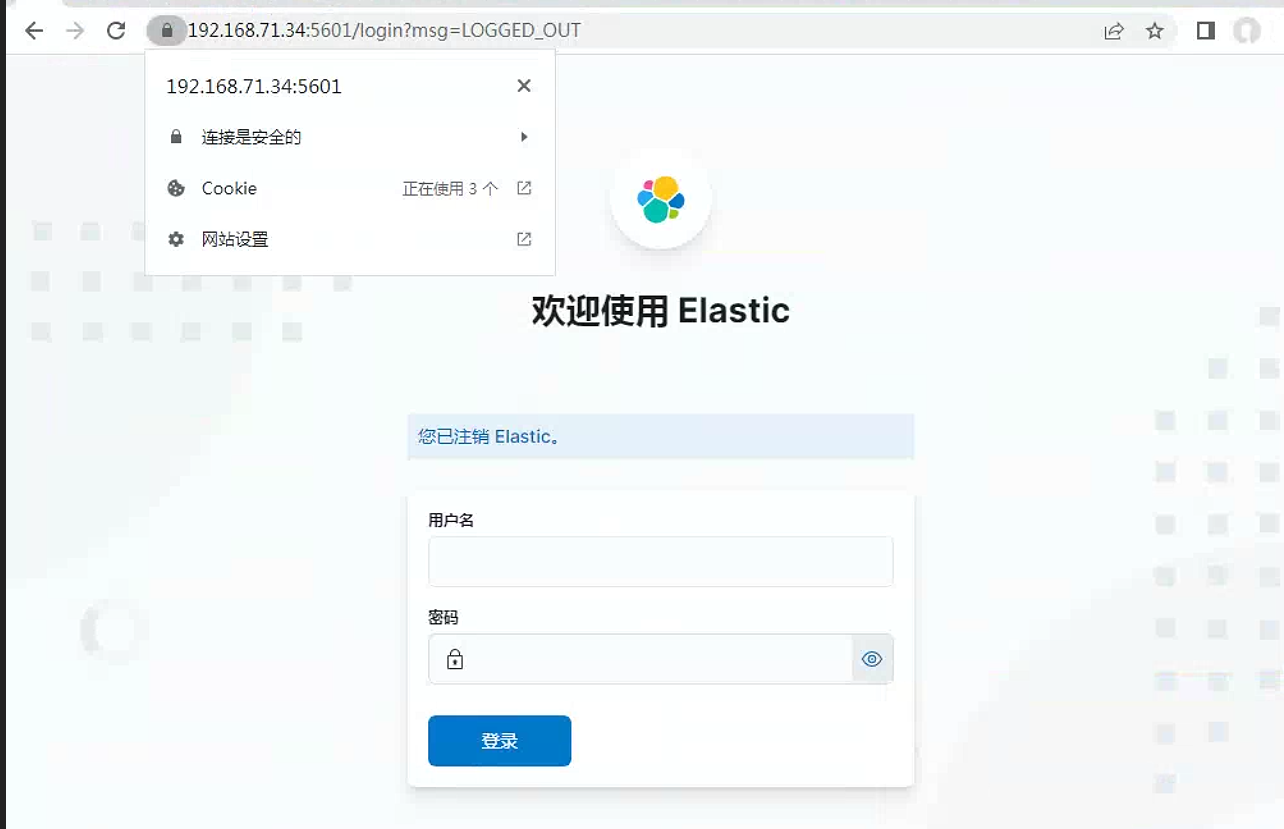
4. logstash配置
4.1 准备logstash用户
创建
logstash_write_role您可以通过多种方式创建角色。
既可以使用
Kibana Roles UI(Kibana角色UI)创建: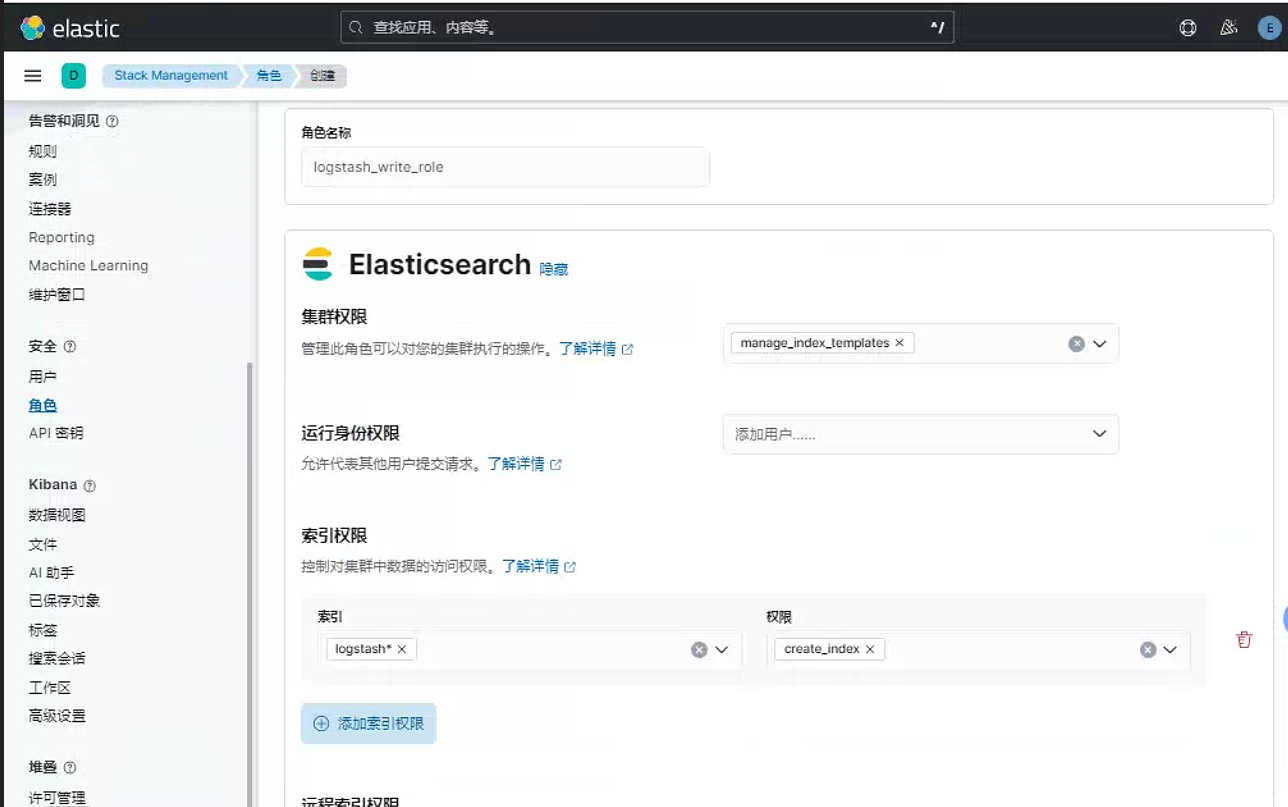
也可以使用
Kibana Dev Tools(Kibana开发工具)标签卡中的API创建:POST /_security/role/logstash_write_role { "cluster": [ "monitor", "manage_index_templates" ], "indices": [ { "names": [ "logstash*" ], "privileges": [ "write", "create_index" ], "field_security": { "grant": [ "*" ] } } ], "run_as": [], "metadata": {}, "transient_metadata": { "enabled": true } }创建
logstash_writer用户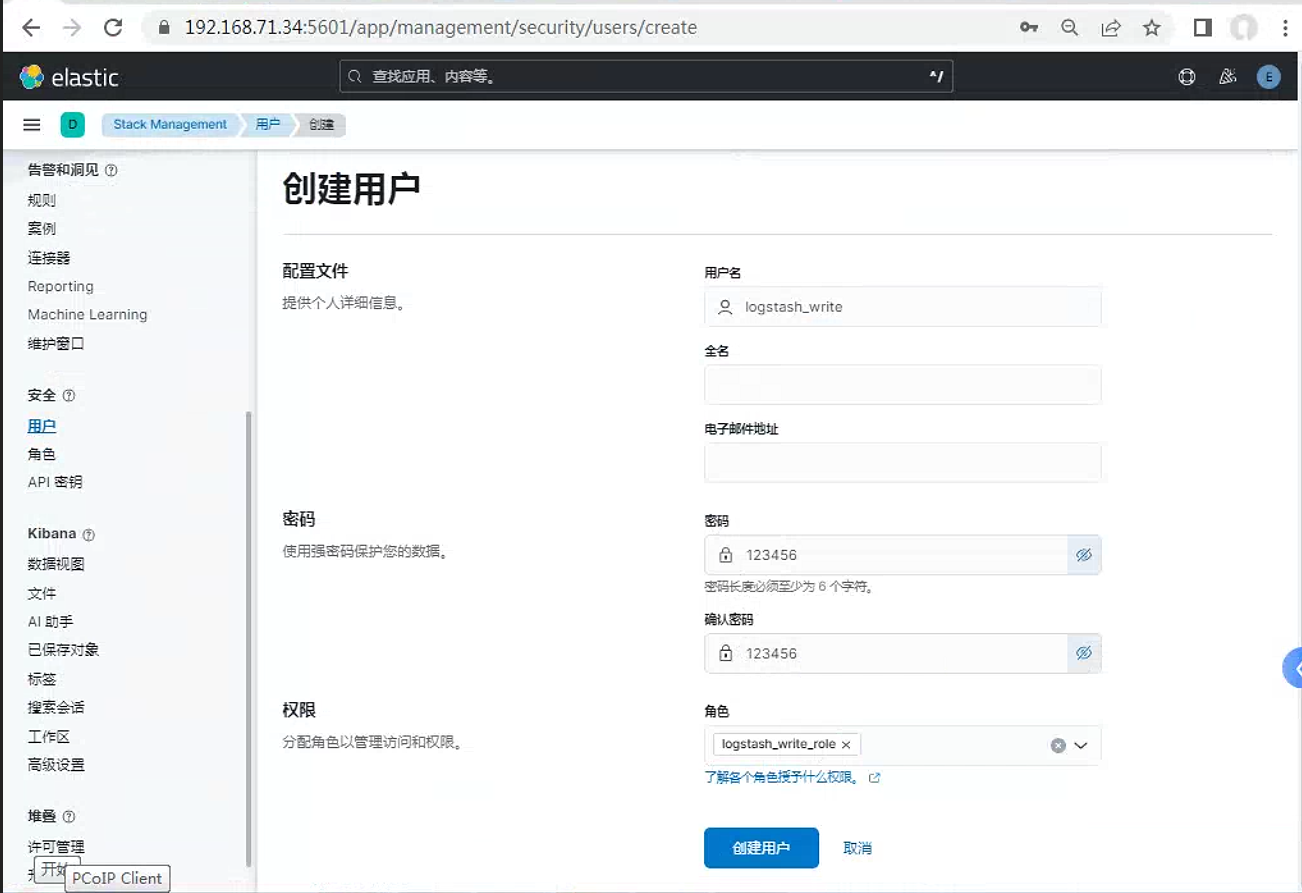
也可以使用
Kibana Dev Tools(Kibana开发工具)标签卡中的API创建:POST /_security/user/logstash_writer { "username": "logstash_writer", "roles": [ "logstash_write_role" ], "full_name": null, "email": null, "password": "<logstash_system_password>", "enabled": true }重置
logstash_system系统用户密码。通过页面重置该用户密码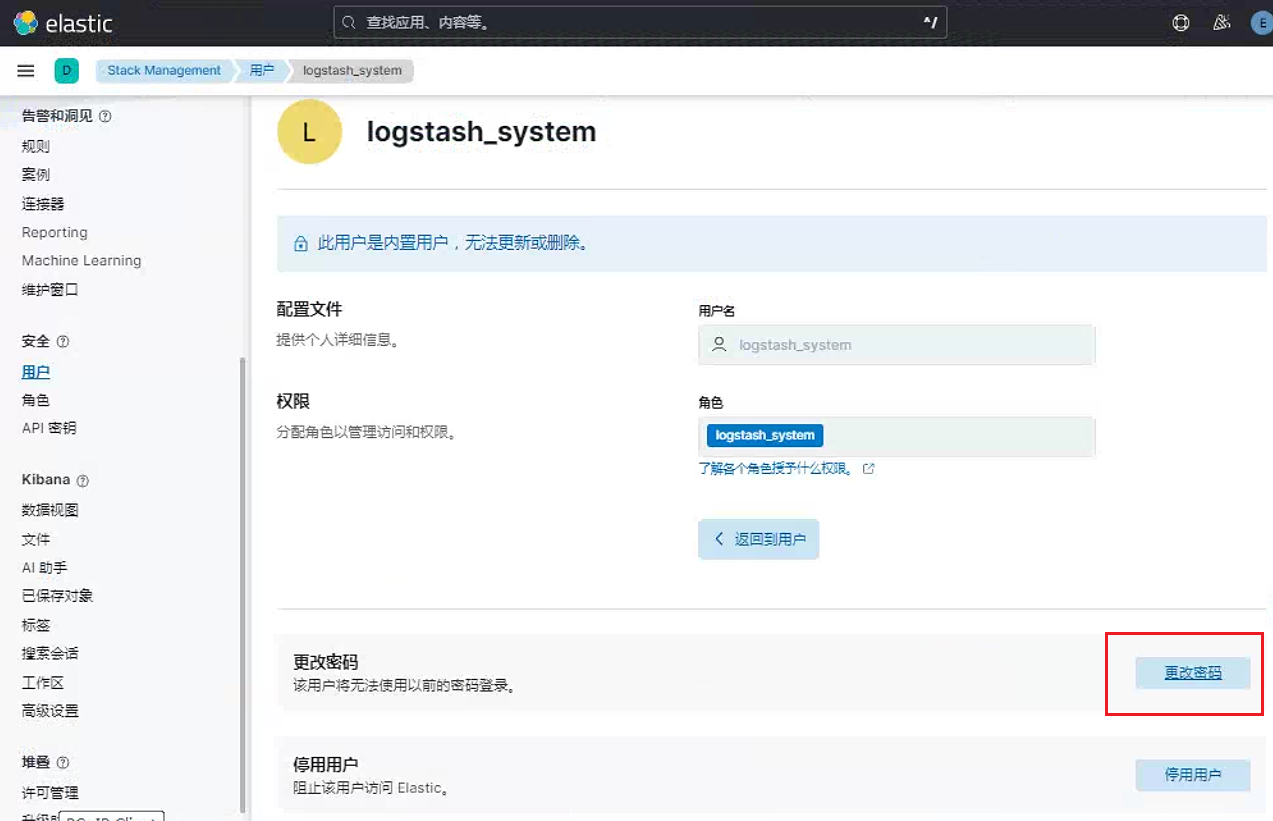
4.2 配置证书
将证书传递至
logstash服务器上root@logstash01:~# ls /etc/logstash/logstash01.* /etc/logstash/ca.crt /etc/logstash/ca.crt /etc/logstash/logstash01.crt /etc/logstash/logstash01.key /etc/logstash/logstash01.p12配置
logstash.ymlnode.name: logstash01 path.config: /etc/logstash/conf.d/*.conf xpack.monitoring.enabled: true xpack.monitoring.elasticsearch.username: logstash_system xpack.monitoring.elasticsearch.password: 123456 xpack.monitoring.elasticsearch.hosts: ["https://192.168.71.29:9200", "https://192.168.71.30:9200", "https://192.168.71.31"] xpack.monitoring.elasticsearch.ssl.certificate_authority: "/etc/logstash/ca.crt" xpack.monitoring.elasticsearch.ssl.verification_mode: none配置指定的传输模板·
root@logstash01:~# cat /etc/logstash/conf.d/sample.conf
input {
  beats {
    port => "5044"
    ssl_enabled => true
    ssl_key => '/etc/logstash/logstash01.key'
    ssl_certificate => '/etc/logstash/logstash01.crt'
  }
}
output {
  elasticsearch {
    hosts => ["https://192.168.71.29:9200","https://192.168.71.30:9200","https://192.168.71.31:9200"]
    ssl_certificate_authorities => '/etc/logstash/ca.crt'
    #ssl_truststore_path => "/etc/logstash/logstash01.p12"
    #ssl_truststore_password => ""
    user =>  elastic
    password => "123456"
  }
}
另外可以如下配置
output {
	stdout {
		codec => rubydebug
	}

    elasticsearch {
    	hosts => ["https://localhost:9200"]
    	index => "data-%{+YYYY.MM.dd}"
    	user => "elastic"
    	password => "ndktp2Xr2h_*Q6EZfq4t"
		ssl_certificate_verification => true
		truststore => "/Users/liuxg/elastic/elasticsearch-8.4.1/config/certs/http.p12"
		truststore_password => "buSYG3l-R0mdN6pggG76VA"
  	}
检查页面
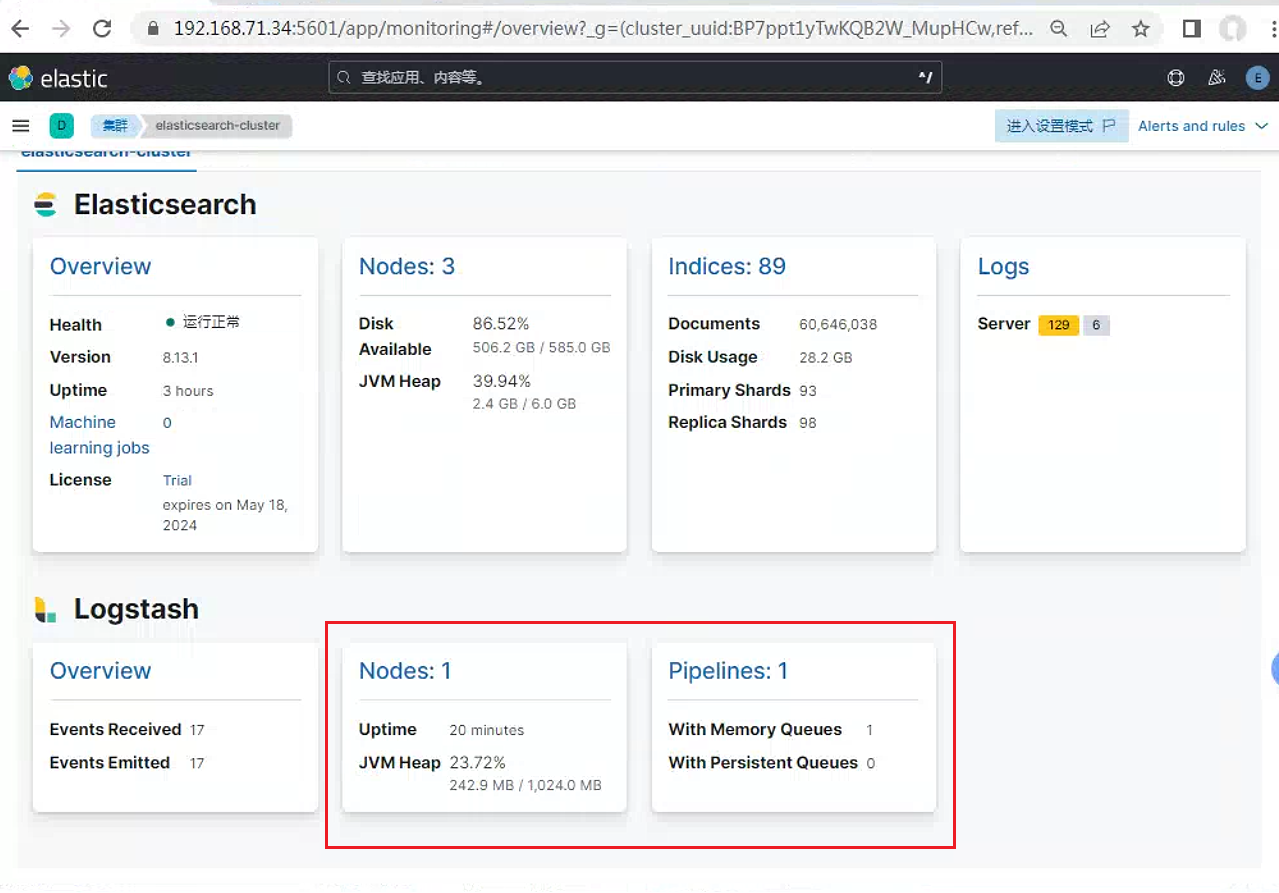
此时可以在
logstash节点安装metricbeat来监控底层硬件信息#安装软件包 dpkg -i metricbeat-8.13.2-amd64.deb #开启logstash-xpack模块 metricbeat modules enable logstash-xpack调整配置文件
#模块文件保持不变
root@logstash01:~# cat /etc/metricbeat/modules.d/logstash-xpack.yml

# ================================== Outputs ===================================

# Configure what output to use when sending the data collected by the beat.

# ---------------------------- Elasticsearch Output ----------------------------
output.elasticsearch:
  # Array of hosts to connect to.
  hosts: ["192.168.71.29:9200"]

  # Performance preset - one of "balanced", "throughput", "scale",
  # "latency", or "custom".
  preset: balanced

  # Protocol - either `http` (default) or `https`.
  protocol: "https"

  # Authentication credentials - either API key or username/password.
  #api_key: "id:api_key"
  username: "elastic"
  password: "123456"
  ssl.certificate_authorities: ["/etc/metricbeat/ca.crt"]
  ssl.verification_mode: none
查看页面, 可以看到logstash底层硬件信息
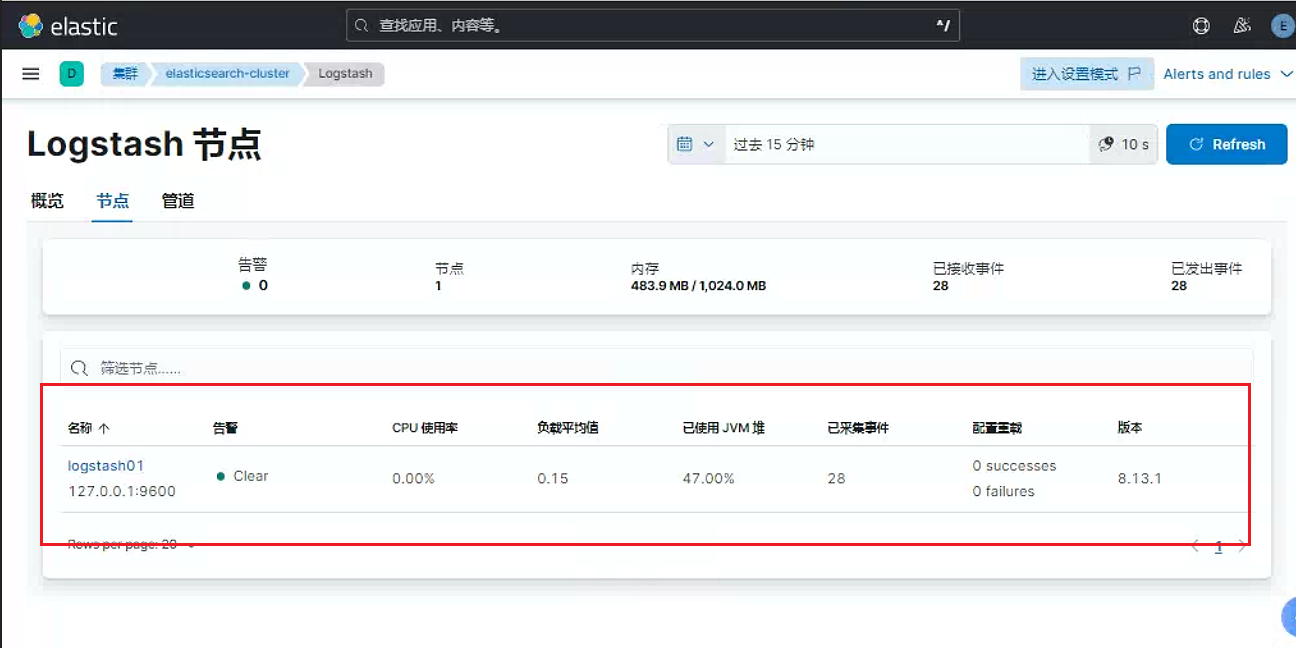
5. beat配置
5.1 metricbeat
beat所有的节点配置均一样。这里展示elasticsearch节点中配置metricbeat节点配置
配置
metricbeat的/etc/metricbeat/metricbeat.yml文件output.elasticsearch: # Array of hosts to connect to. hosts: ["192.168.71.29:9200"] #这里需要改为证书指定的本地解析域名或者IP, # Performance preset - one of "balanced", "throughput", "scale", # "latency", or "custom". preset: balanced # Protocol - either `http` (default) or `https`. protocol: "https" # Authentication credentials - either API key or username/password. #api_key: "id:api_key" username: "elastic" password: "123456" ssl.certificate_authorities: ["/usr/share/elasticsearch/instance/ca.crt"] ssl.verification_mode: none配置
xpack模块配置文件root@elasticsearch01:~# cat /etc/metricbeat/modules.d/elasticsearch-xpack.yml # Module: elasticsearch # Docs: https://www.elastic.co/guide/en/beats/metricbeat/8.13/metricbeat-module-elasticsearch.html - module: elasticsearch xpack.enabled: true period: 10s hosts: ["https://192.168.71.29:9200"] #这里需要改为证书指定的本地解析域名或者IP, username: "remote_monitoring_user" password: "123456" ssl.enabled: true ssl.certificate_authorities: ["/usr/share/elasticsearch/instance/ca.crt"] ssl.verification_mode: "none" #api_key: "foo:bar"重启
metricbeat服务检查页面
5.2 filebeat
5.2.1 普通节点配置
将准备好的证书, 拷贝至该节点
root@nginx01:~# ls /etc/filebeat/
ca.crt  fields.yml  filebeat.reference.yml  filebeat.yml  http-elastic-ca.p12  modules.d
调整配置文件。这里需要注意一点, 因为提供私钥文件是
logstash。这里只需要配置CA公钥证书即可。如果filebeat配置私钥配置。则logstash只需要配置CA公钥即可#output.console: output.logstash: # The Logstash hosts hosts: ["192.168.71.32:5044"] #loadbalance: true # Optional SSL. By default is off. # List of root certificates for HTTPS server verifications ssl.certificate_authorities: ["/etc/filebeat/ca.crt"] ssl.verification_mode: none #取消证书验证 # Certificate for SSL client authentication #ssl.certificate: "/etc/pki/client/cert.pem" # Client Certificate Key #ssl.key: "/etc/pki/client/cert.key"之后直接开启
filebeat服务即可
5.2.2 elasticsearch节点配置
配置
elasticsearch节点的filebeat文件root@elasticsearch01:~# cat /etc/filebeat/filebeat.yml output.elasticsearch: # Array of hosts to connect to. hosts: ["localhost:9200"] # Performance preset - one of "balanced", "throughput", "scale", # "latency", or "custom". preset: balanced # Protocol - either `http` (default) or `https`. protocol: "https" # Authentication credentials - either API key or username/password. #api_key: "id:api_key" username: "elastic" password: "123456" ssl.certificate_authorities: ["/usr/share/elasticsearch/instance/ca.crt"] ssl.verification_mode: none检查页面识别到了
filebeat页面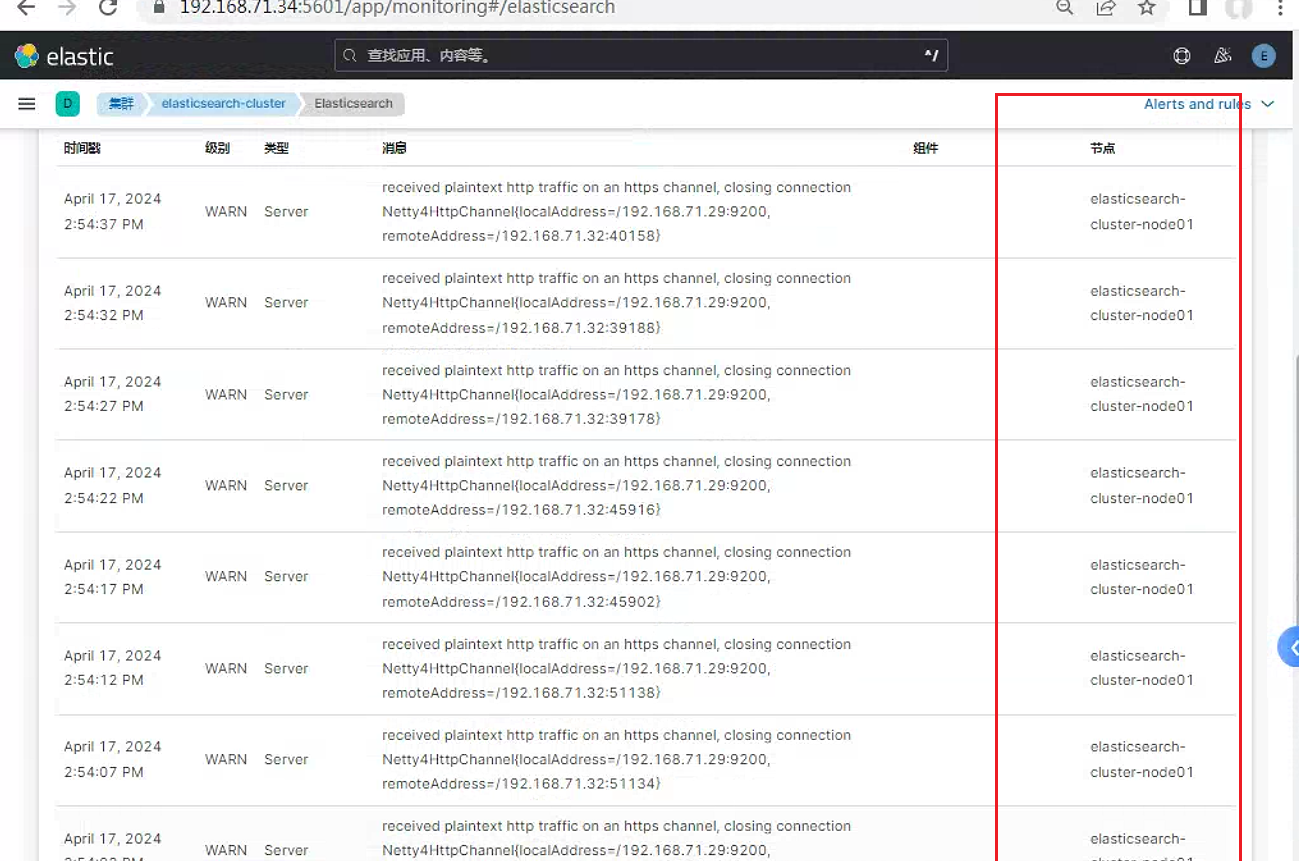
参考链接