
5-5-Elasticsearch 启动 HTTPS 访问
1. 生成p12证书
生成CA证书
root@elasticsearch01:~# /usr/share/elasticsearch/bin/elasticsearch-certutil ca This tool assists you in the generation of X.509 certificates and certificate signing requests for use with SSL/TLS in the Elastic stack. The 'ca' mode generates a new 'certificate authority' This will create a new X.509 certificate and private key that can be used to sign certificate when running in 'cert' mode. Use the 'ca-dn' option if you wish to configure the 'distinguished name' of the certificate authority By default the 'ca' mode produces a single PKCS#12 output file which holds: * The CA certificate * The CA's private key If you elect to generate PEM format certificates (the -pem option), then the output will be a zip file containing individual files for the CA certificate and private key Please enter the desired output file [elastic-stack-ca.p12]: http-elastic-ca.p12 Enter password for http-elastic-ca.p12 : root@elasticsearch01:~# /usr/share/elasticsearch/bin/elasticsearch-certutil ca This tool assists you in the generation of X.509 certificates and certificate signing requests for use with SSL/TLS in the Elastic stack. The 'ca' mode generates a new 'certificate authority' This will create a new X.509 certificate and private key that can be used to sign certificate when running in 'cert' mode. Use the 'ca-dn' option if you wish to configure the 'distinguished name' of the certificate authority By default the 'ca' mode produces a single PKCS#12 output file which holds: * The CA certificate * The CA's private key If you elect to generate PEM format certificates (the -pem option), then the output will be a zip file containing individual files for the CA certificate and private key Please enter the desired output file [elastic-stack-ca.p12]: http-elastic-ca.p12 Enter password for http-elastic-ca.p12 :在上面我们接受缺省的文件名 , 并输入一个自己熟悉的密码。我们在
Elasticsearch的安装目录下 , 我们可以看见一个生产的证书文件,这里为了测试效果, 将密码设置为88888888:root@elasticsearch01:~# ls /usr/share/elasticsearch/ bin http-elastic-ca.p12 jdk lib modules NOTICE.txt plugins README.asciidoc我们接着运行如下的命令来生成一个证书:
root@elasticsearch01:~# /usr/share/elasticsearch/bin/elasticsearch-certutil cert -ca /usr/share/elasticsearch/http-elastic-ca.p12 This tool assists you in the generation of X.509 certificates and certificate signing requests for use with SSL/TLS in the Elastic stack. The 'cert' mode generates X.509 certificate and private keys. * By default, this generates a single certificate and key for use on a single instance. * The '-multiple' option will prompt you to enter details for multiple instances and will generate a certificate and key for each one * The '-in' option allows for the certificate generation to be automated by describing the details of each instance in a YAML file * An instance is any piece of the Elastic Stack that requires an SSL certificate. Depending on your configuration, Elasticsearch, Logstash, Kibana, and Beats may all require a certificate and private key. * The minimum required value for each instance is a name. This can simply be the hostname, which will be used as the Common Name of the certificate. A full distinguished name may also be used. * A filename value may be required for each instance. This is necessary when the name would result in an invalid file or directory name. The name provided here is used as the directory name (within the zip) and the prefix for the key and certificate files. The filename is required if you are prompted and the name is not displayed in the prompt. * IP addresses and DNS names are optional. Multiple values can be specified as a comma separated string. If no IP addresses or DNS names are provided, you may disable hostname verification in your SSL configuration. * All certificates generated by this tool will be signed by a certificate authority (CA) unless the --self-signed command line option is specified. The tool can automatically generate a new CA for you, or you can provide your own with the --ca or --ca-cert command line options. By default the 'cert' mode produces a single PKCS#12 output file which holds: * The instance certificate * The private key for the instance certificate * The CA certificate If you specify any of the following options: * -pem (PEM formatted output) * -multiple (generate multiple certificates) * -in (generate certificates from an input file) then the output will be be a zip file containing individual certificate/key files Enter password for CA (/usr/share/elasticsearch/http-elastic-ca.p12) : #指定CA证书的密码: 88888888 Please enter the desired output file [elastic-certificates.p12]: http-elastic-certificates.p12 #指定输出的证书文件名称 Enter password for http-elastic-certificates.p12 : #指定生成证书的密码,这里为了验证密码效果, 设置密码为66666666 Certificates written to /usr/share/elasticsearch/http-elastic-certificates.p12 This file should be properly secured as it contains the private key for your instance. This file is a self contained file and can be copied and used 'as is' For each Elastic product that you wish to configure, you should copy this '.p12' file to the relevant configuration directory and then follow the SSL configuration instructions in the product guide. For client applications, you may only need to copy the CA certificate and configure the client to trust this certificate. 上面的命令将使用我们的
CA来生成一个证书elastic-certificates.p12:root@elasticsearch01:~# ls /usr/share/elasticsearch/ bin elastic-certificates.p12 elastic-stack-ca.p12 jdk lib modules NOTICE.txt plugins README.asciidoc root@elasticsearch01:~# ll /usr/share/elasticsearch/ total 2248 drwxr-xr-x 7 root root 4096 Apr 16 14:04 ./ drwxr-xr-x 116 root root 4096 Apr 13 15:01 ../ drwxr-xr-x 2 root root 4096 Apr 6 14:57 bin/ -rw------- 1 root root 3596 Apr 16 14:04 elastic-certificates.p12 -rw------- 1 root root 2672 Apr 16 13:59 elastic-stack-ca.p12 drwxr-xr-x 8 root root 4096 Apr 6 14:57 jdk/ drwxr-xr-x 5 root root 4096 Apr 6 14:57 lib/ drwxr-xr-x 82 root root 4096 Apr 6 14:57 modules/ -rw-r--r-- 1 root root 2251484 Mar 29 10:07 NOTICE.txt drwxr-xr-x 2 root root 4096 Mar 29 10:13 plugins/ -rw-r--r-- 1 root root 9070 Mar 29 10:04 README.asciidoc 我们把上面的
elastic-certificates.p12证书拷入到Elasticsearch安装目录下的config子目录。root@elasticsearch01:~# ls /usr/share/elasticsearch/ bin http-elastic-certificates.p12 lib NOTICE.txt README.asciidoc http-elastic-ca.p12 jdk modules plugins root@elasticsearch01:~# ll /usr/share/elasticsearch/ total 2256 drwxr-xr-x 7 root root 4096 Apr 16 14:25 ./ drwxr-xr-x 116 root root 4096 Apr 13 15:01 ../ drwxr-xr-x 2 root root 4096 Apr 6 14:57 bin/ -rw------- 1 root root 2672 Apr 16 14:24 http-elastic-ca.p12 -rw------- 1 root root 3596 Apr 16 14:25 http-elastic-certificates.p12 drwxr-xr-x 8 root root 4096 Apr 6 14:57 jdk/ drwxr-xr-x 5 root root 4096 Apr 6 14:57 lib/ drwxr-xr-x 82 root root 4096 Apr 6 14:57 modules/ -rw-r--r-- 1 root root 2251484 Mar 29 10:07 NOTICE.txt drwxr-xr-x 2 root root 4096 Mar 29 10:13 plugins/ -rw-r--r-- 1 root root 9070 Mar 29 10:04 README.asciidoc 我们把上面的
http-elastic-certificates.p12证书拷入到Elasticsearch安装目录下的/etc/elasticsearch/certs子目录。root@elasticsearch01:~# cp /usr/share/elasticsearch/http-elastic-c* /etc/elasticsearch/certs/ root@elasticsearch01:~# ls /etc/elasticsearch/certs/ http_ca.crt http-elastic-ca.p12 http-elastic-certificates.p12 http.p12 transport.p12我们使用如下的命令:
#导出公钥信息 root@elasticsearch01:~# openssl pkcs12 -in /etc/elasticsearch/certs/http-elastic-certificates.p12 -out newfile.crt.pem -clcerts -nokeys Enter Import Password: #输入66666666 root@elasticsearch01:~# ls newfile.crt.pem snap root@elasticsearch01:~# cat newfile.crt.pem Bag Attributes friendlyName: instance localKeyID: 54 69 6D 65 20 31 37 31 33 32 37 37 35 31 36 36 37 30 subject=CN = instance issuer=CN = Elastic Certificate Tool Autogenerated CA -----BEGIN CERTIFICATE----- MIIDIjCCAgqgAwIBAgIUWWabuwx2oOa+nw0IyC55Ngenr6swDQYJKoZIhvcNAQEL BQAwNDEyMDAGA1UEAxMpRWxhc3RpYyBDZXJ0aWZpY2F0ZSBUb29sIEF1dG9nZW5l cmF0ZWQgQ0EwHhcNMjQwNDE2MTQyNTEyWhcNMjcwNDE2MTQyNTEyWjATMREwDwYD VQQDEwhpbnN0YW5jZTCCASIwDQYJKoZIhvcNAQEBBQADggEPADCCAQoCggEBALu/ M3NtdV0oO9+p3wsXjQmcG93Y2RO8+g36YtZLiusrJ+OmNycvbgNyBLsUuNs08Qjc c3QsCGMqWK8xN/Fquzk+p2SPbUWzuO/lYCWRIuM9XvjC9VjCKJeX7WFm3TeziSyz bIfXKfos66Z65UjVQwBGbWLhQA4qjmvJ7oQJBB8WTgMtpnGrH9obEW/+GOgWFZc3 abqKnNVW7tmty3rgDFsPY/l2JSpXhzuB0lO6Nb4bFcDgJ+WZ+JyWxv4diC5zMIv0 MGryT3deTIGjv8ip4Z3acSmlTt5M6XX+GVt2y8WF4+jXfvC16XLamv1Di1ek1m9c TFevDQ/cn0zfIzqcQ38CAwEAAaNNMEswHQYDVR0OBBYEFKlf/3L7GN28eZA8p+C+ A6EHGMMyMB8GA1UdIwQYMBaAFPZzIts1tlVc5TyuKJbSzEbhKH2pMAkGA1UdEwQC MAAwDQYJKoZIhvcNAQELBQADggEBACqq44Ytjmai8sNQI0PeUFe34UYf2XELCbXJ htlUrQ9nNGXfAJh76ljhmo0rmTprhWp16QziHlhK65ICYha7Pd26flw+om9E10sW um/grEEAtdCyWFEKEyit0nOnBDhuRlx8aAOhzh9WXZvhMjy4Gxfotjio2nlL7rfZ XyJ5xEZHSncJ7twM5uRiXhP4mFgmKvAXXUSbTFuYLlwfvGjBv5pYaqZ9mbrKU7TL bthehnM8nMx3xWYagv/rQOzF49yJdM0cDs8THqhXVwlD6mxqoR5uH5NBNtDN083M 4/+7WRG3V33n5ZL8EuWg0BBrSLpMg6FaiHLIFtmpADFQsxVB8jQ= -----END CERTIFICATE----- 它将生成一个叫做
newfile.crt.pem的文件。我们把这个文件拷入到Kibana安装目录下的config子目录中:
2. 配置elasticsearch
我们接下来配置在
Elasticsearch中的/etc/elasticsearch/elasticsearch.yml# Enable encryption for HTTP API client connections, such as Kibana, Logstash, and Agents xpack.security.http.ssl: enabled: true keystore.path: certs/http-elastic-certificates.p12 truststore.path: certs/http-elastic-certificates.p12 xpack.security.authc.api_key.enabled: true修改证书权限
root@elasticsearch01:~# chown root:elasticsearch /etc/elasticsearch/certs/http-elastic-c*
root@elasticsearch01:~# chmod 660 /etc/elasticsearch/certs/http-elastic-c*
root@elasticsearch01:~# ll /etc/elasticsearch/certs/http-elastic-c*
-rw-rw---- 1 root elasticsearch 2672 Apr 16 14:29 /etc/elasticsearch/certs/http-elastic-ca.p12
-rw-rw---- 1 root elasticsearch 3596 Apr 16 14:29 /etc/elasticsearch/certs/http-elastic-certificates.p12
如果此时直接开启
elasticsearch会提示因为证书有秘密, 启动失败Apr 16 14:50:13 elasticsearch01 systemd-entrypoint[19418]: [2024-04-16T14:50:13,818][ERROR][o.e.b.Elasticsearch ] [elasticsearch-cluster-node01] fatal exception while booting Elasticsearch org.elasticsearch.ElasticsearchSecurityException: failed to load SSL configuration [xpack.security.http.ssl] - cannot read configured [PKCS12] keystore (as a truststore) [/etc/elasticsearch/certs/http-elastic-certificates.p12] - this is usually caused by an incorrect password; (no password was provided) Apr 16 15:03:29 elasticsearch01 systemd-entrypoint[19893]: [2024-04-16T15:03:29,438][ERROR][o.e.b.Elasticsearch ] [elasticsearch-cluster-node01] fatal exception while booting Elasticsearch org.elasticsearch.ElasticsearchSecurityException: failed to load SSL configuration [xpack.security.http.ssl] - cannot read configured [PKCS12] keystore [/etc/elasticsearch/certs/http-elastic-certificates.p12] - this is usually caused by an incorrect password在
elasticsearch中设置http私钥文件密码root@elasticsearch01:~# /usr/share/elasticsearch/bin/elasticsearch-keystore add xpack.security.http.ssl.keystore.secure_password Setting xpack.security.http.ssl.keystore.secure_password already exists. Overwrite? [y/N]y Enter value for xpack.security.http.ssl.keystore.secure_password: root@elasticsearch01:~# /usr/share/elasticsearch/bin/elasticsearch-keystore add xpack.security.http.ssl.truststore.secure_password Enter value for xpack.security.http.ssl.truststore.secure_password: #查看设置的密码 root@elasticsearch01:~# /usr/share/elasticsearch/bin/elasticsearch-keystore show xpack.security.http.ssl.keystore.secure_password 66666666 root@elasticsearch01:~# /usr/share/elasticsearch/bin/elasticsearch-keystore show xpack.security.http.ssl.keystore.secure_password 66666666将
http-elastic-certificates.p12证书文件拷贝到elasticsearch集群中那个的其他两个节点中。root@elasticsearch01:~# scp /etc/elasticsearch/certs/http-elastic-c* root@192.168.71.30:/etc/elasticsearch/certs root@192.168.71.30's password: http-elastic-ca.p12 100% 2672 2.2MB/s 00:00 http-elastic-certificates.p12 100% 3596 2.1MB/s 00:00 root@elasticsearch01:~# scp /etc/elasticsearch/certs/http-elastic-c* root@192.168.71.31:/etc/elasticsearch/certs root@192.168.71.31's password: http-elastic-ca.p12 100% 2672 2.1MB/s 00:00 http-elastic-certificates.p12 100% 3596 3.4MB/s 00:00按照上面步骤, 修改其他两个节点的
elasticsearch配置文件。修改集群中证书权限root@elasticsearch02:~# chown root:elasticsearch /etc/elasticsearch/certs/http-elastic-c* root@elasticsearch02:~# chmod 660 /etc/elasticsearch/certs/http-elastic-c* root@elasticsearch02:~# ll /etc/elasticsearch/certs/http-elastic-c* -rw-rw---- 1 root elasticsearch 2672 Apr 16 15:22 /etc/elasticsearch/certs/http-elastic-ca.p12 -rw-rw---- 1 root elasticsearch 3596 Apr 16 15:22 /etc/elasticsearch/certs/http-elastic-certificates.p12 root@elasticsearch02:~# cat /etc/elasticsearch/elasticsearch.yml # Enable encryption for HTTP API client connections, such as Kibana, Logstash, and Agents xpack.security.http.ssl: enabled: true keystore.path: certs/http-elastic-certificates.p12 truststore.path: certs/http-elastic-certificates.p12 xpack.security.authc.api_key.enabled: true将密码文件拷贝到其他两个节点中
root@elasticsearch01:~# scp /etc/elasticsearch/elasticsearch.keystore root@192.168.71.30:/etc/elasticsearch/
root@192.168.71.30's password:
elasticsearch.keystore                                                                                      100%  592   340.2KB/s   00:00
root@elasticsearch01:~# scp /etc/elasticsearch/elasticsearch.keystore root@192.168.71.31:/etc/elasticsearch/
root@192.168.71.31's password:
elasticsearch.keystore                                                                                      100%  592   174.5KB/s   00:00
开启其他两个节点的
elasticsearch服务这样我们的
Elasticsearch已经成功地运行于https模式。我们在chrome中输入地址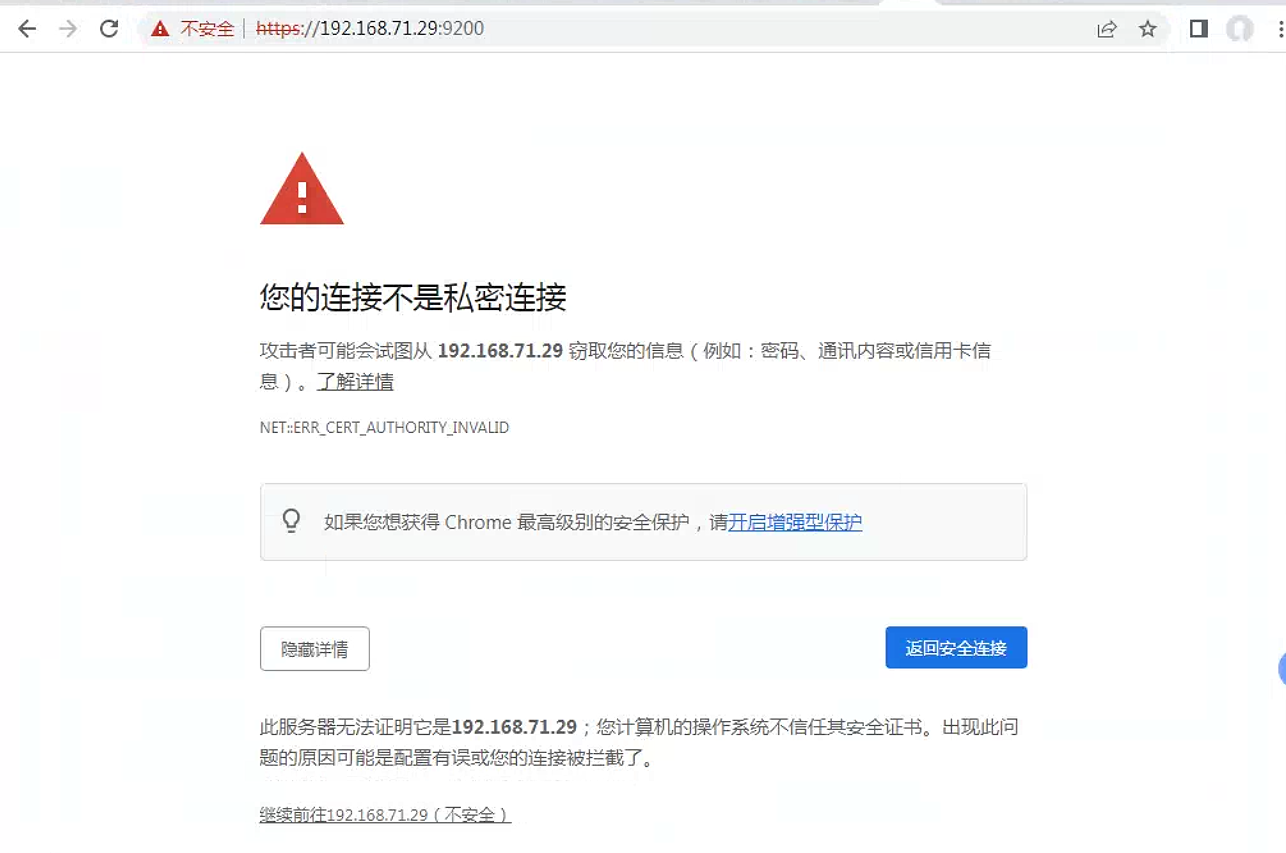
显然我们不可以再像以前那样访问本地
9200口的地址了。当上面的页面出现后 , 我们打入如下的字符串(在chrome为当前窗口的情况下):
3. 配置kibana
为了能够使我们的Kibana能够顺利地访问带有 https 的 Elasticsearch。我们也需要做相应的配置。我们打开 config/kibana.yml。添加如下的设置:
将生成的
newfile.crt.pem文件拷贝至kibana服务器中修改证书权限
root@kibana:~# chown root:kibana /etc/kibana/newfile.crt.pem
root@kibana:~# chmod 660 /etc/kibana/newfile.crt.pem
修改配置文件
/etc/kibana/kibana.ymlelasticsearch.hosts: ["https://192.168.71.29:9200"] elasticsearch.ssl.certificateAuthorities: ["/etc/kibana/newfile.crt.pem"] elasticsearch.ssl.verificationMode: none #若要忽略SSL证书的有效性 , 请将此设置的值更改为“none”。重启kibana服务
4. 把Beats数据传入到https的Elasticsearch中
由于引入了https , 那么我们该如何把我们的数据传入到Elasticsearch中呢?在导入数据时 , 我们必须把证书配置到 beats 的配置文件中。我们就以filebeat为例。我们在Elasticsearch的安装目录中
使用命令生成CA的公钥证书文件
root@elasticsearch01:~# openssl pkcs12 -in /etc/elasticsearch/certs/http-elastic-ca.p12 -clcerts -nokeys -out ca.crt
Enter Import Password:
root@elasticsearch01:~# ls
ca.crt    instance    snap
将CA的公钥证书拷贝到
filebeat服务器中root@nginx01:~# cp ca.crt /etc/filebeat/ root@nginx01:~# ll /etc/filebeat/ total 3868 drwxr-xr-x 3 root root 4096 Apr 17 01:07 ./ drwxr-xr-x 104 root root 4096 Apr 14 06:24 ../ -rw------- 1 root root 1416 Apr 17 01:07 ca.crt -rw-r--r-- 1 root root 3749426 Apr 2 18:05 fields.yml -rw-r--r-- 1 root root 183210 Apr 2 18:05 filebeat.reference.yml -rw------- 1 root root 7871 Apr 17 01:06 filebeat.yml drwxr-xr-x 2 root root 4096 Apr 13 17:48 modules.d/修改
filebeat.yml如下output.elasticsearch: # Array of hosts to connect to. hosts: ["192.168.71.29:9200","192.168.71.30:9200","192.168.71.31:9200"] # Performance preset - one of "balanced", "throughput", "scale", # "latency", or "custom". preset: balanced #index: "filebeat-71-37-elasticsearch" # Protocol - either `http` (default) or `https`. protocol: "https" # Authentication credentials - either API key or username/password. #api_key: "id:api_key" username: "elastic" password: "123456" ssl.certificate_authorities: ["/etc/filebeat/ca.crt"] ssl.verification_mode: none之后直接启动
filebeat服务即可。这样就已经配置成功了
参考链接
Elastic:为 Elasticsearch 启动 HTTPS 访问_elasticsearch 8.12.0 ssl-CSDN博客