2-KVM基础
1. KVM基础
KVM 是Kernel-based Virtual Machine的简称 ,是一个开源的系统虚拟化模块, 自Linux 2.6.20之后集成在Linux的各个主要发行版本中 , KVM目前已成为学术界的主流 VMM (virtual machine monitor , 虚拟机监视器, 也称为hypervisor)之一。 目前仅支持x86_64的系统环境。仅支持借助硬件辅助虚拟化做完全虚拟化 , 这个进对于平台 , 但是如果是IO虚拟化 , 还是可以实现版虚拟化。
KVM(基于内核的虚拟机)是针对Linux的完全虚拟化解决方案 , 它在x86硬件上包含虚拟化扩展(Intel VT或AMDV) 。 它由提供核心虚拟化基础架构的可加载内核模块kvm.ko和处理器特定模块kvm-intel.ko或kvm-amd.ko组 成。
KVM 是一种硬件辅助的虚拟化技术,支持 Intel VT-x 和AMD-v 技术 , 怎么知道 CPU 是否支持 KVM 虚拟化呢?可以通过如下命令查看 :
# grep -E '(vmx|svm)' /proc/cpuinfo如果输出是 vmx或svm , 则表明当前CPU支持KVM , Intel 是vmx, AMD 是svm。
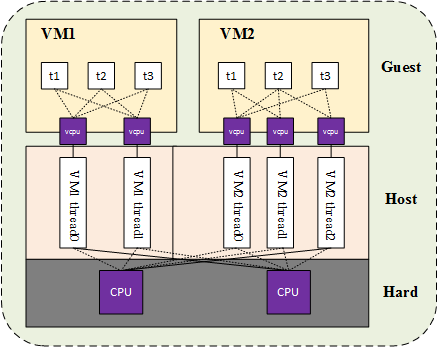
从本质上看, 一个KVM 虚拟机对应 Host 上的一个 qemu-kvm 进程 , 它和其他 Linux 进程一样被调度 , 而qemu-kvm 进程中的一个线程就对应虚拟机的虚拟CPU(vCPU),虚拟机中的任务线程就被 vCPU 所调度。
比如下面这个例子, Host机有两个物理CPU, 上面起了两个虚拟机 VM1 和 VM2, VM1 有两个 vCPU, VM2 有 3 个 vCPU , VM1 和 VM2 分别有2个 和3个线程在2个物理CPU上调度。VM1 和 VM2 中又分别有 3 个任务线程在被vCPU 调度。
所以 , 这里有两级的CPU调度 , Guest OS 中的vCPU负责一级调度 , Host VMM 负责另一级调度 , 即 vCPU 在物理CPU上的调度。
我们也可以看到 , vCPU 的个数 , 可以超过物理CPU的个数 , 这个叫CPU超配 , 这正是 CPU 虚拟化的优势所在 , 这表明了虚拟机能够充分利用Host的CPU资源 , 进行相应的业务处理 , 运维人员也可以据此控制CPU 资源使用 , 达到灵活调度。
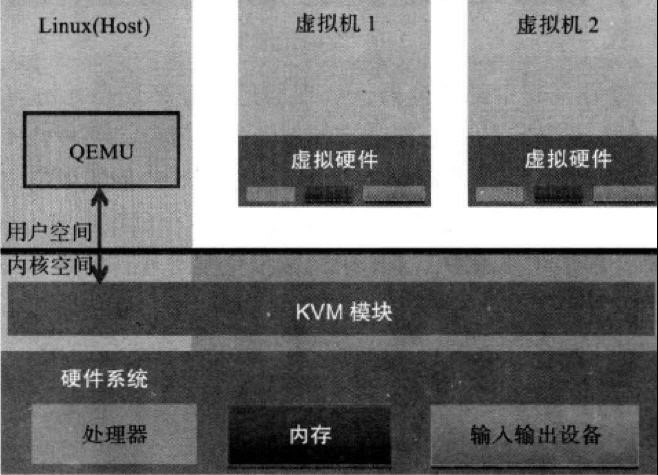
KVM的虚拟化需要硬件支持(如Intel VT技术或者AMD V技术), 是基于硬件的完全虚拟化,而Xen早期则是基于软件模拟的半虚拟化, 新版本则是支持基于硬件支持的完全虚拟化 , 但Xen本身有自己的进程调度器,存储管理模块等,所以代码较为庞大,广为流传的商业系统虚拟化软件VMware ESXI系列是Full-Virtualization , IBM文档 : http://www.ibm.com/developerworks/cn/linux/l-using-kvm/
Guest: 客户机系统, 包括CPU(vCPU)、内存、驱动(Console、网卡、I/O 设备驱动等) , 被KVM置于一种受限制的CPU模式下运行。KVM: 运行在内核空间 , 提供CPU和内存的虚级化 , 以及客户机的I/O拦截 ,Guest的部分I/O被KVM拦截后 , 交给QEMU处理。Qemu: 纯软件实现的虚拟化模拟器 , 几乎可以模拟任何硬件设备 , 我们最熟悉的就是能够模拟一台能够独立运行操作系统的虚拟机 , 虚拟机认为自己和硬件打交道 , 但其实是和Qemu模拟出来的硬件打交道 ,Qemu将这些指令转译给真正的硬件 , 正因为Qemu是纯软件实现的 , 所有的指令都要经Qemu过一手 , 性能非常低 , 所以 , 在生产环境中 , 大多数的做法都是配合KVM来完成虚拟化工作 ,KVM完成复杂及要求比较高的设备虚拟化 , 而Qemu完成像鼠标、键盘等设备的虚拟化。
kvm虚拟化的核心主要由以下两个模块组成:
kvm内核模块 :属于标准Linux内核的一部分,是一个专门提供虚拟化功能的模块,主要负责CPU和内存的虚拟机化,包括:客户机的创建、虚拟内存的分配、CPU执行模式的切换、VCPU寄存器的访问、VCPU的执行。这个软件依赖于底层硬件CPUAMD或Intel的硬件辅助虚拟化技术构建内核中的虚拟化软件 , 输出的则是基于字符模拟的字符设备文件/dev/kvm(用于在用户空间,可通过ioctl()系统调用来完成VM创建,启动等管理功能。功能:创建Vm,为Vm分配内存,读写VCPU的寄存器,向VCPU注入终端) ,运行VCPU等等通过系统调用ioctl()接口向用户空间输出。QEMU用户态工具 : 他是一个普通的Linux进程 , 为客户提供设备模拟的功能,包括模拟BIOS、PCI/PCIE总线、磁盘、网卡、显卡、声卡键盘、鼠标等。同时他通过ioctl()系统调用与内核态的KVM模块进行交互。在用户空间中如果需要创建一个虚拟机 , 或者启动虚拟机 , 需要由一个用户空间的软件 , 这个软件为qemu进程 , 工作于用户空间,主要用于实现模拟PC机的IO设备 , 由于qemu本身模拟出来的CPU内存 , 性能低 , 所以需要结合kvm一起使用 ,kvm相当于qemu的加速器。
kvm 局限性
CPU overcommit(过载) : 即KVM在给VM分配资源时,尽量避免超过宿主机的物理CPU的资源数,如 : 物理CPU有6颗,那么分配给VM的VCPU的总和应该为6,若超过,则这些VCPU将会在物理CPU间调度以实现获得CPU资源,但这将对性能造成一定影响。时间记录难以精确 : 这是因为操作系统在启动时,会读取一次硬件时钟,作为系统启动时的系统时钟,随后,
OS将通过CPU的频率来计时,如CPU的主频为2GHz,则OS会检测CPU的晶振次数若到达2G次,则认为已经过了1秒,以此来更新时钟.但在虚拟化环境中,GuestOS是不可独占CPU的,因此它统计的CPU晶振次数是不精确的,这也导致GuestOS的时钟不可能非常精确.它必须依赖与时钟服务器来同步时间。MAC地址 : VM数量特别多时,存在冲突的可能。
实时迁移 :
GuestOS的磁盘映像文件必须放在共享存储上 , 并且源和目标KVM挂载共享的位置必须一致.迁移的目标
KVM的版本必须相互兼容。CPU必须是相同的.I/O透传将不支持迁移,因为:若A端使用一个磁盘分区做为GuestOS的系统分区,就无法迁移到B端.两端的时间必须同步。
两端的网络配置必须一样,如:
A端GuestOS桥接在br0上 , 但B端没有br0就会出现错误。
性能局限性(都是相对于物理硬件而言 ) :
完全虚拟化中
CPU的MMU的性能仅7%, 半虚拟化中CPU支持EPT或RVI则性能可达97%磁盘I/O的虚拟化性能 模拟磁盘: 40%
I/O半虚拟化: 85%I/O透传技术 : 95%显卡完全虚拟化的性能: 45%,它不支持半虚拟化.
完全虚拟化的时间 : 快或慢5% , 半虚拟化可以做到精确 , 因为有辅助模块的支持。
目前在各大公有云厂商新购买的虚拟机基本运行在
KVM环境下 , 就连早期一直使用Xen的AWS也在2017年开始逐渐转换到KVM环境 , 以下是AWS基于KVM技术提供的最新示例部分性能。
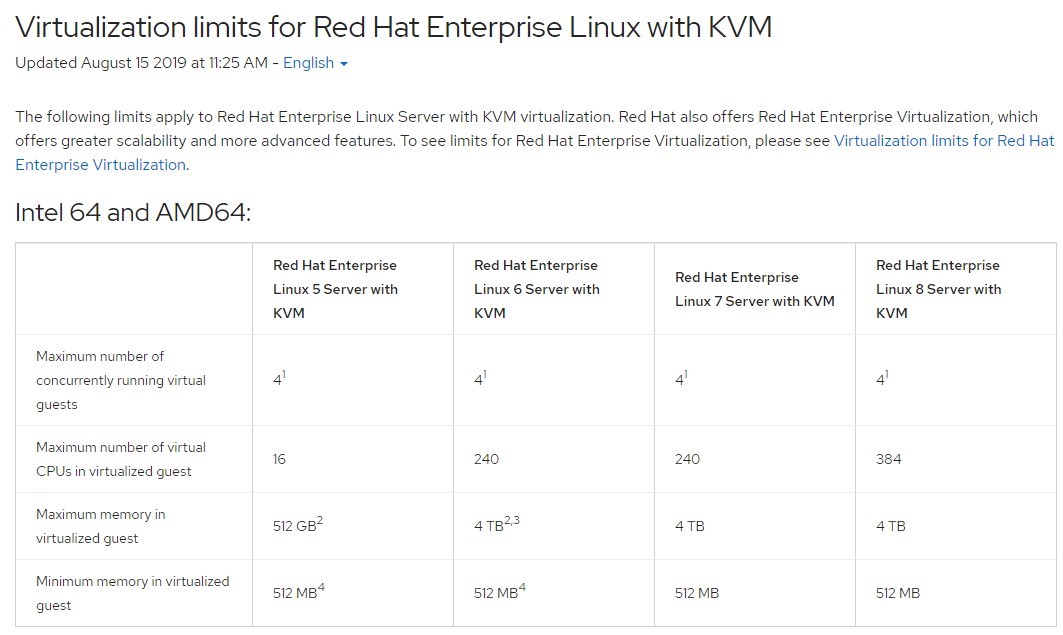
RedHat创建虚拟机数量限制
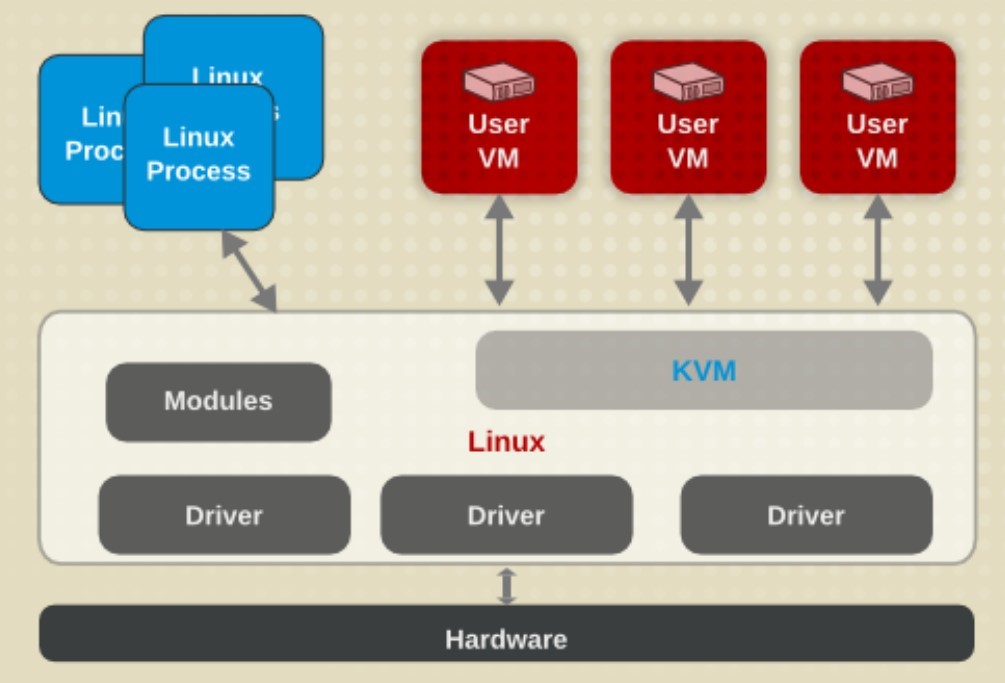
KVM结构图
相关链接:
kvm定义 : https://www.redhat.com/zh/topics/virtualization/what-is-KVM
帽基于KVM对虚拟机的最大资源支持及限制 : https://access.redhat.com/articles/rhel-kvm-limits
libvirt: https://libvirt.org/
2. 宿主机环境准备
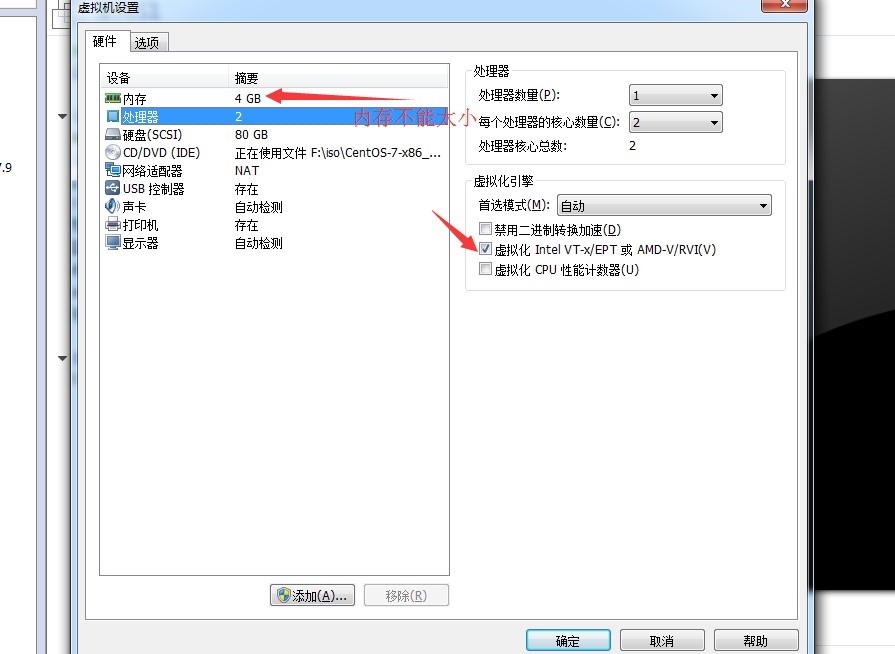
KVM需要宿主机CPU必须支持虚拟化功能 , 因此如果是在vmware workstation上使用虚拟机做宿主机 , 那么必须 要在虚拟机配置界面的处理器选项中开启虚拟机化功能。
2.1 CPU开启虚拟化
2.2 CPU指令集
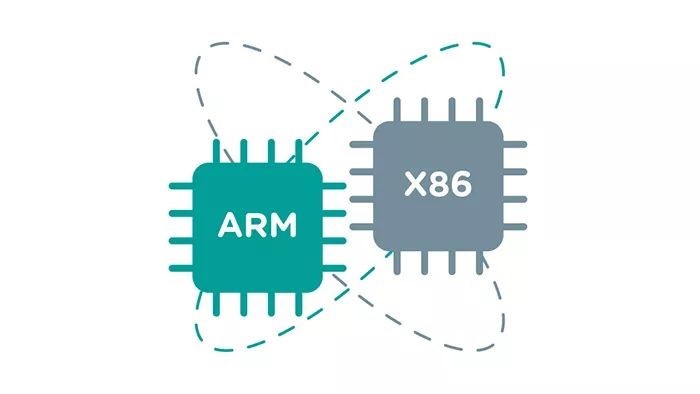
X86/x86_64架构 : 主导桌面与服务器芯片市场1968年Intel成立 , x86架构就是Intel研发的 , 并且在后来授权给AMD使用。 2003年AMD推出64位处理器 , 并授权给Intel使用。
ARM架构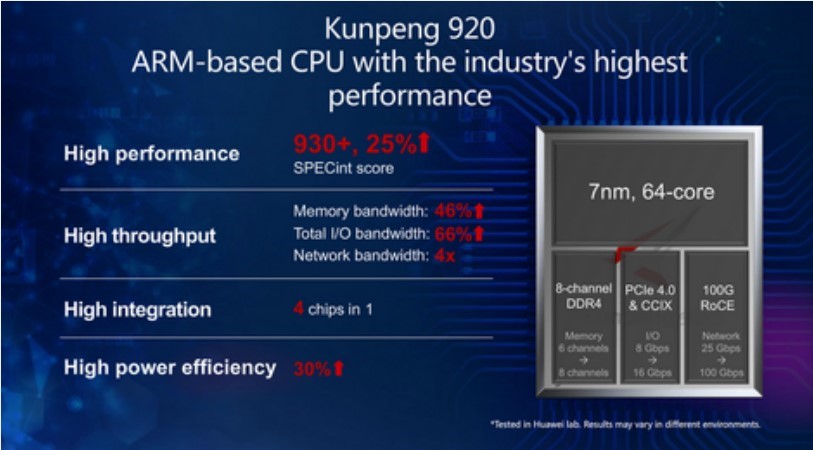
手机 : 华为 小米 三星 苹果 pad : 华为 小米 三星 苹果 机顶盒 : 各电视机顶盒 华为泰山服务器-鲲鹏系列CPUPOWER架构 : 由IBM设计 ,POWER系列微处理器在不少IBM服务器、超级计算机、小型计算机及工作站中 , 广泛使用。RISC-V架构 :当前
CPU的两大架构是CISC(复杂指令集)和RISC(精简指令集) ,x86是CISC的代表架构, 占领了95%以上的桌 面计算机和服务器市场。Arm作为RISC的一种, 在智能手机、可穿戴设备等移动处理器市场占领主要地位, 针对物联网、5G、AI新兴领域的应用 ,RISC-V和MIPS两大精简指令集架构再次登上历史舞台。RISC-V:1980年加州大学伯克利分校(Berkeley)的David Patterson(大卫·帕特森)教授主导了BerkeleyRISC项目并设计了其第一代的处理器RISC I,2010年,Krste Asanovic(克斯特·阿萨诺维奇)教授带领的团队大约 花了四年时间 , 设计和开发了一套完整的新的指令集 , 这个新的指令集叫做RISC-V,这是Berkeley从RISC I开始设计的第五代指令集架构 ,V还代表了变化(variation)和向量(vectors),RISC-V架构使用BSD开源协议给予使用者很大自由 , 允许使用者修改和重新发布开源代码 , 也允许基于开源代码开发商业软件发布和销售。MIPS是一种RISC处理器,它最早是在80年代初期由斯坦福(Stanford)大学John L. Hennessy(约翰·亨利斯)教授 领导的研究小组研制出来的,MIPS是出现最早的商业RISC架构芯片之一,2018年3月21日美国计算机协会(ACM)宣布将2017年度的图灵奖颁给了芯片界的两位大师 : 曾任斯坦福大学校长的John L. Hennessy和曾任加州大学伯克利分校教授的David A. Patterson。MIPS计算机系统公司创建于1984年 , 最初的目的是将斯坦福大学MIPS CPU小组的研究成功商业化 , 商用MIPS CPU增强了内存管理硬件 , 并于1985年末作为R2000面世 , 其后又相继推出了R3000、R4000、R10000等多款处理器。
2.3 验证开启虚拟化
[root@s1 ~]# grep -E "vmx|svm|lm" /proc/cpuinfo | wc -l
2
2.4 安装KVM工具包
Ubuntu 18.04 : https://ubuntu.com/server/docs/virtualization-libvirt
# apt install qemu-kvm virt-manager libvirt-daemon-system
# kvm-ok #验证是否支持kvm
INFO: /dev/kvm exists
KVM acceleration can be used
CentOS 7.X
# yum install qemu-kvm qemu-kvm-tools libvirt libvirt-client virt-manager virt-install # systemctl start libvirtd # systemctl enable libvirtd # ifconfig virbr0 #验证是否生成NAT网卡virbr0 virbr0: flags=4099<UP,BROADCAST,MULTICAST> mtu 1500 inet 192.168.122.1 netmask 255.255.255.0 broadcast 192.168.122.255 ether 52:54:00:89:c5:75 txqueuelen 1000 (Ethernet) RX packets 0 bytes 0 (0.0 B) RX errors 0 dropped 0 overruns 0 frame 0 TX packets 0 bytes 0 (0.0 B) TX errors 0 dropped 0 overruns 0 carrier 0 collisions 0 # grep "192.168.122.1" /etc/libvirt/ -R /etc/libvirt/qemu/networks/autostart/default.xml: <ip address='192.168.122.1' netmask='255.255.255.0'> /etc/libvirt/qemu/networks/default.xml: <ip address='192.168.122.1' netmask='255.255.255.0'>
3. 创建虚拟机
KVM管理工具
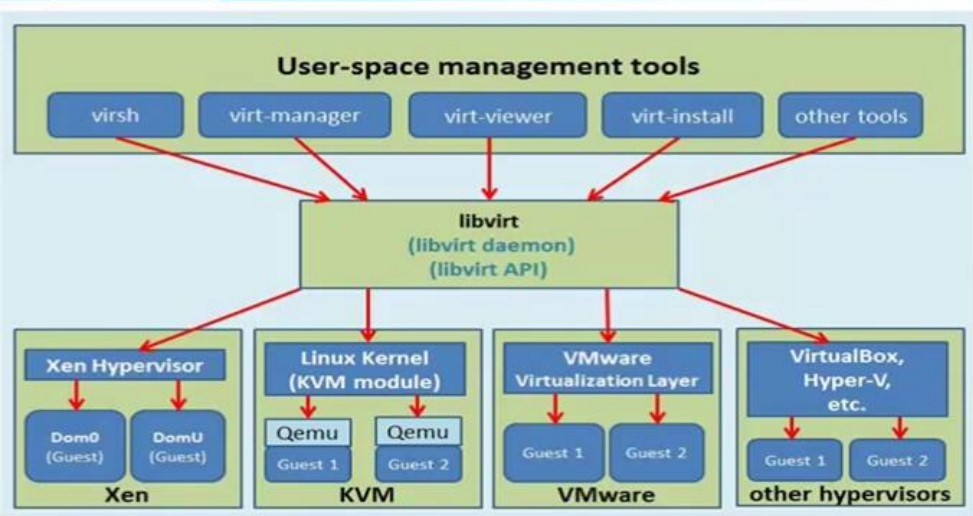
libvirt使用最多的KVM虚拟化管理工具和应用程序接口 , 即通过libvirt调用KVM创建虚拟机 ,libvirt是KVM通用的访问API, 其不但能管理KVM, 还能管理VMware、Xen、Hyper-V、virtualBox等虚拟化方案。virsh是一个常用的管理KVM虚拟化的命令行工具 , 常用语管理运行在单个宿主机上的虚拟机 ,virsh是一个使用C语言编写调用libvirt API的虚拟化管理命令行工具。virt-managervirt-manager是一个虚拟化管理图形软件 , 其底层也是调用libvirt API来完成对虚拟机的操作 , 包括虚拟机的创建、删除、启动、停止以及一些简单的监控功能等。openstackopenstack是一个开源的虚拟化编排工具 , 常用于构建大规模的虚拟化环境 , 用语管理成千上万虚拟机的创建、启动、删除等整个生命周期
libvirt结构图
3.1 创建磁盘
# ll /var/lib/libvirt/images/ #默认保存虚拟机磁盘的路径
total 0
#创建一个格式为raw大小为10G的裸磁盘
# qemu-img create -f raw /var/lib/libvirt/images/CentOS-7-x86_64.raw 10G
Formatting '/var/lib/libvirt/images/CentOS-7-x86_64.raw', fmt=raw size=10737418240
# ll -h /var/lib/libvirt/images/CentOS-7-x86_64.raw
-rw-r--r-- 1 root root 10G Jun 15 2019 /var/lib/libvirt/images/CentOS-7-x86_64.raw
#创建一个格式为raw大小为10G的稀疏格式磁盘
# qemu-img create -f qcow2 /var/lib/libvirt/images/centos.qcow2 10G
Formatting '/var/lib/libvirt/images/centos.qcow2', fmt=qcow2 size=10737418240
encryption=off cluster_size=65536 lazy_refcounts=off
# ll -h /var/lib/libvirt/images/centos.qcow2
-rw-r--r-- 1 root root 193K Jun 14 16:36 /var/lib/libvirt/images/centos.qcow23.2 virsh-install命令使用帮助
root@xiong:~# virt-install --help
usage: virt-install --name NAME --memory MB STORAGE INSTALL [options]
Create a new virtual machine from specified install media.
optional arguments:
-h, --help show this help message and exit
--version show program's version number and exit
--connect URI Connect to hypervisor with libvirt URI
General Options:
-n NAME, --name NAME Name of the guest instance
--memory MEMORY Configure guest memory allocation. Ex:
--memory 1024 (in MiB)
--memory 512,maxmemory=1024
--memory 512,maxmemory=1024,hotplugmemorymax=2048,hotplugmemoryslots=2
--vcpus VCPUS Number of vcpus to configure for your guest. Ex:
--vcpus 5
--vcpus 5,maxcpus=10,cpuset=1-4,6,8
--vcpus sockets=2,cores=4,threads=2,
--cpu CPU CPU model and features. Ex:
--cpu coreduo,+x2apic
--cpu host-passthrough
--cpu host
--metadata METADATA Configure guest metadata. Ex:
--metadata name=foo,title="My pretty title",uuid=...
--metadata description="My nice long description"
Installation Method Options:
--cdrom CDROM CD-ROM installation media
-l LOCATION, --location LOCATION
Installation source (eg, nfs:host:/path,
http://host/path, ftp://host/path)
--pxe Boot from the network using the PXE protocol
--import Build guest around an existing disk image
--livecd Treat the CD-ROM media as a Live CD
-x EXTRA_ARGS, --extra-args EXTRA_ARGS
Additional arguments to pass to the install kernel
booted from --location
--initrd-inject INITRD_INJECT
Add given file to root of initrd from --location
--os-variant DISTRO_VARIANT
The OS variant being installed guests, e.g.
'fedora18', 'rhel6', 'winxp', etc.
--boot BOOT Configure guest boot settings. Ex:
--boot hd,cdrom,menu=on
--boot init=/sbin/init (for containers)
--idmap IDMAP Enable user namespace for LXC container. Ex:
--idmap uid_start=0,uid_target=1000,uid_count=10
Device Options:
--disk DISK Specify storage with various options. Ex.
--disk size=10 (new 10GiB image in default location)
--disk /my/existing/disk,cache=none
--disk device=cdrom,bus=scsi
--disk=?
-w NETWORK, --network NETWORK
Configure a guest network interface. Ex:
--network bridge=mybr0
--network network=my_libvirt_virtual_net
--network network=mynet,model=virtio,mac=00:11...
--network none
--network help
--graphics GRAPHICS Configure guest display settings. Ex:
--graphics vnc
--graphics spice,port=5901,tlsport=5902
--graphics none
--graphics vnc,password=foobar,port=5910,keymap=ja
--controller CONTROLLER
Configure a guest controller device. Ex:
--controller type=usb,model=ich9-ehci1
--input INPUT Configure a guest input device. Ex:
--input tablet
--input keyboard,bus=usb
--serial SERIAL Configure a guest serial device
--parallel PARALLEL Configure a guest parallel device
--channel CHANNEL Configure a guest communication channel
--console CONSOLE Configure a text console connection between the guest
and host
--hostdev HOSTDEV Configure physical USB/PCI/etc host devices to be
shared with the guest
--filesystem FILESYSTEM
Pass host directory to the guest. Ex:
--filesystem /my/source/dir,/dir/in/guest
--filesystem template_name,/,type=template
--sound [SOUND] Configure guest sound device emulation
--watchdog WATCHDOG Configure a guest watchdog device
--video VIDEO Configure guest video hardware.
--smartcard SMARTCARD
Configure a guest smartcard device. Ex:
--smartcard mode=passthrough
--redirdev REDIRDEV Configure a guest redirection device. Ex:
--redirdev usb,type=tcp,server=192.168.1.1:4000
--memballoon MEMBALLOON
Configure a guest memballoon device. Ex:
--memballoon model=virtio
--tpm TPM Configure a guest TPM device. Ex:
--tpm /dev/tpm
--rng RNG Configure a guest RNG device. Ex:
--rng /dev/urandom
--panic PANIC Configure a guest panic device. Ex:
--panic default
--memdev MEMDEV Configure a guest memory device. Ex:
--memdev dimm,target_size=1024
Guest Configuration Options:
--security SECURITY Set domain security driver configuration.
--cputune CPUTUNE Tune CPU parameters for the domain process.
--numatune NUMATUNE Tune NUMA policy for the domain process.
--memtune MEMTUNE Tune memory policy for the domain process.
--blkiotune BLKIOTUNE
Tune blkio policy for the domain process.
--memorybacking MEMORYBACKING
Set memory backing policy for the domain process. Ex:
--memorybacking hugepages=on
--features FEATURES Set domain <features> XML. Ex:
--features acpi=off
--features apic=on,eoi=on
--clock CLOCK Set domain <clock> XML. Ex:
--clock offset=localtime,rtc_tickpolicy=catchup
--pm PM Configure VM power management features
--events EVENTS Configure VM lifecycle management policy
--resource RESOURCE Configure VM resource partitioning (cgroups)
--sysinfo SYSINFO Configure SMBIOS System Information. Ex:
--sysinfo emulate
--sysinfo host
--sysinfo bios_vendor=Vendor_Inc.,bios_version=1.2.3-abc,...
--sysinfo system_manufacturer=System_Corp.,system_product=Computer,...
--sysinfo baseBoard_manufacturer=Baseboard_Corp.,baseBoard_product=Motherboard,...
--qemu-commandline QEMU_COMMANDLINE
Pass arguments directly to the qemu emulator. Ex:
--qemu-commandline='-display gtk,gl=on'
--qemu-commandline env=DISPLAY=:0.1
Virtualization Platform Options:
-v, --hvm This guest should be a fully virtualized guest
-p, --paravirt This guest should be a paravirtualized guest
--container This guest should be a container guest
--virt-type HV_TYPE Hypervisor name to use (kvm, qemu, xen, ...)
--arch ARCH The CPU architecture to simulate
--machine MACHINE The machine type to emulate
Miscellaneous Options:
--autostart Have domain autostart on host boot up.
--transient Create a transient domain.
--wait WAIT Minutes to wait for install to complete.
--noautoconsole Don't automatically try to connect to the guest
console
--noreboot Don't boot guest after completing install.
--print-xml [XMLONLY]
Print the generated domain XML rather than create the
guest.
--dry-run Run through install process, but do not create devices
or define the guest.
--check CHECK Enable or disable validation checks. Example:
--check path_in_use=off
--check all=off
-q, --quiet Suppress non-error output
-d, --debug Print debugging information
Use '--option=?' or '--option help' to see available suboptions
See man page for examples and full option syntax.
3.3 创建NAT网络虚拟机
创建一台虚拟机 , 并使用默认的NAT网络 , 可以使虚拟机连接外网。
上传镜像并安装
Centos 7.X虚拟机# ll /usr/local/src/CentOS-7-x86_64-Minimal-1908.iso #提前上传安装镜像 -rw-r--r-- 1 root root 987758592 Nov 20 12:03 /usr/local/src/CentOS-7-x86_64-Minimal- 1908.iso #qemu-img create -f qcow2 /var/lib/libvirt/images/centos.qcow2 10G #创建qcow2格式磁盘 # 创建默认网络虚拟机 # virt-install --virt-type kvm --name centos7 --ram 1024 --vcpus 1 --cdrom=/usr/local/src/CentOS-7-x86_64-Minimal-1908.iso --disk path=/var/lib/libvirt/images/centos.qcow2 --network network=default --graphics vnc,listen=0.0.0.0 --noautoconsole
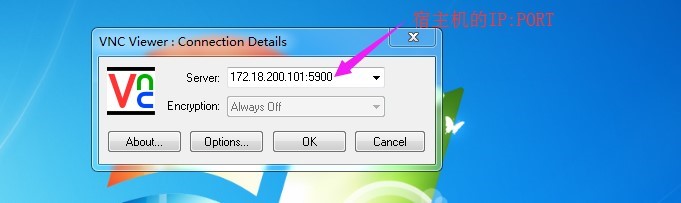
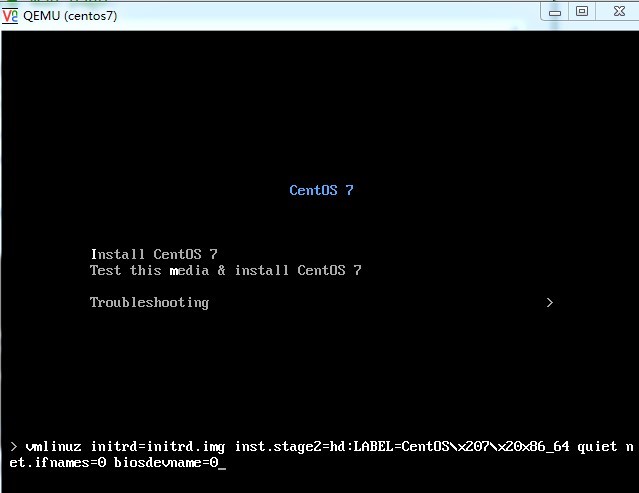
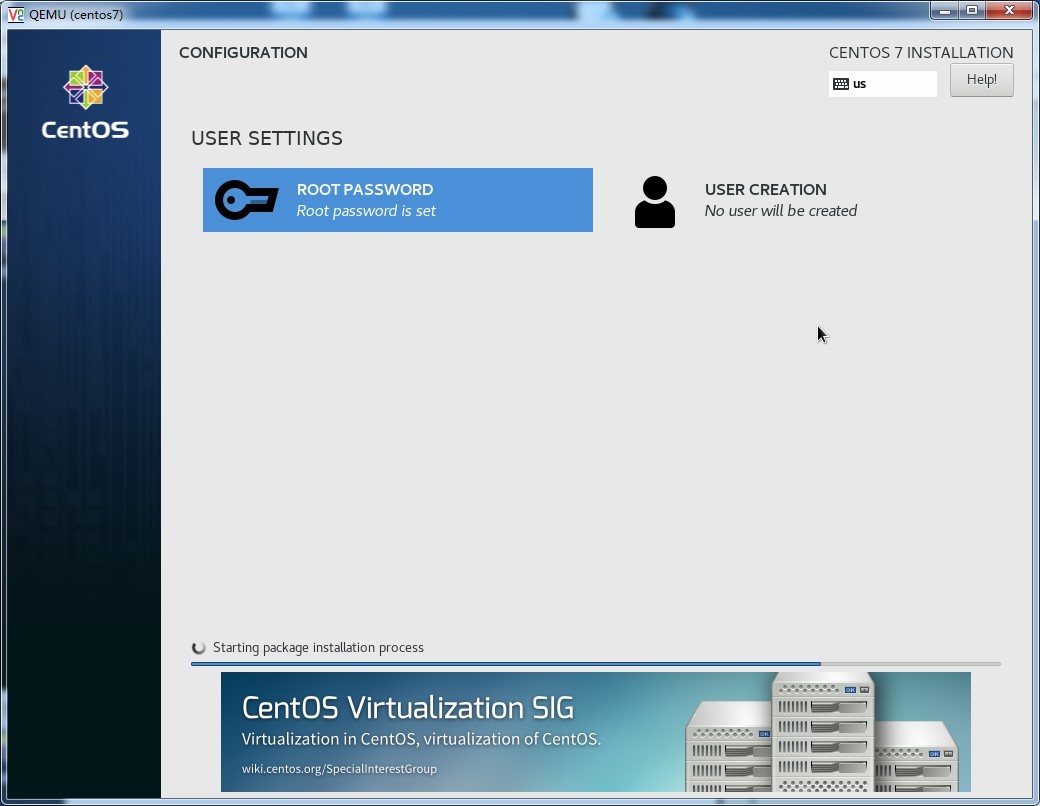
通过VNC客户端连并安装虚拟机
开始安装
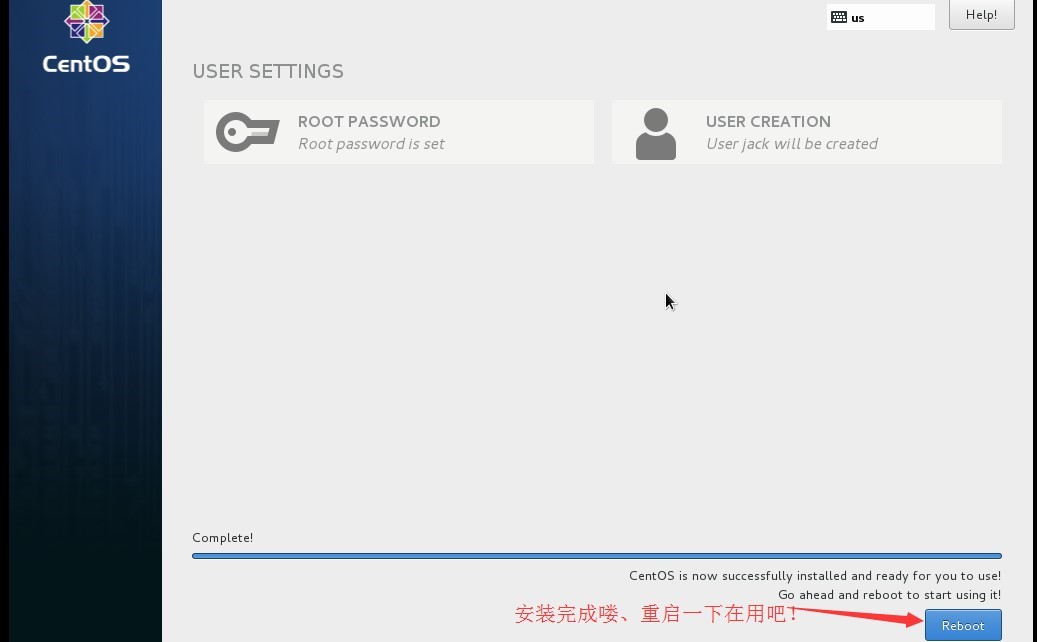
[root@s1 ~]# virsh list --all #第一次需要手动开启虚拟机
Id Name State
----------------------------------------------------
- centos7 shut off
[root@s1 ~]# virsh start centos7
Domain centos7 started
登录到虚拟机
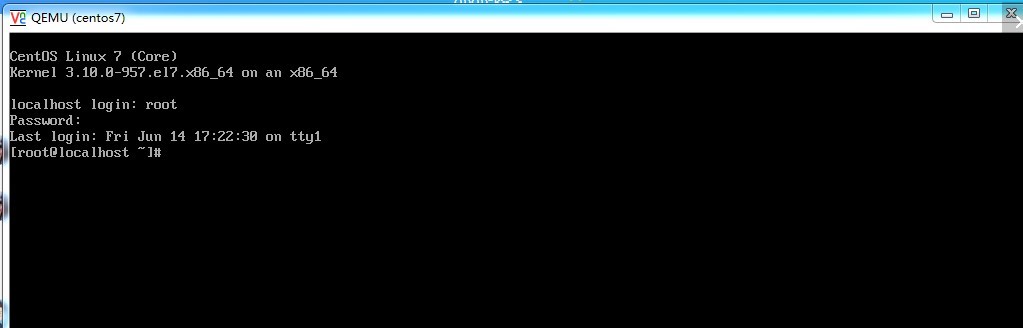
通过
virt-manager管理虚拟机[root@s1 ~]# virt-manager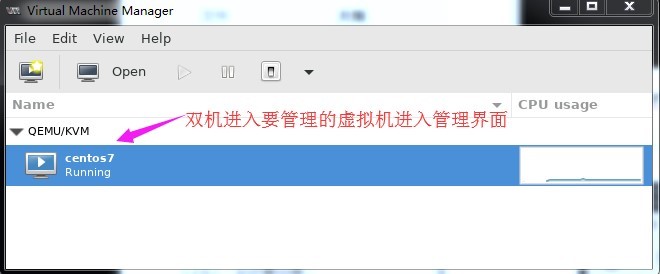
虚拟机查看详情
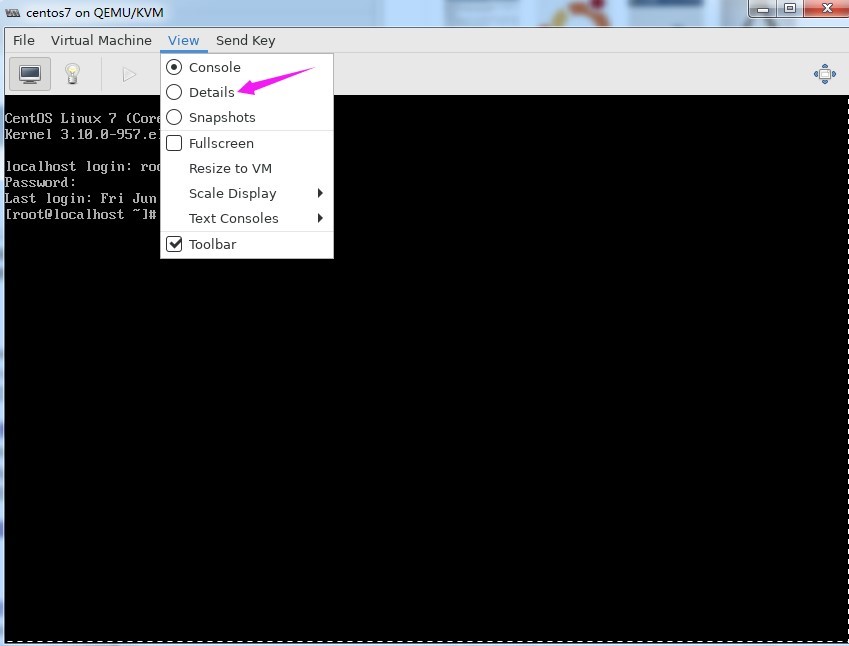
配置虚拟机网卡
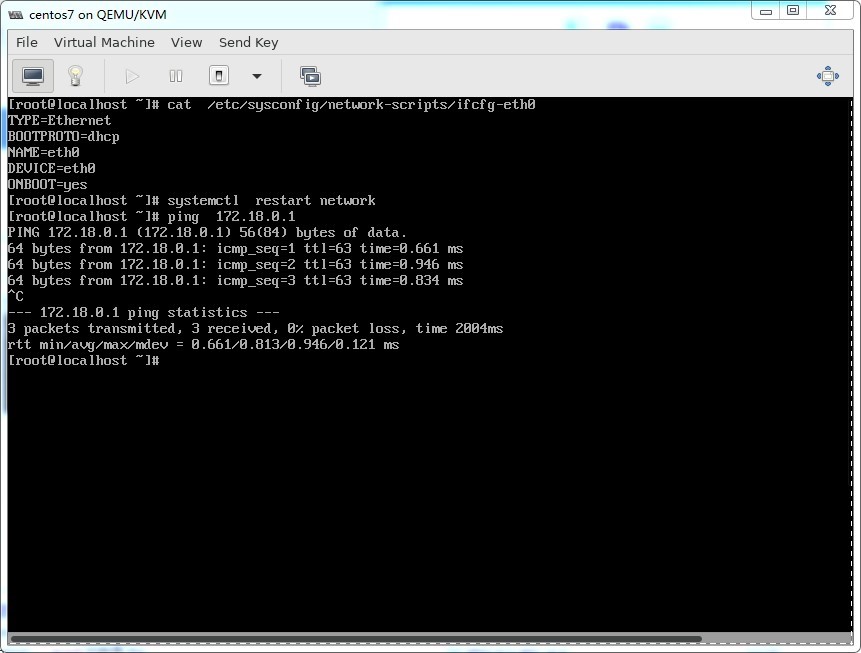
验证
IP地址安装
net-tools命令 , 并查看本机的当前IP地址是多少 , 目前自动获取到的IP地址是NAT分配的192.168.122.x地址段 , 此ip地址可以从出外网访问但是无法从外网主从访问到此虚拟机上的相关服务。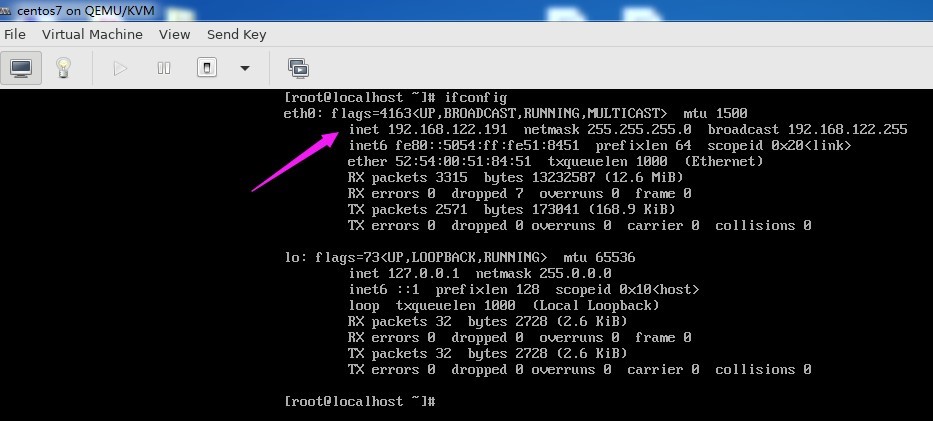
在宿主机验证虚拟机进程
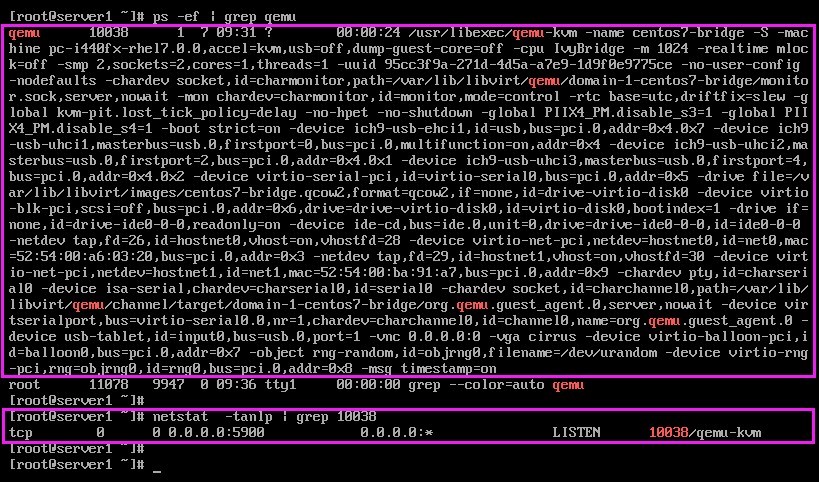
3.4 创建bridge网络虚拟机
桥接网络可以让运行在宿主机上的虚拟机使用和宿主机同网段IP , 并且可以从外部直接访问到虚拟机 , 目前企业中 大部分场景都使用桥接网络。
创建
br0桥接网卡Ubuntu 18.04创建桥接网卡 :# cat /etc/netplan/01-netcfg.yaml # This file describes the network interfaces available on your system # For more information, see netplan(5). network: version: 2 renderer: networkd ethernets: eth0: dhcp4: no dhcp6: no bridges: br0: dhcp4: no dhcp6: no addresses: [172.18.0.20/16] gateway4: 172.18.0.1 nameservers: addresses: [223.6.6.6] interfaces: - eth0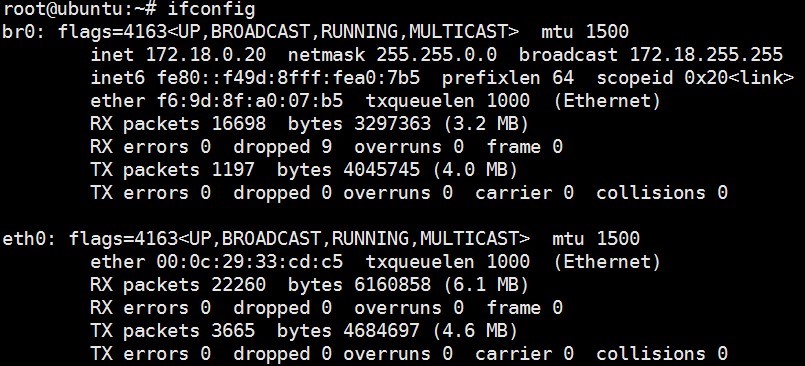
Centos 7.X创建桥接网卡[root@s1 src]服务器远程连接不上 # pwd /etc/sysconfig/network-scripts # vim ifcfg-br0 TYPE=Bridge BOOTPROTO=static NAME=br0 DEVICE=br0 ONBOOT=yes IPADDR=172.18.200.101 NETMASK=255.255.0.0 GATEWAY=172.18.0.1 DNS1=172.18.0.1 # vim ifcfg-eth0 TYPE=Ethernet BOOTPROTO=static NAME=eth0 DEVICE=eth0 ONBOOT=yes BRIDGE=br0 # systemctl restart network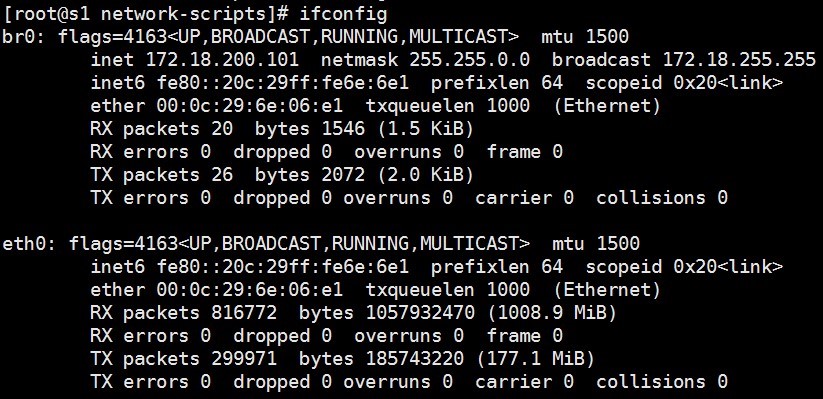
上传镜像并安装虚拟机
# ll /usr/local/src/CentOS-7-x86_64-Minimal-1908.iso
-rw-r--r-- 1 libvirt-qemu kvm 987758592 Nov 20 12:03 /usr/local/src/CentOS-7-x86_64-
Minimal-1908.iso

#创建系统磁盘 :
# qemu-img create -f qcow2 /var/lib/libvirt/images/centos7-bridge.qcow2 10G
Formatting '/var/lib/libvirt/images/centos7-bridge.qcow2', fmt=qcow2 size=10737418240
cluster_size=65536 lazy_refcounts=off refcount_bits=16

#创建基于桥接网络的虚拟机
# virt-install --virt-type kvm --name centos7-bridge --ram 1024 --vcpus 2 --cdrom=/usr/local/src/CentOS-7-x86_64-Minimal-1908.iso --disk path=/var/lib/libvirt/images/centos7-bridge.qcow2 --network bridge=br0 --graphics vnc,listen=0.0.0.0 --noautoconsole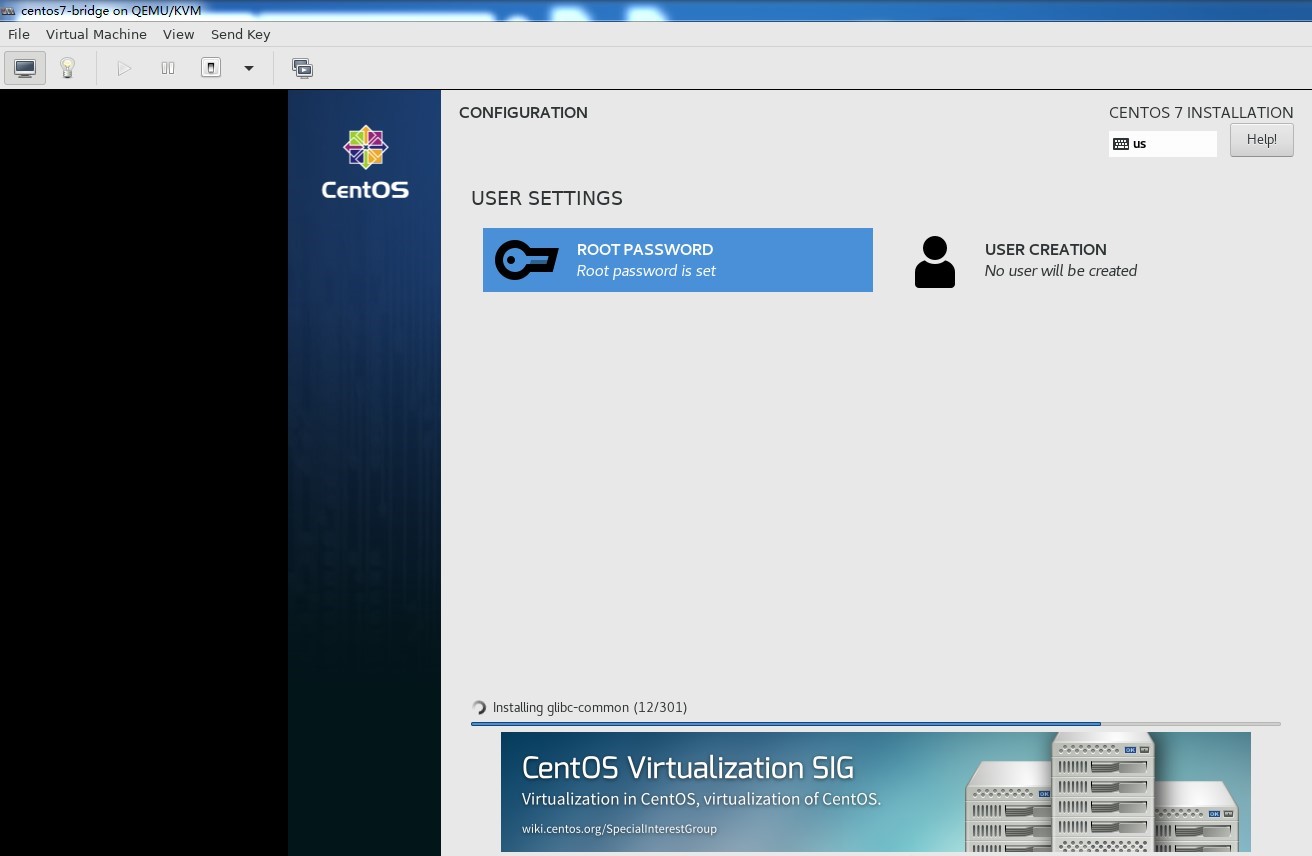
验证虚拟机桥接网络通信
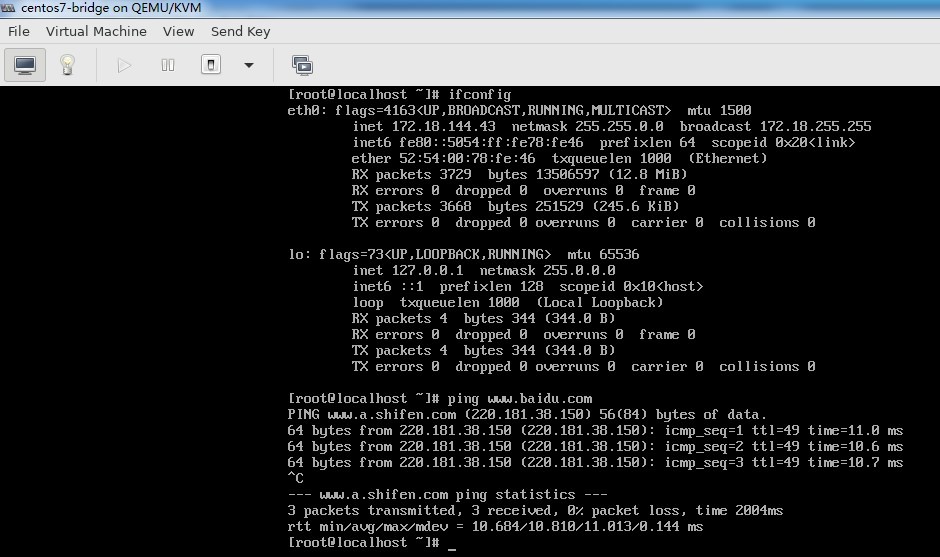
从外部
ssh虚拟机# ssh 172.18.144.43 The authenticity of host '172.18.144.43 (172.18.144.43)' can't be established. ECDSA key fingerprint is SHA256:p4bEG12bcUs/SMkbwXcfT+idshg9+6NBB+sqF77scRk. ECDSA key fingerprint is MD5:20:08:b7:97:c0:53:f0:26:78:0a:89:ea:89:3a:9f:cb. Are you sure you want to continue connecting (yes/no)? yes Warning: Permanently added '172.18.144.43' (ECDSA) to the list of known hosts. root@172.18.144.43's password: Last login: Fri Jun 14 18:38:05 2019 [root@localhost ~]# yum install pciutils #查看PCI设备 Loaded plugins: fastestmirror Loading mirror speeds from cached hostfile * base: mirrors.tuna.tsinghua.edu.cn * extras: mirrors.aliyun.com * updates: mirrors.aliyun.com Package pciutils-3.5.1-3.el7.x86_64 already installed and latest version Nothing to do [root@localhost ~]# lspci 00:00.0 Host bridge: Intel Corporation 440FX - 82441FX PMC [Natoma] (rev 02) 00:01.0 ISA bridge: Intel Corporation 82371SB PIIX3 ISA [Natoma/Triton II] 00:01.1 IDE interface: Intel Corporation 82371SB PIIX3 IDE [Natoma/Triton II] 00:01.3 Bridge: Intel Corporation 82371AB/EB/MB PIIX4 ACPI (rev 03) 00:02.0 VGA compatible controller: Cirrus Logic GD 5446 00:03.0 Ethernet controller: Red Hat, Inc. Virtio network device 00:04.0 USB controller: Intel Corporation 82801I (ICH9 Family) USB UHCI Controller #1 (rev 03) 00:04.1 USB controller: Intel Corporation 82801I (ICH9 Family) USB UHCI Controller #2 (rev 03) 00:04.2 USB controller: Intel Corporation 82801I (ICH9 Family) USB UHCI Controller #3 (rev 03) 00:04.7 USB controller: Intel Corporation 82801I (ICH9 Family) USB2 EHCI Controller #1 (rev 03) 00:05.0 Communication controller: Red Hat, Inc. Virtio console #virtio为半虚拟化驱动 00:06.0 SCSI storage controller: Red Hat, Inc. Virtio block device 00:07.0 Unclassified device [00ff]: Red Hat, Inc. Virtio memory balloon 00:08.0 Unclassified device [00ff]: Red Hat, Inc. Virtio RNG
3.5 安装Windows Server虚拟机
virtio是一种 I/O 半虚拟化解决方案 , 是一套通用I/O设备虚拟化的程序 , 是对半虚拟化Hypervisor中的一组通用I/O设备的抽象 , 提供了一套上层应用与各 Hypervisor 虚拟化设备(KVM , Xen , VMware等)之间的通信框架和编程接口 , 减少跨平台所带来的兼容性问题 , 大大提高驱动程序开发效率 , windows 系统需要单独安装virtio驱动 , linux系统自带virtio驱动。
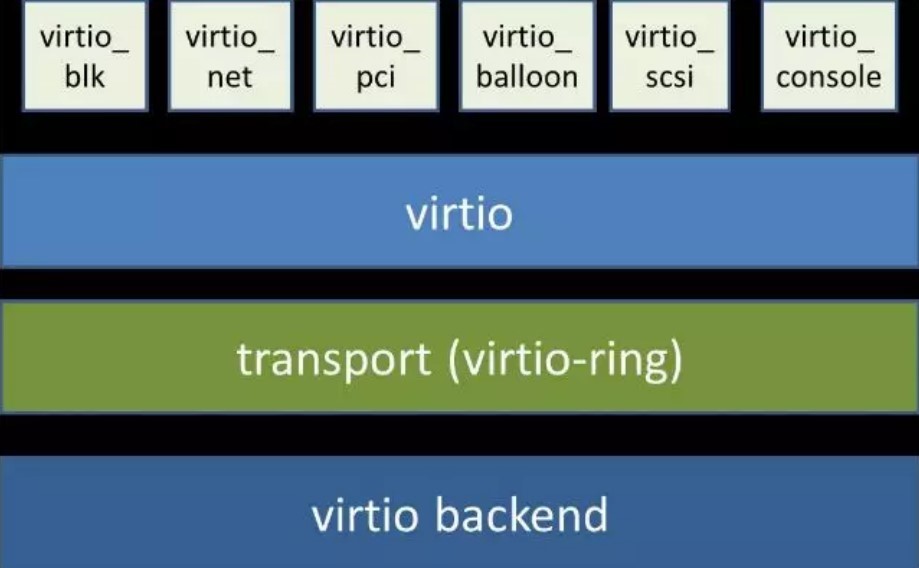
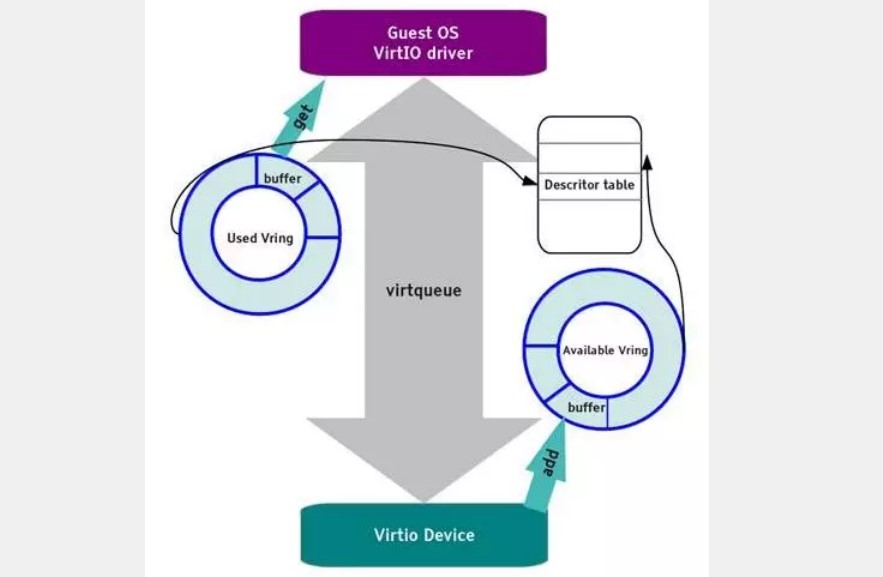
Virtio使用virtqueue来实现I/O机制 , 每个 virtqueue 就是一个承载大量数据的队列 , 具体使用多少个队列取决于需求 , 例如 , virtio网络驱动程序(virtio-net)使用两个队列(一个用于接受 , 另一个用于发送) , 而 virtio块驱动程序(virtio-blk)仅使用一个队列。
实现IO虚拟化主要有三种方式 : 全虚拟化、半虚拟化和透传 , 全虚拟化Guest OS不会感知到自己是虚拟机 , 也无需修改Guest OS , 但是它的效率比较低 , 半虚拟化Guest OS知道自己是虚拟机 , 通过Frontend/Backend驱动模拟实现IO虚拟化 , 透传就是直接分配物理设备给VM用 , 但是需要解决单个硬件在多个虚拟机共享使用的问题。
# 创建windows 虚拟机 :
# virtio下载地址 :
https://fedorapeople.org/groups/virt/virtio-win/direct-downloads/
# qemu-img create -f qcow2 /var/lib/libvirt/images/Windows-2008_r2-x86_64.qcow2 200G
#创建Windows磁盘
# virt-install --virt-type kvm --name Win_2008_r2-x86_64 --ram 3072 --vcpus=2 --ostype=windows --cdrom=/usr/local/src/windows_server_2008_r2.iso --disk path=/var/lib/libvirt/images/Windows-2008_r2-x86_64.qcow2,format=qcow2,bus=virtio --disk path=/usr/local/src/virtio-win-0.1.141_amd64.vfd,device=floppy --network bridge=br0,model=virtio --graphics vnc,listen=0.0.0.0 --noautoconsole3.5.1 安装windows server 2008
#验证镜像
# tree /usr/local/src/
/usr/local/src/
├── CentOS-7-x86_64-Minimal-1908.iso
├── cn_windows_server_2008_r2.iso
└── virtio-win-0.1.141_amd64.vfd
0 directories, 3 files
#创建磁盘
# qemu-img create -f qcow2 /var/lib/libvirt/images/Windows-2008_r2-x86_64.qcow2 200G
Formatting '/var/lib/libvirt/images/Windows-2008_r2-x86_64.qcow2', fmt=qcow2
size=214748364800 cluster_size=65536 lazy_refcounts=off refcount_bits=16
#开始安装
# virt-install --virt-type kvm --name Win_2008_r2-x86_64 --ram 1024 --vcpus=2 --ostype=windows --cdrom=/usr/local/src/cn_windows_server_2008_r2.iso --disk path=/var/lib/libvirt/images/Windows-2008_r2-x86_64.qcow2,format=qcow2,bus=virtio -- disk path=/usr/local/src/virtio-win-0.1.141_amd64.vfd,device=floppy --network bridge=br0,model=virtio --graphics vnc,listen=0.0.0.0 --noautoconsole
Starting install...
Domain installation still in progress. You can reconnect to
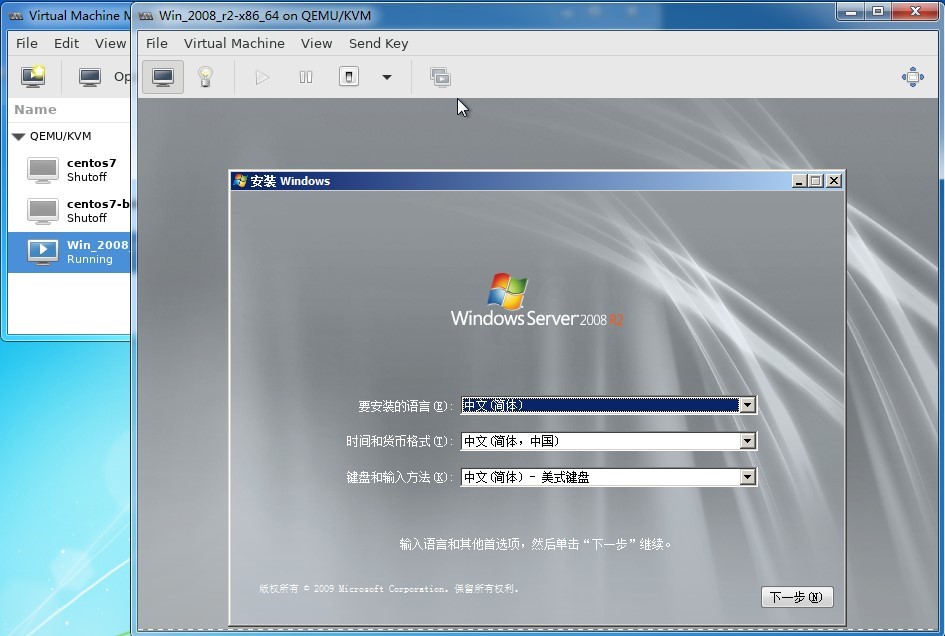
the console to complete the installation process.安装过程
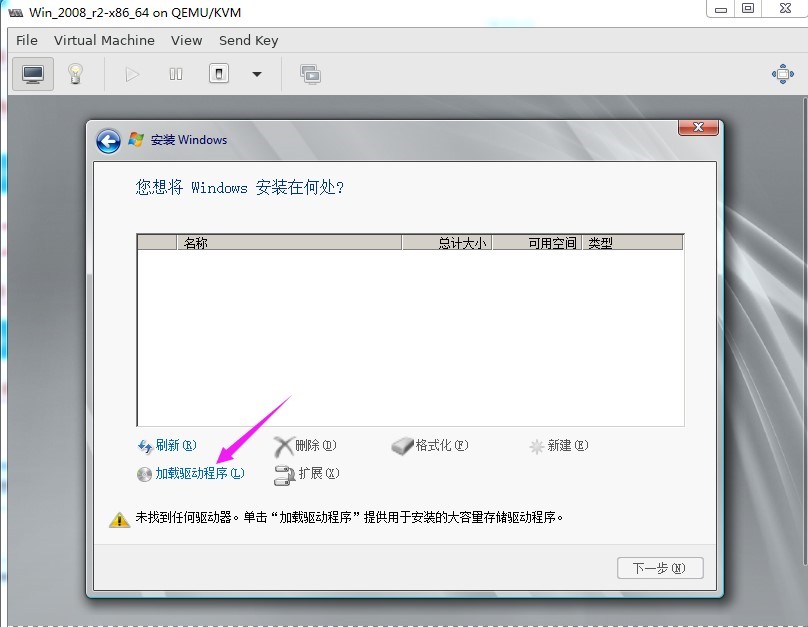
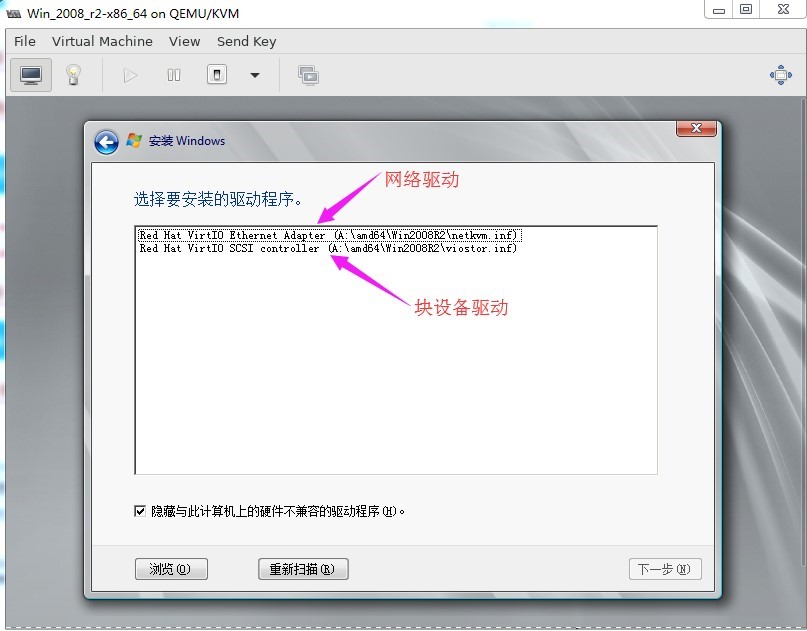
找不到安装磁盘 , 需要单独加载相应的驱动:
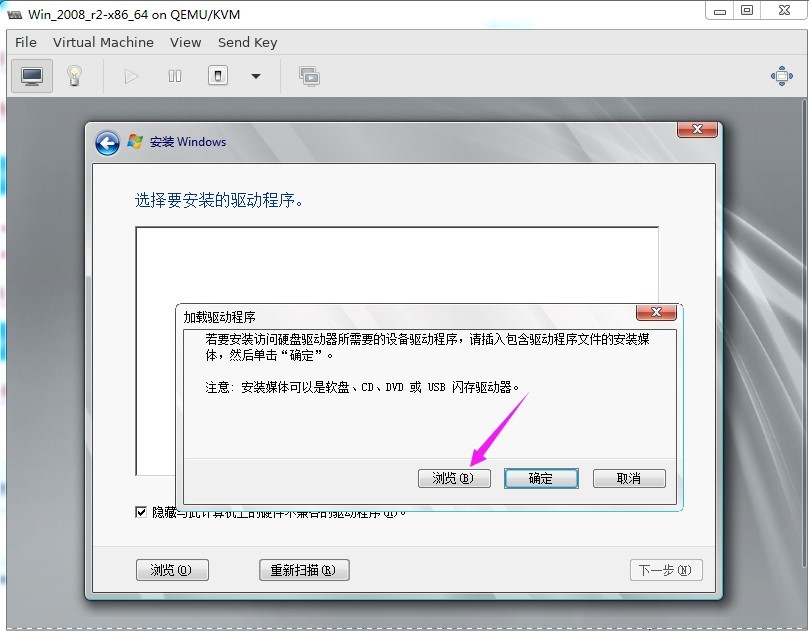
浏览驱动 :
从指定系统版本加载驱动 :
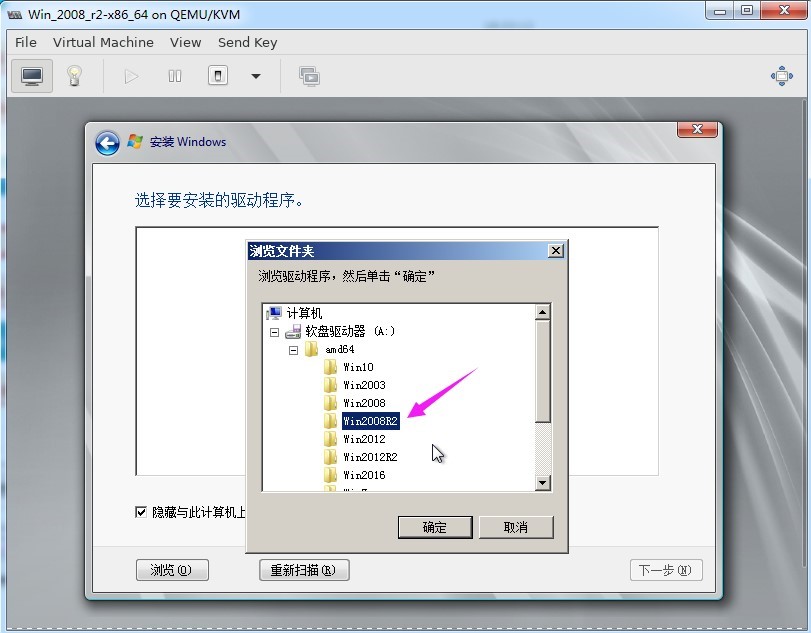
将网络驱动和块设备驱动都加载一遍 :
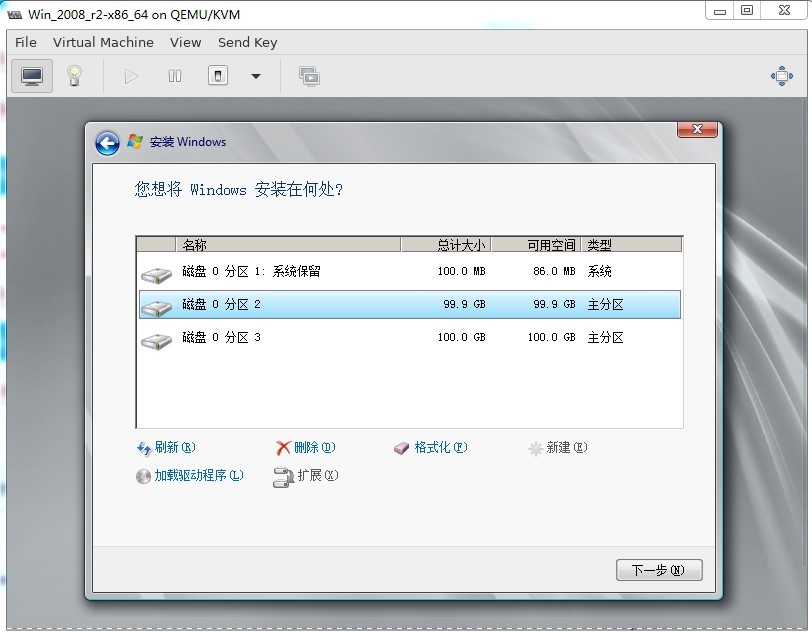
磁盘分区界面 :
安装界面 :
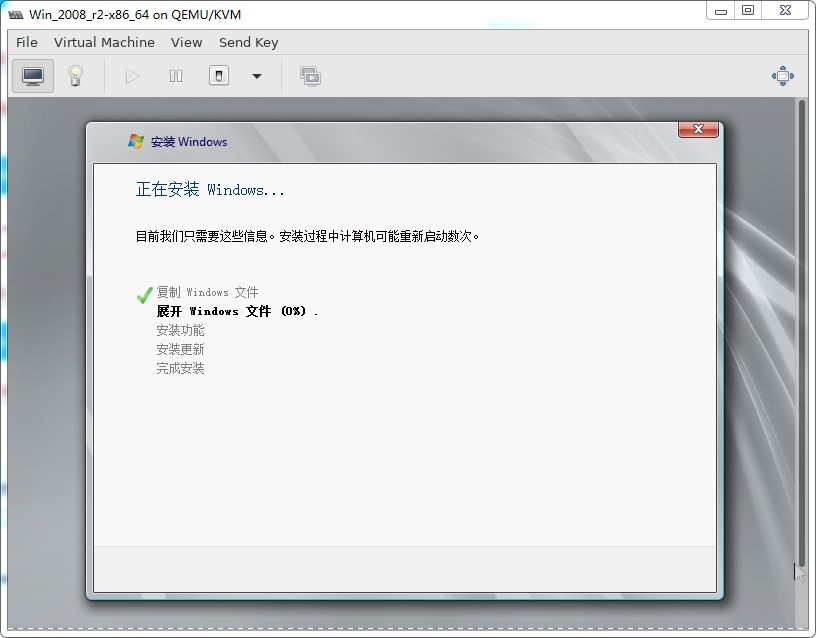
具体安装过程略。。。。。。
验证
Windows virtio驱动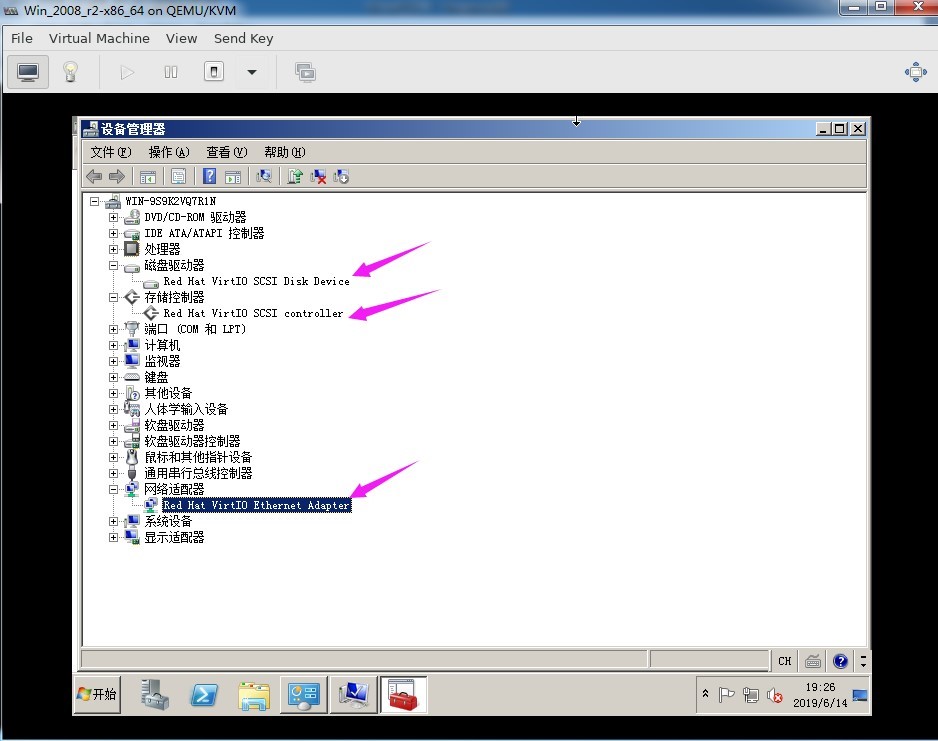
3.5.2 安装Windows win10虚拟机
virt-install --virt-type kvm --name Win_2008_r2-x86_64 --ram 1024 --vcpus=2 --ostype=windows --cdrom=/usr/local/src/cn_windows_10_consumer_editions_version_1909_x64_dvd_76365bf8.iso --disk path=/var/lib/libvirt/images/Windows-2008_r2-x86_64.qcow2,format=qcow2,bus=virtio --disk path=/usr/local/src/virtio-win-0.1.173_amd64.vfd,device=floppy --network bridge=br0,model=virtio --graphics vnc,listen=0.0.0.0 --noautoconsole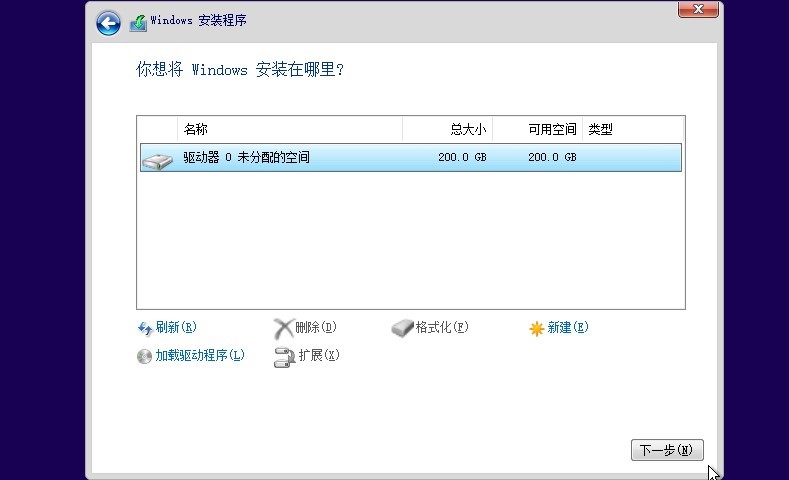
3.6 虚拟机管理命令virsh
# virsh list #列出当前开机的
# virsh list --inactive #列出关闭的虚拟机
# virsh list --all #列出所有
# virsh shutdown CentOS-7-x86_64 #正常关机
# virsh start CentOS-7-x86_64 #正常开机
# virsh destroy centos7 #强制停止/关机
# virsh undefine Win_2008_r2-x86_64 #强制删除
# virsh autostart centos7 #设置当前虚拟机开机自启动
3.7 快速创建虚拟机
通过copy虚拟机磁盘文件 , 可以快速创建虚拟机
[root@s2 ~]# cd /var/lib/libvirt/images/
# cp centos1.qcow2 centos1-bak.qcow2
# cp centos1-bak.qcow2 centos2.qcow2
# virt-install --virt-type kvm \
--name centos2 \
--ram 1024 \
--vcpus 2 \
--cdrom=/usr/local/src/CentOS-7-x86_64-Minimal-1908.iso \
--disk path=/var/lib/libvirt/images/centos2.qcow2 \
--network bridge=br0 \
--graphics vnc,listen=0.0.0.0 \
--noautoconsole #虚拟机不要开始安装过程 ,  即虚拟机启动后立即强制关系重新启动即可进入到虚拟机系
3.8 调整虚拟机配置
日常运维主要涉及调整内存大小、vCPU数量 , 网卡和磁盘配置等操作。
参考连接
RHEL官方稳定:Advanced tuning procedures to optimize latency in RHEL for Real Time