2-4-5-Harbor v2.5.0引入Cosign
1. 简介
成品 ( Artifact ) 签名和签名验证是关键的安全功能 , 允许你验证成品的完整性。Harbor通过与Notary[1]和Cosign[2]的集成支持内容信任。
Harbor v2.5集成了对Cosign的支持 , 这是一个OCI成品签名和验证解决方案 , 是Sigstore项目[3]的一部分。
Cosign对OCI成品签名 , 并将生成的签名推入Harbor。这个签名作为一个成品附件跟已签名成品一起存储。Harbor 管理已签名成品和 cosign签名之间的链接 , 允许你将诸如标记保留规则 (tag retention rules ) 和不可变规则 ( immutable rules ) 之类的东西应用于已签名成品 , 并且它将扩展到已签名成品和签名。通过这种方式 , 你可以使用 Harbor 的内置功能来管理已签名成品和cosign 签名附件。
将Cosign与 Harbor 结合使用的一个关键特性是能够使用 Harbor 的复制功能来复制签名及其相关的已签名成品。这意味着 , 如果一个复制规则 (replication rule ) 应用于一个已签名成品 , Harbor将把复制规则应用于签名 , 就像它应用于已签名成品一样。
当在
Harbor实例之间复制时 , 目标Harbor实例将维护已签名成品及其相关签名之间的链接。你将能够在目标Harbor界面中看到两个成品之间的关系 , 就像你在源注册中心中看到的一样。
2. 演示设置
配置两个启用了Cosign的 Harbor 实例 , 设置项目仓库 ( 在 v2.5.0 中为默认值 ) , 并配置复制。我们将有两个实例 harbor1 和 harbor2 , 项目“cosign”和 harbor1 到 harbor2 之间的复制规则 ( 基于推送 ) , 使用机器人帐户 ( robo-account ) 。
安装两个启用了
cosign( 和notary) 的实例在我们的设置中 , 我们使用离线安装程序。
# ./install.sh --with-notary --with-trivy [Step 0]: checking if docker is installed ... ... ... ... [Step 5]: starting Harbor ... Creating network "harbor_harbor" with the default driver Creating network "harbor_harbor-notary" with the default driver Creating network "harbor_notary-sig" with the default driver Creating harbor-log ... done Creating harbor-portal ... done Creating redis ... done Creating registryctl ... done Creating registry ... done Creating harbor-db ... done Creating trivy-adapter ... done Creating notary-signer ... done Creating harbor-core ... done Creating harbor-jobservice ... done Creating nginx ... done Creating notary-server ... done ✔ ----Harbor has been installed and started successfully.----创建新项目“cosign”
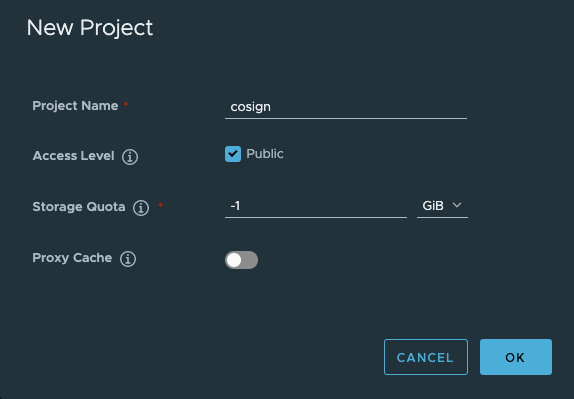
在仓库启用
cosign: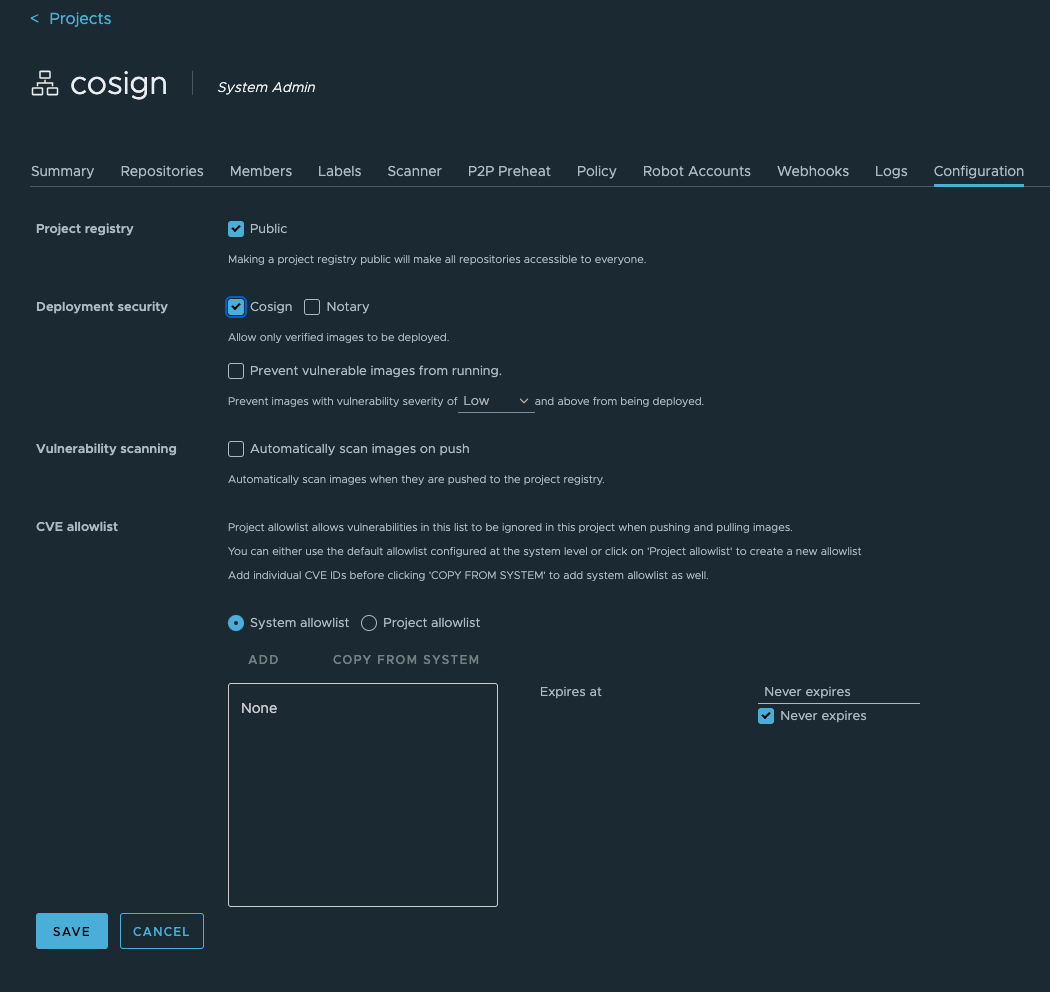
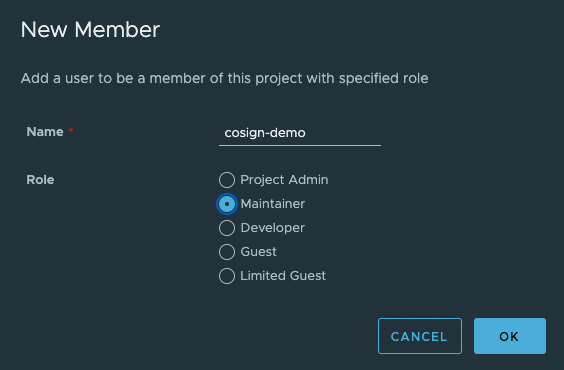
创建新用户“
cosign-demo” , 并将其分配给项目“cosign”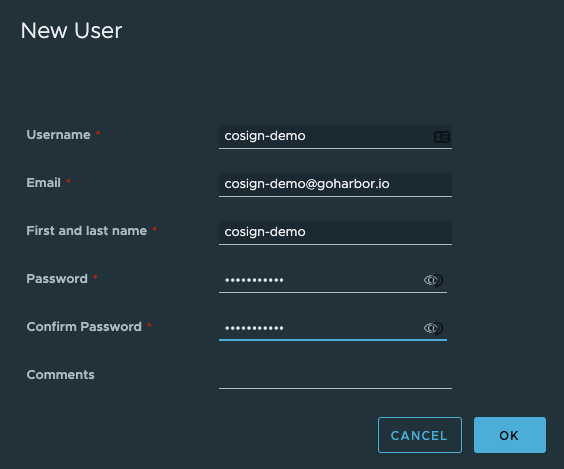
在第二个实例上创建项目“
cosign”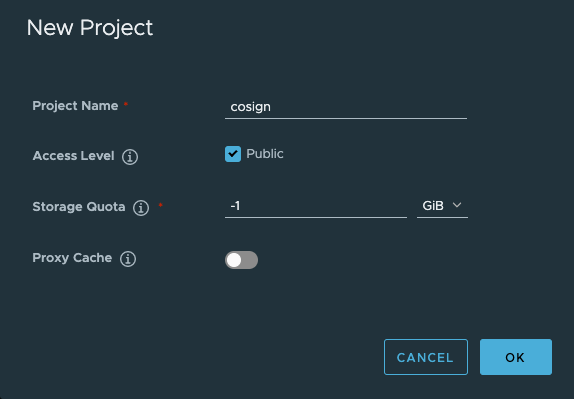
在第二个实例上创建机器人帐户“
robo-cosign”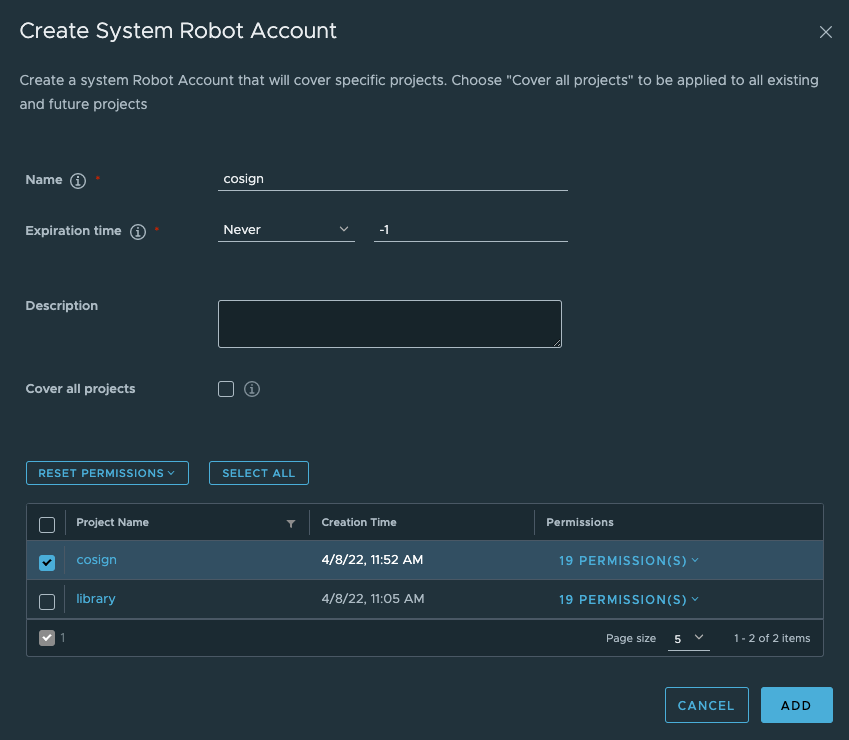
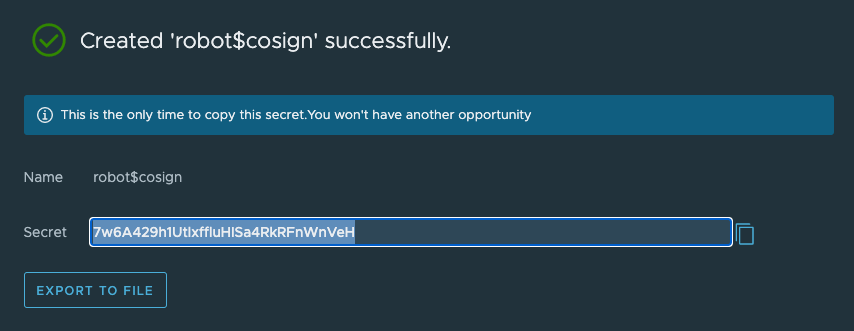
保存机器人机密做安装程序复制 :
在第一个实例上设置复制
设置新的目标注册中心 :
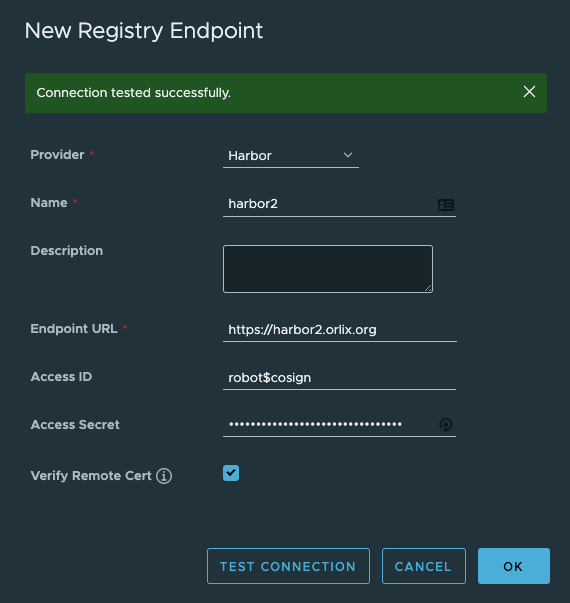
设置从
Harbor1->Harbor2的复制规则 :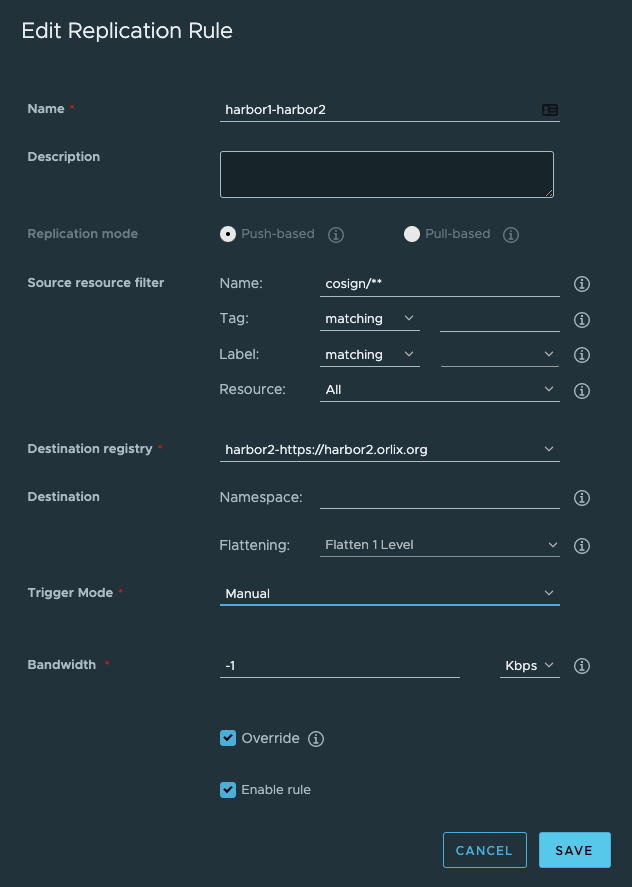
创建
cosign密钥对为了能够执行以下步骤 , 你需要安装“
cosign”。见安装说明。$ cosign generate-key-pair Enter password for private key: Enter again: Private key written to cosign.key Public key written to cosign.pub你可以导出密钥的密码 ( 也称为
pass-phrase) , 以便在自动化中使用 :export COSIGN_PASSWORD=Your_Super_P1$$w0rD镜像推送和签名
使用你的
cosign-demo用户登录第一个Harbor实例。$ docker login harbor1.orlix.org Authenticating with existing credentials... Login Succeeded然后将一个镜像推送到你已经设置好的
cosign项目 , 下面的例子使用了pause:1。$ docker push harbor1.orlix.org/cosign/pause:1 The push refers to repository [harbor1.orlix.org/cosign/pause] 5f70bf18a086: Layer already exists e16a89738269: Layer already exists 1: digest: sha256:b31bfb4d0213f254d361e0079deaaebefa4f82ba7aa76ef82e90b4935ad5b105 size: 938一旦我们在注册中心中有了可用的镜像 , 我们就可以用
cosign来做镜像签名。$ cosign sign --key cosign.key harbor1.orlix.org/cosign/pause:1 Enter password for private key: Pushing signature to: harbor1.orlix.org/cosign/pause触发复制并验证结果
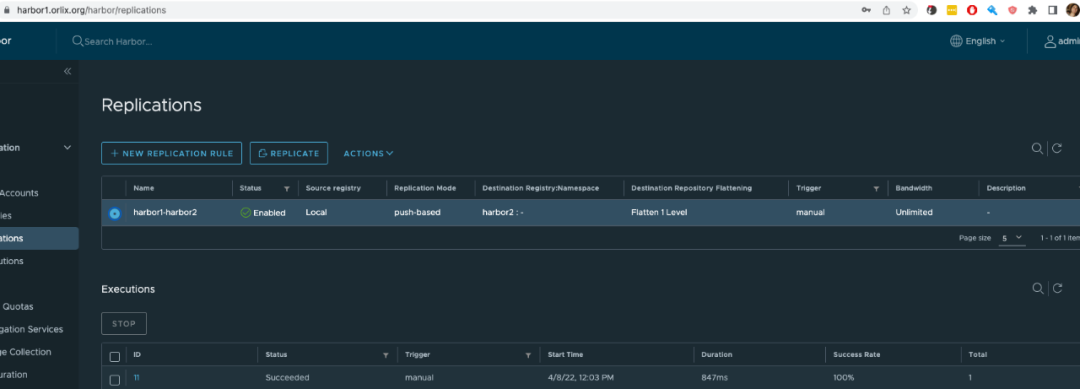
验证复制 :
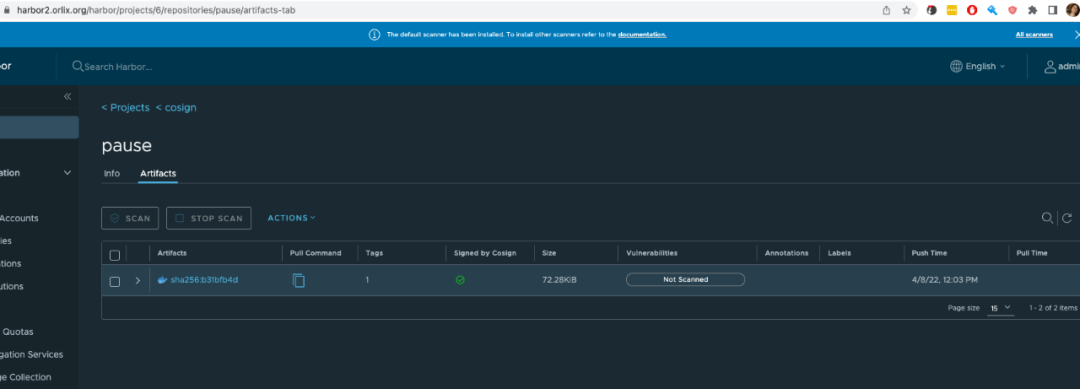
在
harbor1实例上触发复制规则harbor1->harbor2之后 , 你可以看到该镜像在两个harbor实例中都由Cosign签名 , 通过运行cosign verify进行签名。$ cosign verify --key cosign.pub harbor1.orlix.org/cosign/pause:1 | jq . Verification for harbor1.orlix.org/cosign/pause:1 -- The following checks were performed on each of these signatures: - The cosign claims were validated - The signatures were verified against the specified public key [ { "critical": { "identity": { "docker-reference": "harbor1.orlix.org/cosign/pause" }, "image": { "docker-manifest-digest": "sha256:b31bfb4d0213f254d361e0079deaaebefa4f82ba7aa76ef82e90b4935ad5b105" }, "type": "cosign container image signature" }, "optional": null } ] $ cosign verify --key cosign.pub harbor2.orlix.org/cosign/pause:1 | jq . Verification for harbor2.orlix.org/cosign/pause:1 -- The following checks were performed on each of these signatures: - The cosign claims were validated - The signatures were verified against the specified public key [ { "critical": { "identity": { "docker-reference": "harbor1.orlix.org/cosign/pause" }, "image": { "docker-manifest-digest": "sha256:b31bfb4d0213f254d361e0079deaaebefa4f82ba7aa76ef82e90b4935ad5b105" }, "type": "cosign container image signature" }, "optional": null }
验证返回结果和退出代码零 , 表明签名有效!摘要 ( digest ) 也是一样的!
成功!!!
参考链接
Harbor v2.5.0引入Cosign (qq.com)