
5-3-Elasticsearch keystore 介绍
1. keystore 介绍
配置Elasticsearch的安全。配置完后 , 我们必须重新启动 elasticsearch 服务即可。在今天的文章中 , 我们将使用一种不同的方法。这个方法可以使得我们将来很方便地使用脚本或者 ansible 这样的工具来进行自动部署。首先我们先来看一下两个重要的目录 :
es_home目录
/usr/share/elasticsearch如果你仔细查看一下Elasticsearch的安装目录 , 我们会发现Elasticsearch被安装于上面的目录中 :
$ pwd
/usr/share/elasticsearch
liuxg@liuxgu:/usr/share/elasticsearch$ ls
NOTICE.txt README.asciidoc bin jdk lib modules pluginses_conf_dir目录
/etc/elasticsearch这是一个Elasticsearch的配置目录。它具有root权限。我们必须使用如下的方法才可以进入 :
$ su
Password:
root@liuxgu:/home/liuxg# cd /etc/elasticsearch
root@liuxgu:/etc/elasticsearch# ls
elasticsearch.keystore  jvm.options.d      roles.yml
elasticsearch.yml       log4j2.properties  users
jvm.options             role_mapping.yml   users_roles
在上面 , 我们可以看到Elasticsearch的配置文件。我们在这里可以看到elasticsearch.keystore文件。这个是用来存放一些 key/value 的不想让别人知道的数据。
1.1. 熟悉 elasticsearch-keystore
在 /usr/share/elasticsearch 目录下 , 我们打入如下的命令:
sudo ./bin/elasticsearch-keystore -help上面的命令显示:
$ sudo ./bin/elasticsearch-keystore -help
A tool for managing settings stored in the elasticsearch keystore

Commands
--------
create - Creates a new elasticsearch keystore
list - List entries in the keystore
add - Add a string settings to the keystore
add-file - Add a file setting to the keystore
remove - Remove settings from the keystore
upgrade - Upgrade the keystore format
passwd - Changes the password of a keystore
has-passwd - Succeeds if the keystore exists and is password-protected, fails with exit code 1 otherwise.

Non-option arguments:
command

Option             Description
------             -----------
-E <KeyValuePair>  Configure a setting
-h, --help         Show help
-s, --silent       Show minimal output
-v, --verbose Show verbose output比如我们使用如下的命令来检查一下keystore是否含有password:
$ sudo ./bin/elasticsearch-keystore has-passwd
ERROR: Keystore is not password-protected上面显示我们的keystore目前还没有被密码所保护。我们可以使用如下的命令来设置password:
$ sudo ./bin/elasticsearch-keystore passwd
Enter new password for the elasticsearch keystore (empty for no password):
Enter same password again:
Elasticsearch keystore password changed successfully.
在上面 , 我们不输入任何东西 , 这样也就没设置任何的密码。我们将在接下来的练习中来设置这个密码。接下来 , 我们来看如何添加一个项到 keystore 中:
$ sudo ./bin/elasticsearch-keystore add user.name
Enter value for user.name:
在上面 , 我们输入任何东西。然后我们可以通过如下的命令来进行查看:
$ sudo ./bin/elasticsearch-keystore list
keystore.seed
user.name
在上面 , 我们可以看到有一个user.name的项被列出来了。这个是我们刚才创建的。我们可以通过如下的命令来进行删除:
$ sudo ./bin/elasticsearch-keystore remove user.name
liuxg@liuxgu:/usr/share/elasticsearch$ sudo ./bin/elasticsearch-keystore list
keystore.seed
在删除过后 , 我们再进行list来展示。我们发现刚才被创建的user.name不见了。
1.2. Elastic bootstrap password
在安装Elasticsearch时 , 如果elastic 用户还没有密码 , 它将使用默认的 bootstrap。 bootstrap 是一种临时密码 , 使你可以运行设置所有内置用户密码的工具。
默认情况下 , bootstrap密码来自于随机化的keystore.seed设置 , 该设置在安装过程中添加到了密钥库中。 你不需要知道或更改此 bootstrap密码。 但是 , 如果您在密钥库中定义了bootstrap.password设置 , 则将使用该值。
注意: 为内置用户(尤其是
elastic用户 ) 设置密码后 ,bootstrap密码将不再使用。
2. 为 Elasticsearch 配置安全
为了能够对Elasticsearch进行安全配置 , 我们必须修改Elasticsearch的配置文件。我们在 Elasticsearch 的配置目录中找到 elasticsearch.yml 文件。我们在该文件中 , 添加如下的一行:
/etc/elasticsearch/elasticsearch.yml
xpack.security.enabled: true你需要使用 root 权限修改上面的文件。我们可以重新启动 elasticsearch 服务:
sudo service elasticsearch restart如果我们这个时候在去访问 http://localhost:9200的话 , 我们将不能访问Elasticsearch。这是因为我们现在已经设置了安全。我们需要使用用户名及密码来访问才可以。
$ curl -X GET "localhost:9200/"

{"error":{"root_cause":[{"type":"security_exception","reason":"missing authentication credentials for REST request [/]","header":{"WWW-Authenticate":"Basic realm=\"security\" charset=\"UTF-8\""}}],"type":"security_exception","reason":"missing authentication credentials for REST request [/]","header":{"WWW-Authenticate":"Basic realm=\"security\" charset=\"UTF-8\""}},"status":401}
我们接下来安装如下的步骤来配置安全用户:
创建
elasticsearch keystore:$ pwd /usr/share/elasticsearch liuxg@liuxgu:/usr/share/elasticsearch$ sudo ./bin/elasticsearch-keystore create [sudo] password for liuxg: An elasticsearch keystore already exists. Overwrite? [y/N]y Created elasticsearch keystore in /etc/elasticsearch/elasticsearch.keystore设置
elasticsearch keystore permissionssudo chown root:elasticsearch /etc/elasticsearch/elasticsearch.keystore sudo chmod 0660 /etc/elasticsearch/elasticsearch.keystore在默认的安装下 ,
/etc/elasticsearch/elasticsearch.keystore的属性已经是我们所需要的。我们这个步骤可以省去。# ls -al elasticsearch.keystore -rw-rw---- 1 root elasticsearch 199 1月 26 12:58 elasticsearch.keystore通过如下的命令来检查
elasticsearck keystore是否已经设置好$ sudo ./bin/elasticsearch-keystore list keystore.seed配置
bootstrap密码 。我们需要为bootstrap配置密码。我们可以使用如下的命令来得到一些帮助$ sudo ./bin/elasticsearch-keystore add -help Add a string settings to the keystore Non-option arguments: setting names Option Description ------ ----------- -E <KeyValuePair> Configure a setting -f, --force Overwrite existing setting without prompting, creating keystore if necessary -h, --help Show help -s, --silent Show minimal output -v, --verbose Show verbose output -x, --stdin Read setting values from stdin我们可以使用
-x选项从stdin中读取密码并配置:$ pwd /usr/share/elasticsearch liuxg@liuxgu:/usr/share/elasticsearch$ echo "demopassword" | sudo ./bin/elasticsearch-keystore add -x "bootstrap.password"在上面 , 我们为
bootstrap设置了demopassword这个密码。经过上面的设置后 , 我们可以使用如下的命令来检查elasticsearch keystore:$ sudo ./bin/elasticsearch-keystore list bootstrap.password keystore.seed我们可以看到一个叫做
bootstrap.password的项。重新启动
elasticsearch服务我们使用如下的命令来重新启动
elasticsearch服务:sudo service elasticsearch restart经过上面的重启后 , 我们可以使用如下的方法来检查一下:
curl -u elastic:demopassword localhost:9200在上面, 我们使用了超级账号
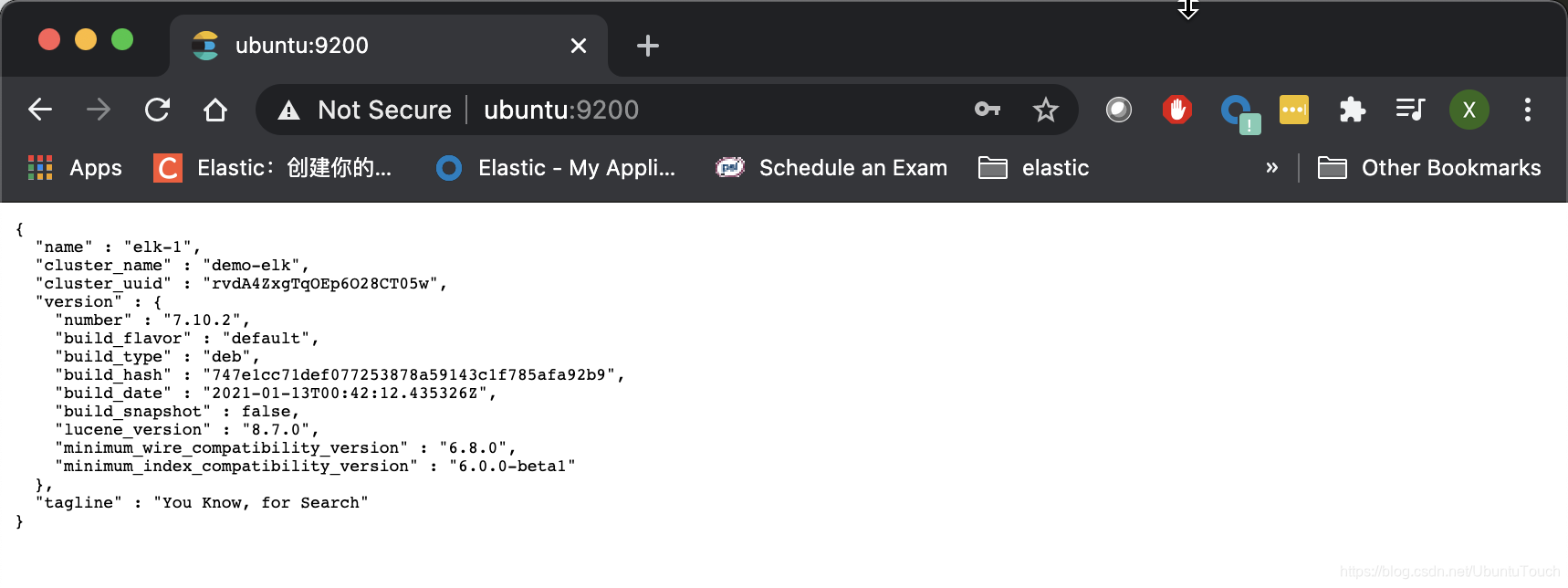
elastic及之前设置的密码demopassword。上面的命令显示的结果为:$ curl -u elastic:demopassword localhost:9200 { "name" : "elk-1", "cluster_name" : "demo-elk", "cluster_uuid" : "rvdA4ZxgTqOEp6O28CT05w", "version" : { "number" : "7.10.2", "build_flavor" : "default", "build_type" : "deb", "build_hash" : "747e1cc71def077253878a59143c1f785afa92b9", "build_date" : "2021-01-13T00:42:12.435326Z", "build_snapshot" : false, "lucene_version" : "8.7.0", "minimum_wire_compatibility_version" : "6.8.0", "minimum_index_compatibility_version" : "6.0.0-beta1" }, "tagline" : "You Know, for Search" }显然这个设置是对的。
为内置用户创建账号
为了说明问题的方便 , 我们将使用如下的一下账号及密码:
# A built-in superuser.
elastic_username: elastic
elastic_password: goodwitch

# The user Kibana uses to connect and communicate with Elasticsearch.
kibana_username: kibana
kibana_password: badsanta

# The user Logstash uses when storing monitoring information in Elasticsearch.
logstash_system_username: logstash_system
logstash_system_password: dragonprince

# The user the Beats use when storing monitoring information in Elasticsearch.
beats_system_username: beats_system
beats_system_password: avatar

# The user the APM server uses when storing monitoring information in Elasticsearch.
apm_system_username: apm_system
apm_system_password: mashaandthebear

# The user Metricbeat uses when collecting and storing monitoring information in Elasticsearch. It has the remote_monitoring_agent and remote_monitoring_collector built-in roles.
remote_monitoring_user_username: remote_monitoring_user
remote_monitoring_user_password: gossipgir
我们可以直接使用
REST API来创建用户名及密码 , 比如:curl -u elastic:demopassword -XPOST "http://localhost:9200/_security/user/elastic/_password" -H 'Content-Type: application/json' -d'{ "password": "password"}'比如在上面 , 我们使用了
API来直接修改elastic用户的密码。经过上面的修改后 , 我们的超级用户elastic的密码就变成了password而不是之前的demopassword:$ curl -u elastic:demopassword localhost:9200 {"error":{"root_cause":[{"type":"security_exception","reason":"unable to authenticate user [elastic] for REST request [/]","header":{"WWW-Authenticate":"Basic realm=\"security\" charset=\"UTF-8\""}}],"type":"security_exception","reason":"unable to authenticate user [elastic] for REST request [/]","header":{"WWW-Authenticate":"Basic realm=\"security\" charset=\"UTF-8\""}},"status":401}取而代之的是如下的方式:
$ curl -u elastic:password localhost:9200
{
  "name" : "elk-1",
  "cluster_name" : "demo-elk",
  "cluster_uuid" : "rvdA4ZxgTqOEp6O28CT05w",
  "version" : {
    "number" : "7.10.2",
    "build_flavor" : "default",
    "build_type" : "deb",
    "build_hash" : "747e1cc71def077253878a59143c1f785afa92b9",
    "build_date" : "2021-01-13T00:42:12.435326Z",
    "build_snapshot" : false,
    "lucene_version" : "8.7.0",
    "minimum_wire_compatibility_version" : "6.8.0",
    "minimum_index_compatibility_version" : "6.0.0-beta1"
  },
  "tagline" : "You Know, for Search"
}
我们可以安装上面的方法如法炮制 , 为其它的内置账号来建立账号:
Kibabacurl -u elastic:password -XPOST "http://localhost:9200/_security/user/kibana/_password" -H 'Content-Type: application/json' -d'{ "password": "badsanta"}'Logstashcurl -u elastic:password -XPOST "http://localhost:9200/_security/user/logstash_system/_password" -H 'Content-Type: application/json' -d'{ "password": "dragonprince"}'Beatscurl -u elastic:password -XPOST "http://localhost:9200/_security/user/beats_system/_password" -H 'Content-Type: application/json' -d'{ "password": "avatar"}'APMcurl -u elastic:password -XPOST "http://localhost:9200/_security/user/apm_system/_password" -H 'Content-Type: application/json' -d'{ "password": "mashaandthebear"}'Remote monitoringcurl -u elastic:password -XPOST "http://localhost:9200/_security/user/remote_monitoring_user/_password" -H 'Content-Type: application/json' -d'{ "password": "gossipgirl"}'
这样我们就为所有的内置用户创建了账号。
经过上面的设置后,我们在其它的机器上访问 Ubuntu 系统上的机器,我们需要使用 elastic/password 来进行访问:
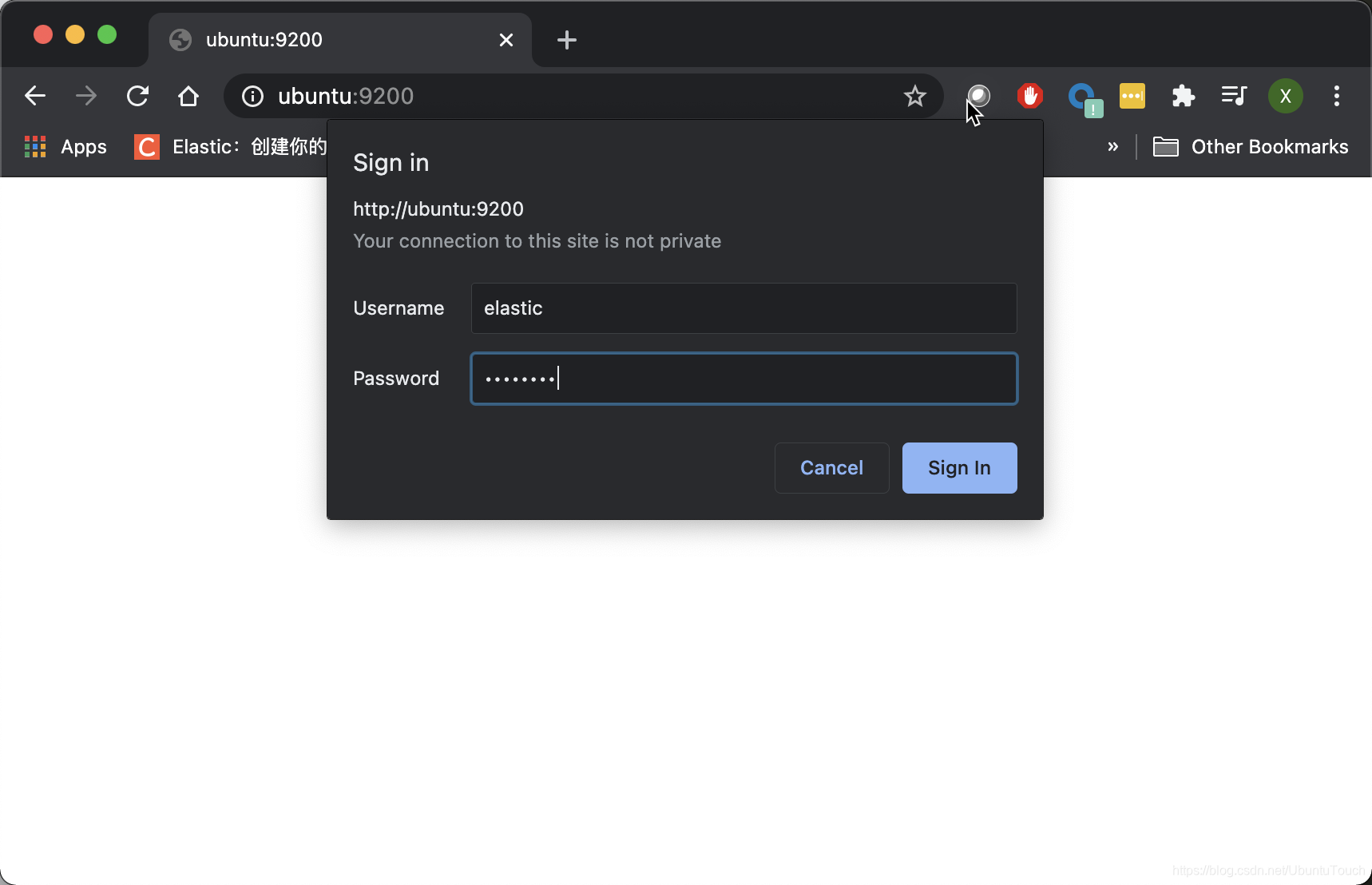
输入 elastic 及密码 password:
参考链接
Elasticsearch : 使用 elasticsearch-keystore 配置安全并创建内置用户账号-CSDN博客