
5-1-ELK权限设置
由于在版本7开始, x-pack可以免费使用了, 但是权限控制免费的不够细, 但是控制到索引级别都基本够用了。付费的可以体验更细致的权限控制。本文的基础是已经有了es集群的基础上进行的。
官网 : https://www.elastic.co/guide/en/elasticsearch/reference/7.8/secure-cluster.html
我们直接安装的ELK默认是没有账号与密码的。但是我们一旦放到生产上,就需要做一定的权限过滤,有些数据有些账号才能看到。否则都能看到,就很不科学了,有可能导致一些有心的人,搞成信息泄露。这个时候我们就需要设置账号密码了。
用户信息设置在elasticsearch中,也就是logstash、kibana中是没有的,因为他们的信息数据都是来源于elasticsearch中,索引真正设置用户密码的是es。
1. 集群证书配置
假设你已经安装了elasticsearch7.8的集群, 并且能够正常的运行。接下就是来配置权限;
在elasticsearch.yml配置文件中新增(每个节点) :
# Enable security features
#是否开启security功能
xpack.security.enabled: true
#用于启用或禁用X-Pack安全组件的自动注册功能。
xpack.security.enrollment.enabled: true
# Enable encryption for HTTP API client connections, such as Kibana, Logstash, and Agents
#这里配置https证书。如果没有合适的https证书, 这里最好修改为false,否则无法通过网页API访问elasticsearch
xpack.security.http.ssl:
enabled: false
keystore.path: certs/http.p12
# Enable encryption and mutual authentication between cluster nodes
xpack.security.transport.ssl:
enabled: true
verification_mode: certificate
keystore.path: certs/elastic-certificates.p12
truststore.path: certs/elastic-certificates.p12
如下内容可参考官网 : https://www.elastic.co/guide/en/elasticsearch/reference/7.8/configuring-tls.html
./bin/elasticsearch-certutil ca: 创建集群认证机构,需要交互输入密码./bin/elasticsearch-certutil cert --ca elastic-stack-ca.p12: 为节点颁发证书,与上面密码一样执行
./bin/elasticsearch-keystore add xpack.security.transport.ssl.keystore.secure_password: 并输入第一步输入的密码执行
./bin/elasticsearch-keystore add xpack.security.transport.ssl.truststore.secure_password并输入第一步输入的密码将生成的
elastic-certificates.p12、elastic-stack-ca.p12文件移动到config目录下
最后把elastic-certificates.p12、elastic-stack-ca.p12、elasticsearch.keystore三个文件复制到其他的节点的config目录下,启动es。然后去登陆es的时候就需要密码了。
这里需要注意的是elasticsearch服务本身提供了需要的证书, 但是由于软件包安装过程中, 每个节点的证书不一样, 同时elasticsearch生成的默认keystore不同,即/etc/elasticsearch/elasticsearch.keystore。这个文件主要保存下面第四步中指定的密码。所以如果需要使用原本的证书。 需要所有节点的证书一致,同时keystore文件也一致即可
这里有三个elasticsearch节点 , 具体配置步骤如下:
创建CA集群机构证书
root@elasticsearch01:~# /usr/share/elasticsearch/bin/elasticsearch-certutil ca This tool assists you in the generation of X.509 certificates and certificate signing requests for use with SSL/TLS in the Elastic stack. The 'ca' mode generates a new 'certificate authority' This will create a new X.509 certificate and private key that can be used to sign certificate when running in 'cert' mode. Use the 'ca-dn' option if you wish to configure the 'distinguished name' of the certificate authority By default the 'ca' mode produces a single PKCS#12 output file which holds: * The CA certificate * The CA's private key If you elect to generate PEM format certificates (the -pem option), then the output will be a zip file containing individual files for the CA certificate and private key Please enter the desired output file [elastic-stack-ca.p12]: Enter password for elastic-stack-ca.p12 : #这里输入CA证书密码 #默认生成的证书在elasticsearch服务的工作目录里面 root@elasticsearch01:~ # cd /usr/share/elasticsearch/ root@elasticsearch01:/usr/share/elasticsearch# ls bin elastic-stack-ca.p12 jdk lib modules NOTICE.txt plugins README.asciidoc 通过CA证书, 为集群颁发证书
root@elasticsearch01:~# /usr/share/elasticsearch/bin/elasticsearch-certutil cert --ca /usr/share/elasticsearch/elastic-stack-ca.p12 This tool assists you in the generation of X.509 certificates and certificate signing requests for use with SSL/TLS in the Elastic stack. The 'cert' mode generates X.509 certificate and private keys. * By default, this generates a single certificate and key for use on a single instance. * The '-multiple' option will prompt you to enter details for multiple instances and will generate a certificate and key for each one * The '-in' option allows for the certificate generation to be automated by describing the details of each instance in a YAML file * An instance is any piece of the Elastic Stack that requires an SSL certificate. Depending on your configuration, Elasticsearch, Logstash, Kibana, and Beats may all require a certificate and private key. * The minimum required value for each instance is a name. This can simply be the hostname, which will be used as the Common Name of the certificate. A full distinguished name may also be used. * A filename value may be required for each instance. This is necessary when the name would result in an invalid file or directory name. The name provided here is used as the directory name (within the zip) and the prefix for the key and certificate files. The filename is required if you are prompted and the name is not displayed in the prompt. * IP addresses and DNS names are optional. Multiple values can be specified as a comma separated string. If no IP addresses or DNS names are provided, you may disable hostname verification in your SSL configuration. * All certificates generated by this tool will be signed by a certificate authority (CA) unless the --self-signed command line option is specified. The tool can automatically generate a new CA for you, or you can provide your own with the --ca or --ca-cert command line options. By default the 'cert' mode produces a single PKCS#12 output file which holds: * The instance certificate * The private key for the instance certificate * The CA certificate If you specify any of the following options: * -pem (PEM formatted output) * -multiple (generate multiple certificates) * -in (generate certificates from an input file) then the output will be be a zip file containing individual certificate/key files Enter password for CA (/usr/share/elasticsearch/elastic-stack-ca.p12) : #输入CA证书密码,需要输入密码与第一步相同 Please enter the desired output file [elastic-certificates.p12]: Enter password for elastic-certificates.p12 : #输入颁发的节点证书密码, 这里为了记忆方便也保持和CA证书密码相同, 即与第一步密码保持一致 Certificates written to /usr/share/elasticsearch/elastic-certificates.p12 This file should be properly secured as it contains the private key for your instance. This file is a self contained file and can be copied and used 'as is' For each Elastic product that you wish to configure, you should copy this '.p12' file to the relevant configuration directory and then follow the SSL configuration instructions in the product guide. For client applications, you may only need to copy the CA certificate and configure the client to trust this certificate. #在elasticsearch工作目录查看, CA证书文件和节点颁发的证书 root@elasticsearch01:~# ls /usr/share/elasticsearch/ bin elastic-certificates.p12 elastic-stack-ca.p12 jdk lib modules NOTICE.txt plugins README.asciidoc 将生成的证书文件拷贝到
elasticsearch配置文件的证书目录中root@elasticsearch01:~# ls /usr/share/elasticsearch/ bin elastic-certificates.p12 elastic-stack-ca.p12 jdk lib modules NOTICE.txt plugins README.asciidoc root@elasticsearch01:~# cp /usr/share/elasticsearch/elastic-* /etc/elasticsearch/certs/ 设置CA颁发给节点的证书的密码。主要设置公钥和私钥证书密码。因为生成的
elastic-certificates.p12证书本身就包含公钥和私钥信息。默认这两个密码是相同的, 设置的密码与第二步中的第二次输入的密码相同, 即设置的elastic-certificates.p12证书的密码。root@elasticsearch01:~# /usr/share/elasticsearch/bin/elasticsearch-keystore add xpack.security.transport.ssl.keystore.secure_password Setting xpack.security.transport.ssl.keystore.secure_password already exists. Overwrite? [y/N]y Enter value for xpack.security.transport.ssl.keystore.secure_password: #这里输入颁发给节点的证书的密码,keystore 存放私钥相关 root@elasticsearch01:~# /usr/share/elasticsearch/bin/elasticsearch-keystore add xpack.security.transport.ssl.truststore.secure_password Setting xpack.security.transport.ssl.truststore.secure_password already exists. Overwrite? [y/N]y Enter value for xpack.security.transport.ssl.truststore.secure_password: #这里输入颁发给节点的证书的密码 这里需要注意, 这两个命令需要在三个
elasticsearch节点中运行这一步中的两个设置密码的命令如果配置了
http的证书, 需要使用以下两个命令设置http证书的公钥私钥密码elasticsearch-keystore add xpack.security.http.ssl.keystore.secure_password elasticsearch-keystore add xpack.security.http.ssl.truststore.secure_password修改证书权限, 保证三个节点中的
elasticsearch用户可以访问证书文件root@elasticsearch01:~# ll /etc/elasticsearch/certs/ total 40 drwxr-x--- 2 root elasticsearch 4096 Apr 11 12:28 ./ drwxr-s--- 4 root elasticsearch 4096 Apr 11 12:27 ../ -rw------- 1 root root 3596 Apr 11 12:24 elastic-certificates.p12 -rw------- 1 root root 2672 Apr 11 12:22 elastic-stack-ca.p12 -rw-rw---- 1 root elasticsearch 1915 Apr 6 14:57 http_ca.crt -rw-rw---- 1 root elasticsearch 10029 Apr 6 14:57 http.p12 -rw-rw---- 1 root elasticsearch 5822 Apr 6 14:57 transport.p12 root@elasticsearch01:~# chown root:elasticsearch /etc/elasticsearch/certs/elastic-* root@elasticsearch01:~# chmod 660 /etc/elasticsearch/certs/elastic-* root@elasticsearch01:~# ll /etc/elasticsearch/certs/ total 40 drwxr-x--- 2 root elasticsearch 4096 Apr 11 14:28 ./ drwxr-s--- 4 root elasticsearch 4096 Apr 11 14:50 ../ -rw-rw---- 1 root elasticsearch 3596 Apr 11 14:42 elastic-certificates.p12 -rw-rw---- 1 root elasticsearch 2672 Apr 11 14:42 elastic-stack-ca.p12 -rw-rw---- 1 root elasticsearch 1915 Apr 6 14:57 http_ca.crt -rw-rw---- 1 root elasticsearch 10029 Apr 6 14:57 http.p12 -rw-rw---- 1 root elasticsearch 5822 Apr 6 14:57 transport.p12 之后直接启动
elasticsearch服务。之后访问页面, 会提示需要输入用户名和密码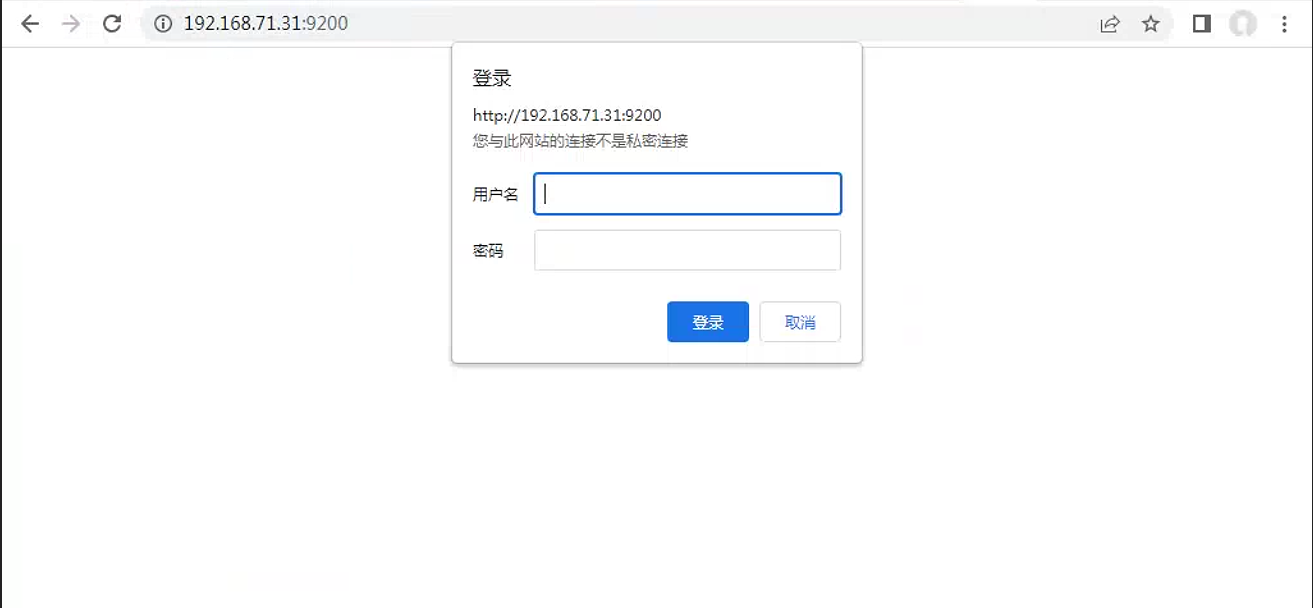
经过上面的配置后 , 我们可以在
terminal中使用如下的方式来进行访问Elasticsearch:curl -u elastic:password 'http://localhost:9200'或者如下的方式:
curl 'http://elastic:password@localhost:9200'
2. 设置各个服务用户
接下设置内置用户的密码:
设置内置密码可参考官网: https://www.elastic.co/guide/en/elasticsearch/reference/8.13/setup-passwords.html
然后./bin/elasticsearch-setup-passwords interactive配置默认用户的密码:(有如下的交互) , 可以使用auto自动生成。在8.0版本已经被弃用了
[root@ec5e2a2b8f43 elasticsearch]# bin/elasticsearch-setup-passwords interactive
Initiating the setup of passwords for reserved users elastic,apm_system,kibana,logstash_system,beats_system,remote_monitoring_user.
You will be prompted to enter passwords as the process progresses.
Please confirm that you would like to continue [y/N]y

// 这里需要手动输入密码
Enter password for [elastic]:
Reenter password for [elastic]:
Enter password for [apm_system]:
Reenter password for [apm_system]:
Enter password for [kibana]:
Reenter password for [kibana]:
Enter password for [logstash_system]:
Reenter password for [logstash_system]:
Enter password for [beats_system]:
Reenter password for [beats_system]:
Enter password for [remote_monitoring_user]:
Reenter password for [remote_monitoring_user]:
// 当出现如下内容后,证明设置成功。
Changed password for user [apm_system]
Changed password for user [kibana]
Changed password for user [logstash_system]
Changed password for user [beats_system]
Changed password for user [remote_monitoring_user]
Changed password for user [elastic]{
  "username" : "elastic",
  "roles" : [
    "superuser"
  ],
  "full_name" : null,
  "email" : null,
  "metadata" : {
    "_reserved" : true
  },
  "enabled" : true,
  "authentication_realm" : {
    "name" : "reserved",
    "type" : "reserved"
  },
  "lookup_realm" : {
    "name" : "reserved",
    "type" : "reserved"
  },
  "authentication_type" : "realm"
}
"error":"no handler found for uri [/_xpack/security/user] and method [GET]"}另外可以通过使用命令elasticsearch-reset-password 重置密码
这里需要使用四个内置用户: elastic、kibana_system、logstash_system 、beats_system四个用户,分别应用于elasticsearch直接的页面访问, kibana服务、logstash服务 以及beats类型的服务
root@elasticsearch01:~# /usr/share/elasticsearch/bin/elasticsearch-reset-password -u elastic -b
Password for the [elastic] user successfully reset.
New value: A44pD6idnW+L1w0NQ-0G
root@elasticsearch01:~# /usr/share/elasticsearch/bin/elasticsearch-reset-password -u elastic -i
This tool will reset the password of the [elastic] user.
You will be prompted to enter the password.
Please confirm that you would like to continue [y/N]y


Enter password for [elastic]:
Re-enter password for [elastic]:
Password for the [elastic] user successfully reset.

root@elasticsearch01:~# /usr/share/elasticsearch/bin/elasticsearch-reset-password -u kibana_system
This tool will reset the password of the [kibana_system] user to an autogenerated value.
The password will be printed in the console.
Please confirm that you would like to continue [y/N]y


Password for the [kibana_system] user successfully reset.
New value: yOywA9XUS5I5=Ue3YBnL
root@elasticsearch01:~# /usr/share/elasticsearch/bin/elasticsearch-reset-password -u kibana_system -i
This tool will reset the password of the [kibana_system] user.
You will be prompted to enter the password.
Please confirm that you would like to continue [y/N]y


Enter password for [kibana_system]:
Re-enter password for [kibana_system]:
Password for the [kibana_system] user successfully reset.
root@elasticsearch01:~# /usr/share/elasticsearch/bin/elasticsearch-reset-password -u logstash_system -i
This tool will reset the password of the [logstash_system] user.
You will be prompted to enter the password.
Please confirm that you would like to continue [y/N]y


Enter password for [logstash_system]:
Re-enter password for [logstash_system]:
Password for the [logstash_system] user successfully reset.

root@elasticsearch01:~# /usr/share/elasticsearch/bin/elasticsearch-reset-password -u beats_system -i
This tool will reset the password of the [beats_system] user.
You will be prompted to enter the password.
Please confirm that you would like to continue [y/N]y


Enter password for [beats_system]:
Re-enter password for [beats_system]:
Password for the [beats_system] user successfully reset.
3. 各个服务密码设置
3.1 cerebro服务
这个服务在证书配置完成之后, 就可以正常访问。 之后会页面会出现如下 需要输入用户名和密码的网页。
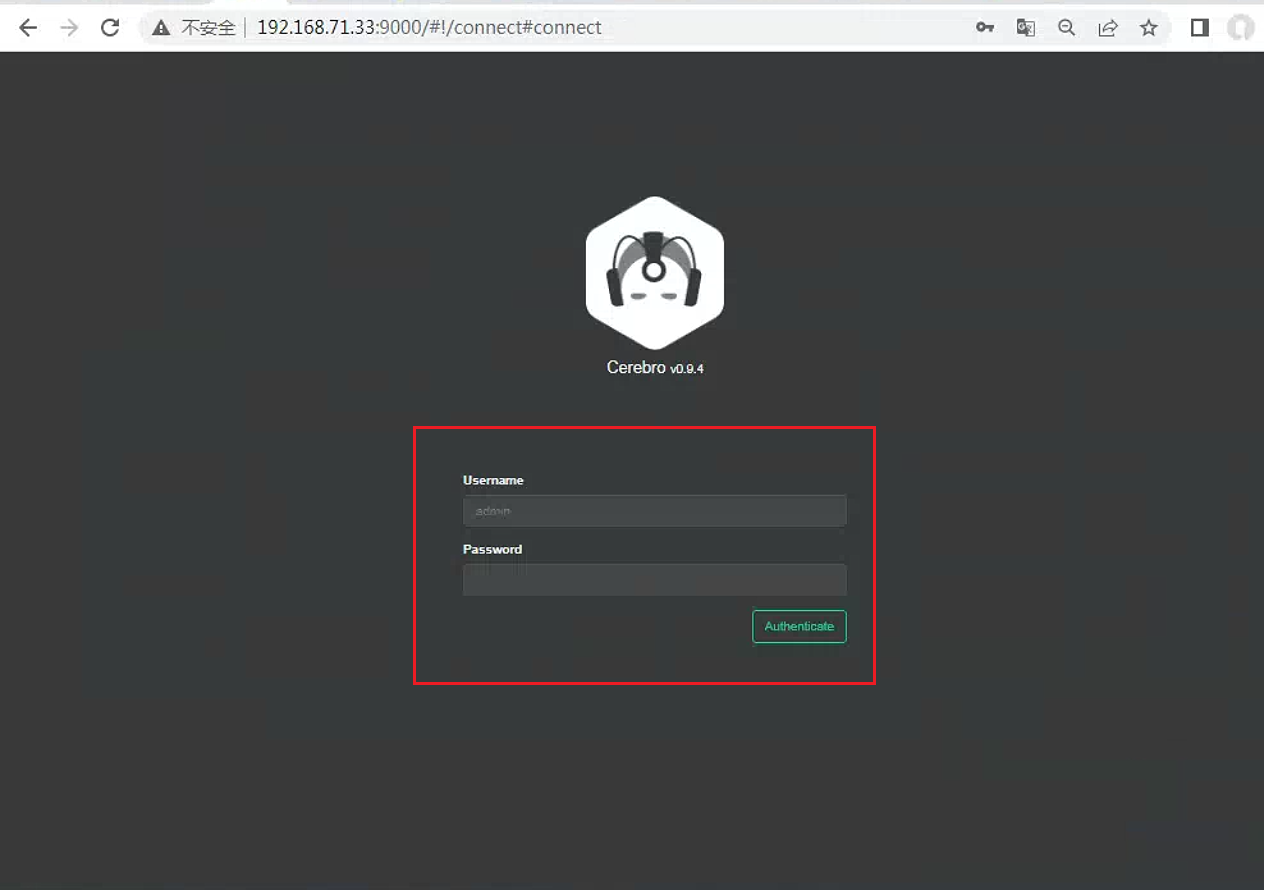
这里直接输入elastic 用户及其对应密码即可。
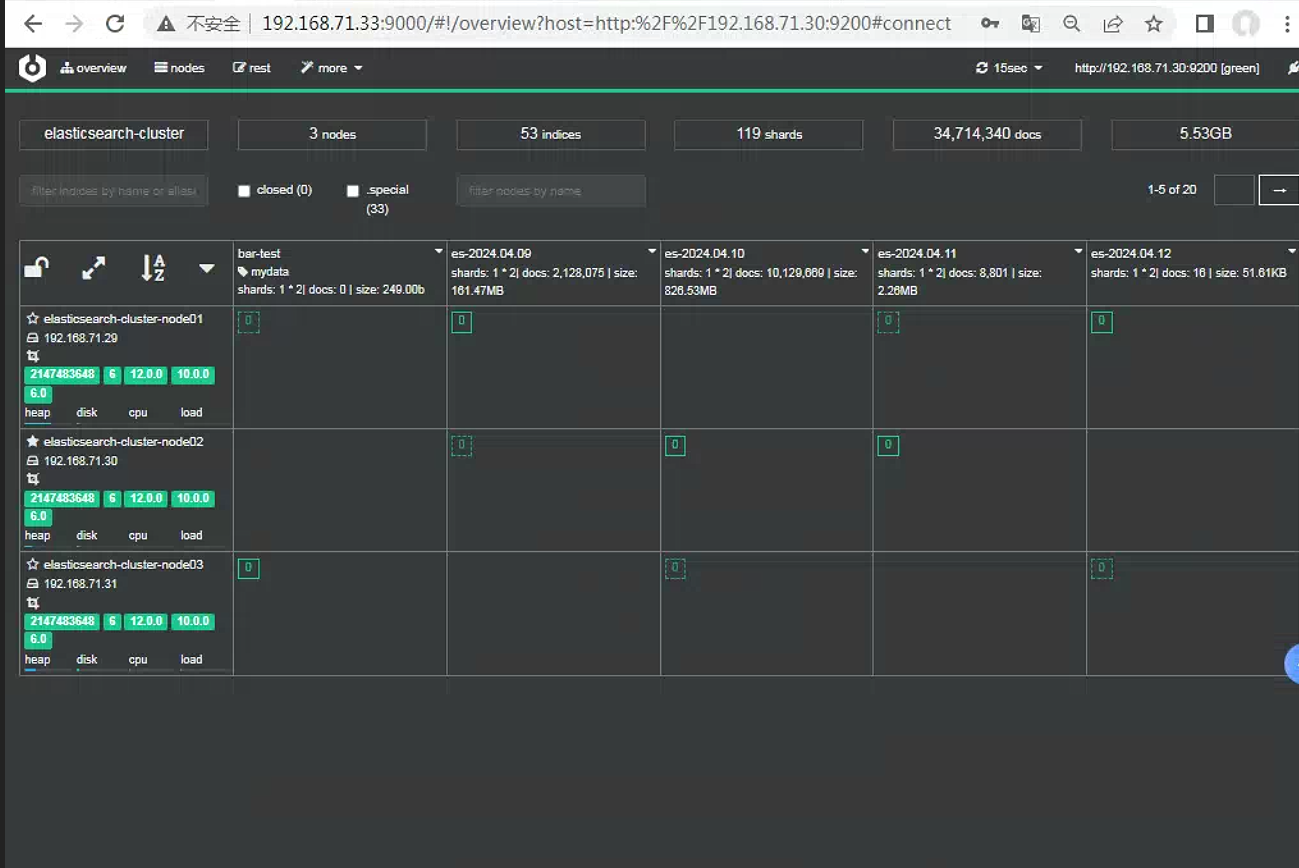
另外可以手动创建一个超级用户, 实现和elastic用户同样的效果。以下命令需要在所有节点上面运行。elasticsearch默认会将用户名密码和用户权限都保存在 : /etc/elasticsearch/users ,etc/elasitcsearch/users_roles
root@elasticsearch02:~# /usr/share/elasticsearch/bin/elasticsearch-users useradd test -p 123456
root@elasticsearch02:~# /usr/share/elasticsearch/bin/elasticsearch-users roles -a superuser test
之后可以正常操作了
3.2 head插件使用
默认情况下, 如果没有密码, 默认输入http:IP:9100, 然后通过浏览器就可以直接查看elasticsearch中的信息
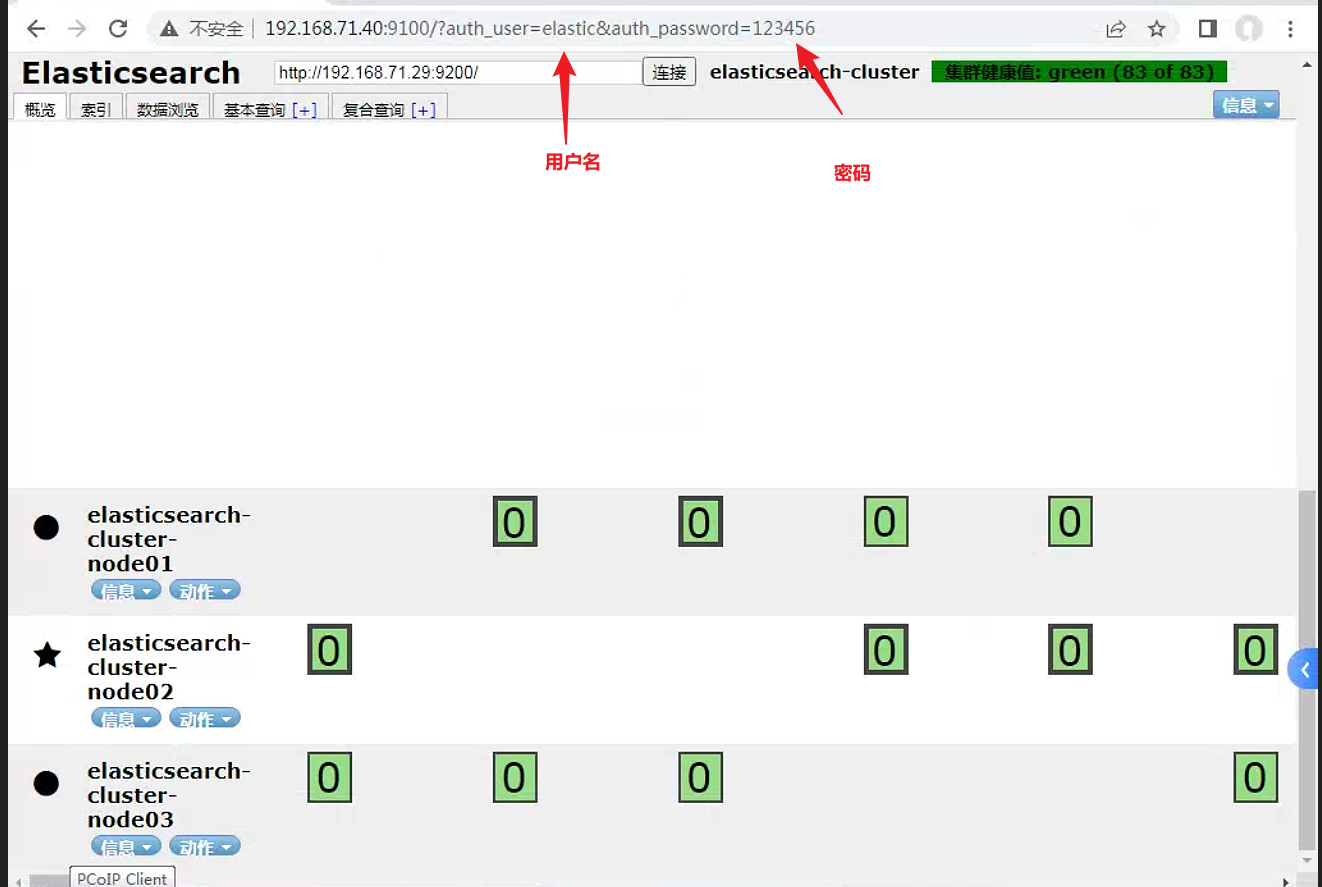
设置用户名和密码之后, 浏览器中需要输入http://192.168.71.40:9100/?auth_user=elastic&auth_password=123456 来实现访问页面的功能。
这里auth_user 指定用户名 ,auth_password指定对应用户名的密码 。之后直接输入elasticsearch的连接url即可访问elasticsearch页面
3.3 kibana 服务
3.3.1 elasticsearch7
调整
kibana配置文件root@kibana:~# cat /etc/kibana/kibana.yml server.port: 5601 server.host: "0.0.0.0" elasticsearch.hosts: ["http://192.168.71.29:9200"] elasticsearch.username: "kibana_system" #主要修改这里, 设置elasticsearch中的kibana用户名 elasticsearch.password: "123456" #主要修改这里 ,设置elasticsearch中的kibanad的密码 pid.file: /run/kibana/kibana.pid i18n.locale: "zh-CN"如果您不想将你的用户
ID和密码放在kibana.yml文件中 , 请将它们存储在密钥库中。 运行以下命令以创建Kibana密钥库并添加安全设置:./bin/kibana-keystore create ./bin/kibana-keystore add elasticsearch.username ./bin/kibana-keystore add elasticsearch.password出现提示时 , 请为这些设置值指定
kibana内置用户及其密码。 启动Kibana时会自动应用这些设置。你也可以在启动
Kibana带有参数,比如./bin/kibana --elasticsearch.hosts="http://localhost:9200" --elasticsearch.username=kibana --elasticsearch.password=password访问kibana页面
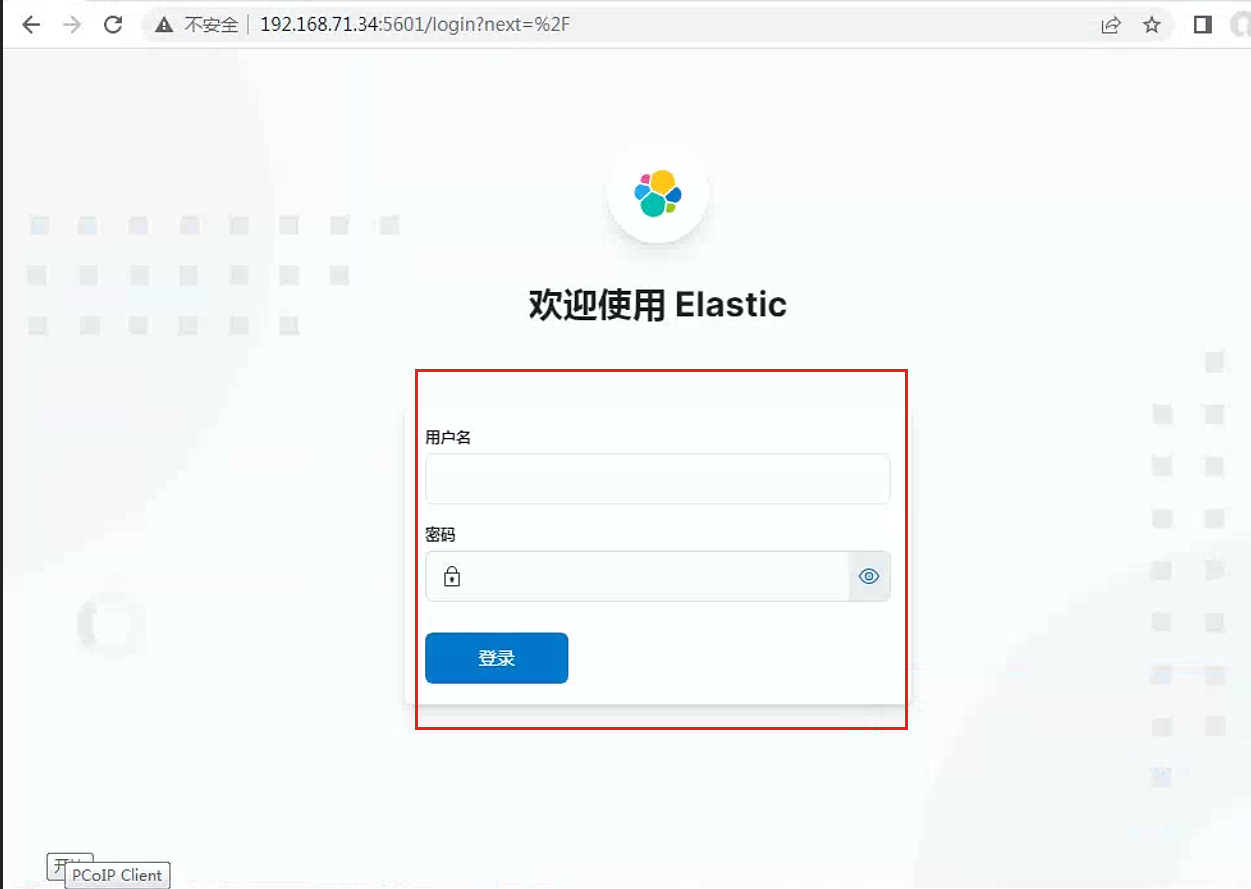
输入重置密码后的内置用户
elastic。或者手动创建的superuser角色的用户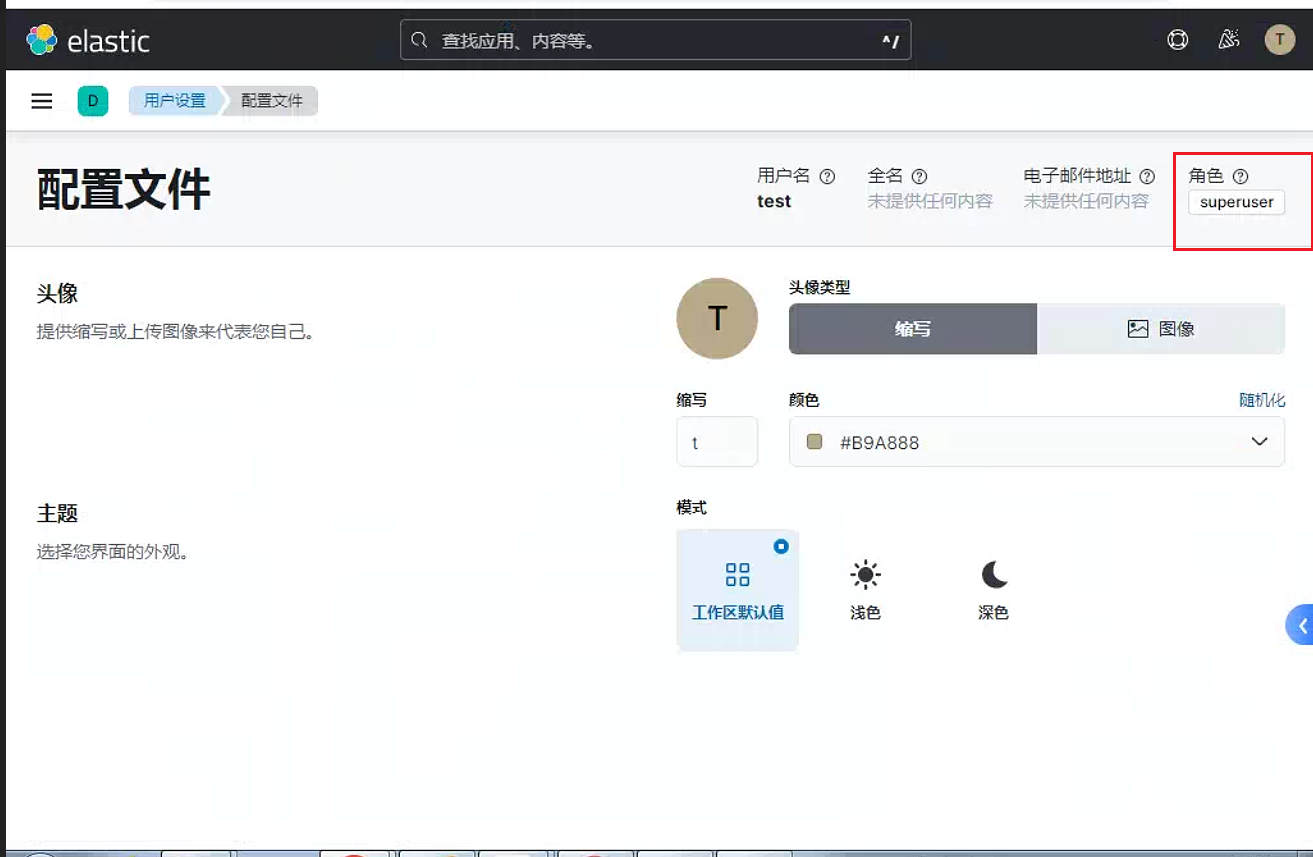
3.3.2 elasticsearch6
需要注意的是xpack这个功能是在elasticsearch7之后免费开放的。所以如果是elasticsearch6之前的版本需要设置用户名和密码, 可以通过nginx代理kibana页面的方式实现用户名和密码的登录功能
3.3.2.1. nginx
编译安装
nginx服务[root@elk-1 nginx-1.14.2]# tar xvf nginx-1.14.2.tar.gz [root@elk-1 nginx-1.14.2]# cd nginx-1.14.2/ [root@elk-1 nginx-1.14.2]# ./configure --prefix=/apps/nginx [root@elk-1 nginx-1.14.2]# make -j 2 && make install修改
nginx配置文件,定义一个认证kibana.conf的文件[root@elk-1 ~]# vim /apps/nginx/conf/nginx.conf include /apps/nginx/conf.d/*.conf; # 在最后一行大括号内定义include } [root@elk-1 ~]# mkdir /apps/nginx/conf.d # 创建一个此目录在
/apps/nginx/conf.d目录下创建一个域名访问的kibana.conf配置文件[root@elk-1 conf.d]# cat kibana.conf upstream kibana_server { server 127.0.0.1:5601 weight=1 max_fails=3 fail_timeout=60; } server { listen 80; server_name kibana-net.com; # 定义域名 auth_basic "Restricted Access"; auth_basic_user_file /apps/nginx/conf/htpasswd.users; location / { proxy_pass http://kibana_server; proxy_http_version 1.1; proxy_set_header Upgrade $http_upgrade; proxy_set_header Connection 'upgrade'; proxy_set_header Host $host; proxy_cache_bypass $http_upgrade; } }在
hosts文件中进行域名解析[root@elk-1 conf.d]# cat /etc/hosts 127.0.0.1 localhost localhost.localdomain localhost4 localhost4.localdomain4 ::1 localhost localhost.localdomain localhost6 localhost6.localdomain6 192.168.7.100 kibana-net.com在本机也需要修改
host文件:C:\Windows\System32\drivers\etc
3.3.2.2 开始对nginx加密认证
在
centos系统安装httpd-tools包,里边有一个htpasswd命令,可以创建用户并进行加密设置# yum install httpd-tools -y创建一个用户名 , 并设置一个秘密
[root@elk-1 conf.d]# htpasswd -bc /apps/nginx/conf/htpasswd.users liu 123456  # 第一次创建目录可以加上-c选项 , 第二次创建第二个账号 , 就不能再添加-c选项 , 账号是liu ,密码是123456
Adding password for user liu
[root@elk-1 conf.d]# htpasswd -b /apps/nginx/conf/htpasswd.users ma 123456
Adding password for user ma
启动
nginx服务# /apps/nginx/sbin/nginx
3.3.2.3 在网页上访问kibana域名
此时访问的域名就需要输入密码
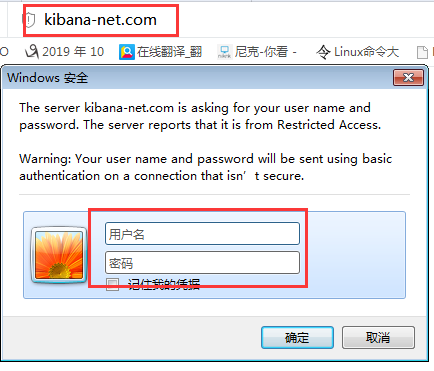
3.4 logstash服务
一般如果需要将数据写入到elasticsearch中时, 直接使用参数(user,password) ,用户名密码使用elasticsearch登录的超级用户即可, 即使用elastic用户
root@nginx:~# cat /etc/logstash/conf.d/tomcat-syslog.conf
input {
  file {
   path => "/var/log/syslog"
   start_position => "beginning"
   stat_interval => 3
   type => "syslog"
  }

  file {
   path => "/usr/local/src/tomcat/logs/tomcat_access_log.*.log"
   start_position => "beginning"
   stat_interval => 3
   type => "tomcat-access-log"
   codec => "json"
  }
}
filter {

    grok {
        match => {
            "message" => "%{SYSLOGBASE} %{GREEDYDATA:message}"
        }
        overwrite => ["message"]
    }
    date {
        match => [ "timestamp", "MMM dd HH:mm:ss", "MMM d HH:mm:ss", "ISO8601" ]
    }
}

output {
  if [type] == "syslog" {
   elasticsearch {
     hosts => ["192.168.71.29:9200"]
     index => "syslog-71-37-%{+YYYY.MM.dd}"
     user => "elastic"
     password => "123456"
     }
   }
   #stdout{codec=>rubydebug}

  if [type] == "tomcat-access-log" {
   elasticsearch {
   hosts => ["192.168.71.29:9200"]
   index => "tomcat-access-log-71-37-%{+YYYY.MM.dd}"
   user => "elastic"
   password => "123456"
   }
  }
}由于elastic用户权限过高, 另外可以通过以下步骤单独创建一个用户, 用于管理logstash中output的elasticsearch插件的使用
单独创建一个角色, 用于管理
index。 在stack managerment--> 角色中创建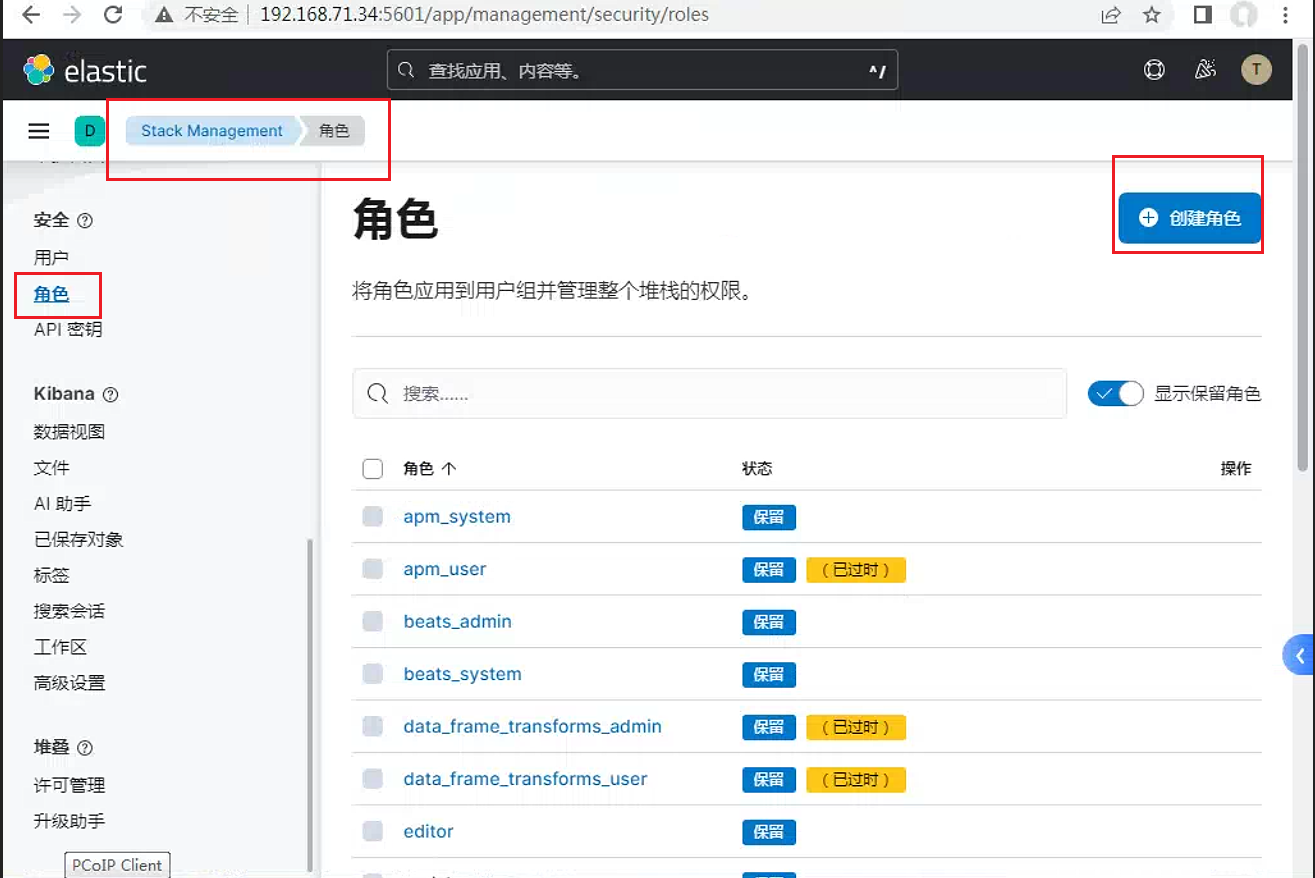
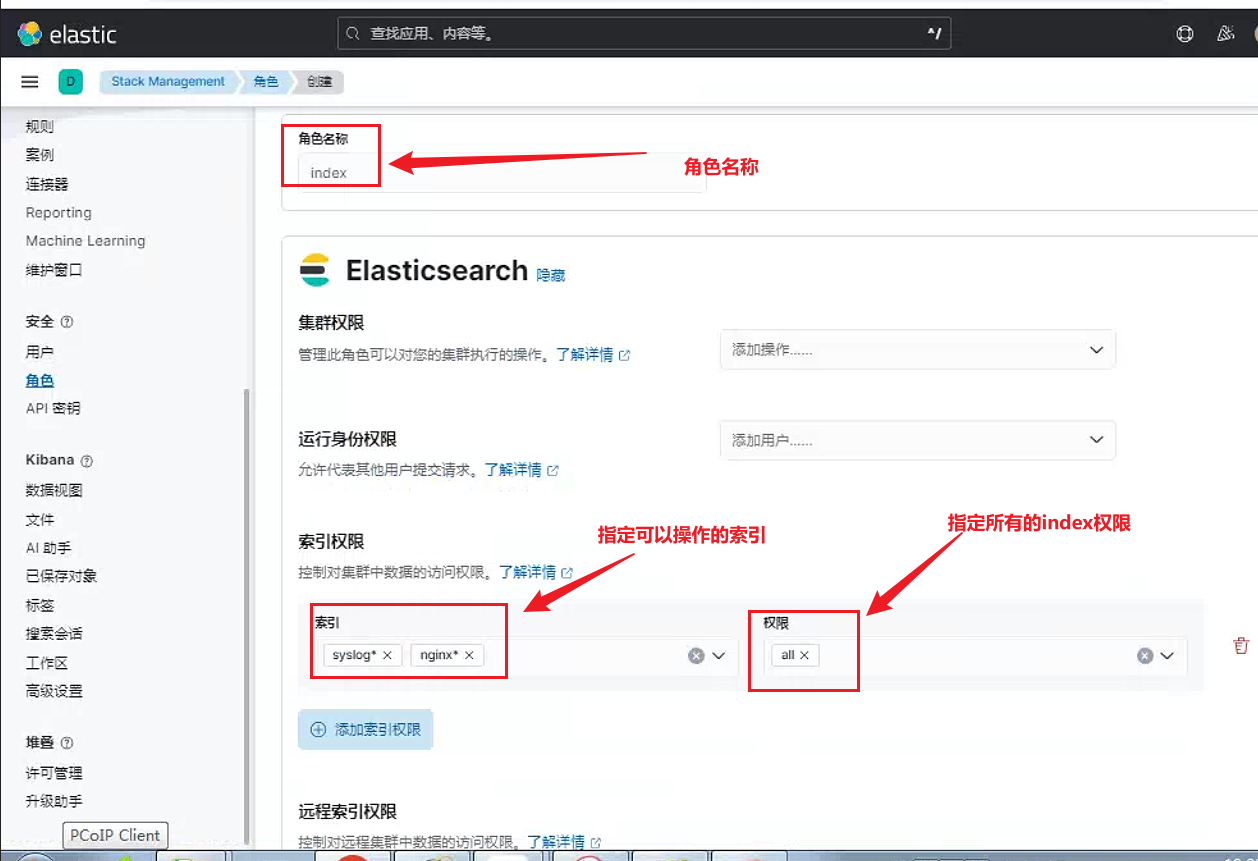
新建用户。同时为新建用户添加刚创建的
index权限,以及enrich_user、transport_client两个用户角色权限。enrich_user: 授予管理所有富集索引(.enrich-*) ,ingest pipelines.的所有权限transport_client: 授予通过Java传输客户端访问群集所需的权限。Java传输客户端使用Node Liveness API和cluster State API获取集群中节点的信息(启用嗅探时)所有的内置role,可以参考官方链接 : Built-in roles | Elasticsearch Guide 8.13\ | Elastic
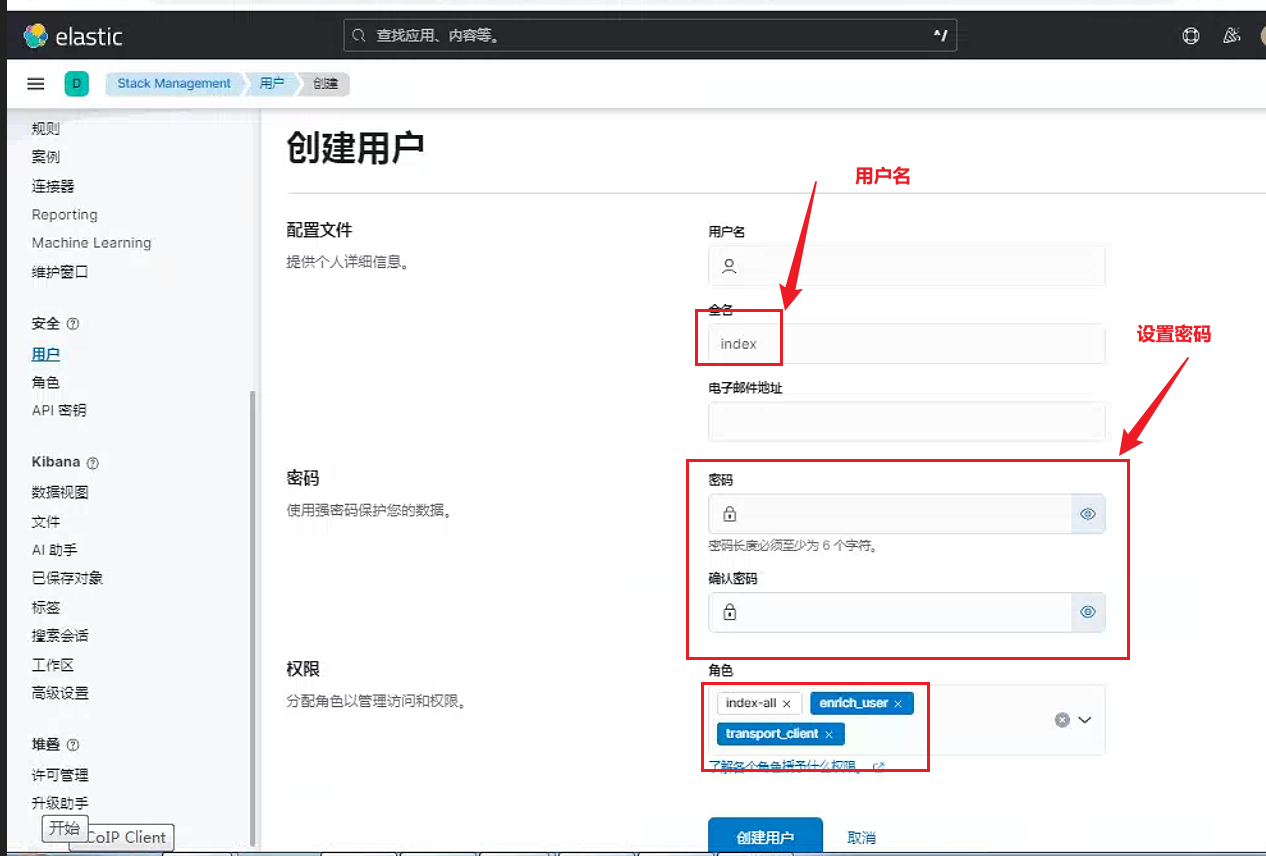
之后直接使用该用户即可
参考链接
ELK elasticsearch7 设置账号、权限 - 陈惟鲜的博客 - 博客园 (cnblogs.com)