
19-监控扩展
基于第三方 exporter 实现对目的服务的监控
exporter功能 :
收集指标数据
将收集的数据进行格式转换 , 转换为
prometheus能够识别的为key/value格式的数据将转化后的数据暴露出去
1. 监控tomcat
github参考链接 : nlighten/tomcat_exporter: A Prometheus exporter for Apache Tomcat (github.com)
监控 tomcat 的活跃连接数、堆栈内存等信息:
活跃连接数:
# TYPE tomcat_connections_active_total gauge
tomcat_connections_active_total{name="http-nio-8080",} 2.0
堆栈内存信息:
# TYPE jvm_memory_bytes_used gauge
jvm_memory_bytes_used{area="heap",} 2.4451216E7
1.1 自定义tomcat镜像
准备镜像所需文件
准备
tomcat配置文件server.xml(server.xml可通过拉起tomcat容器获取)<Host name="localhost" appBase="/data/tomcat/webapps" unpackWARs="false" autoDeploy="false">server.xml整体文件如下<?xml version="1.0" encoding="UTF-8"?> <!-- Licensed to the Apache Software Foundation (ASF) under one or more contributor license agreements. See the NOTICE file distributed with this work for additional information regarding copyright ownership. The ASF licenses this file to You under the Apache License, Version 2.0 (the "License"); you may not use this file except in compliance with the License. You may obtain a copy of the License at http://www.apache.org/licenses/LICENSE-2.0 Unless required by applicable law or agreed to in writing, software distributed under the License is distributed on an "AS IS" BASIS, WITHOUT WARRANTIES OR CONDITIONS OF ANY KIND, either express or implied. See the License for the specific language governing permissions and limitations under the License. --> <!-- Note: A "Server" is not itself a "Container", so you may not define subcomponents such as "Valves" at this level. Documentation at /docs/config/server.html --> <Server port="8005" shutdown="SHUTDOWN"> <Listener className="org.apache.catalina.startup.VersionLoggerListener" /> <!-- Security listener. Documentation at /docs/config/listeners.html <Listener className="org.apache.catalina.security.SecurityListener" /> --> <!-- OpenSSL support using Tomcat Native --> <Listener className="org.apache.catalina.core.AprLifecycleListener" /> <!-- OpenSSL support using FFM API from Java 22 --> <!-- <Listener className="org.apache.catalina.core.OpenSSLLifecycleListener" /> --> <!-- Prevent memory leaks due to use of particular java/javax APIs--> <Listener className="org.apache.catalina.core.JreMemoryLeakPreventionListener" /> <Listener className="org.apache.catalina.mbeans.GlobalResourcesLifecycleListener" /> <Listener className="org.apache.catalina.core.ThreadLocalLeakPreventionListener" /> <!-- Global JNDI resources Documentation at /docs/jndi-resources-howto.html --> <GlobalNamingResources> <!-- Editable user database that can also be used by UserDatabaseRealm to authenticate users --> <Resource name="UserDatabase" auth="Container" type="org.apache.catalina.UserDatabase" description="User database that can be updated and saved" factory="org.apache.catalina.users.MemoryUserDatabaseFactory" pathname="conf/tomcat-users.xml" /> </GlobalNamingResources> <!-- A "Service" is a collection of one or more "Connectors" that share a single "Container" Note: A "Service" is not itself a "Container", so you may not define subcomponents such as "Valves" at this level. Documentation at /docs/config/service.html --> <Service name="Catalina"> <!--The connectors can use a shared executor, you can define one or more named thread pools--> <!-- <Executor name="tomcatThreadPool" namePrefix="catalina-exec-" maxThreads="150" minSpareThreads="4"/> --> <!-- A "Connector" represents an endpoint by which requests are received and responses are returned. Documentation at : HTTP Connector: /docs/config/http.html AJP Connector: /docs/config/ajp.html Define a non-SSL/TLS HTTP/1.1 Connector on port 8080 --> <Connector port="8080" protocol="HTTP/1.1" connectionTimeout="20000" redirectPort="8443" /> <!-- A "Connector" using the shared thread pool--> <!-- <Connector executor="tomcatThreadPool" port="8080" protocol="HTTP/1.1" connectionTimeout="20000" redirectPort="8443" /> --> <!-- Define an SSL/TLS HTTP/1.1 Connector on port 8443 with HTTP/2 This connector uses the NIO implementation. The default SSLImplementation will depend on the presence of the APR/native library and the useOpenSSL attribute of the AprLifecycleListener. Either JSSE or OpenSSL style configuration may be used regardless of the SSLImplementation selected. JSSE style configuration is used below. --> <!-- <Connector port="8443" protocol="org.apache.coyote.http11.Http11NioProtocol" maxThreads="150" SSLEnabled="true"> <UpgradeProtocol className="org.apache.coyote.http2.Http2Protocol" /> <SSLHostConfig> <Certificate certificateKeystoreFile="conf/localhost-rsa.jks" type="RSA" /> </SSLHostConfig> </Connector> --> <!-- Define an AJP 1.3 Connector on port 8009 --> <!-- <Connector protocol="AJP/1.3" address="::1" port="8009" redirectPort="8443" /> --> <!-- An Engine represents the entry point (within Catalina) that processes every request. The Engine implementation for Tomcat stand alone analyzes the HTTP headers included with the request, and passes them on to the appropriate Host (virtual host). Documentation at /docs/config/engine.html --> <!-- You should set jvmRoute to support load-balancing via AJP ie : <Engine name="Catalina" defaultHost="localhost" jvmRoute="jvm1"> --> <Engine name="Catalina" defaultHost="localhost"> <!--For clustering, please take a look at documentation at: /docs/cluster-howto.html (simple how to) /docs/config/cluster.html (reference documentation) --> <!-- <Cluster className="org.apache.catalina.ha.tcp.SimpleTcpCluster"/> --> <!-- Use the LockOutRealm to prevent attempts to guess user passwords via a brute-force attack --> <Realm className="org.apache.catalina.realm.LockOutRealm"> <!-- This Realm uses the UserDatabase configured in the global JNDI resources under the key "UserDatabase". Any edits that are performed against this UserDatabase are immediately available for use by the Realm. --> <Realm className="org.apache.catalina.realm.UserDatabaseRealm" resourceName="UserDatabase"/> </Realm> <Host name="localhost" appBase="/data/tomcat/webapps" unpackWARs="false" autoDeploy="false"> <!-- SingleSignOn valve, share authentication between web applications Documentation at: /docs/config/valve.html --> <!-- <Valve className="org.apache.catalina.authenticator.SingleSignOn" /> --> <!-- Access log processes all example. Documentation at: /docs/config/valve.html Note: The pattern used is equivalent to using pattern="common" --> <Valve className="org.apache.catalina.valves.AccessLogValve" directory="logs" prefix="localhost_access_log" suffix=".txt" pattern="%h %l %u %t "%r" %s %b" /> </Host> </Engine> </Service> </Server> 准备代码文件
root@k8s-master01:/opt/k8s-data/yaml/cbear/promethues/tomcat# echo "<h1>tomcat app1</h1>" > index.jsp准备
jar包 , 这里可以通过github获取对应的jar包。jar下载链接: Central Repository: io/prometheus (maven.org)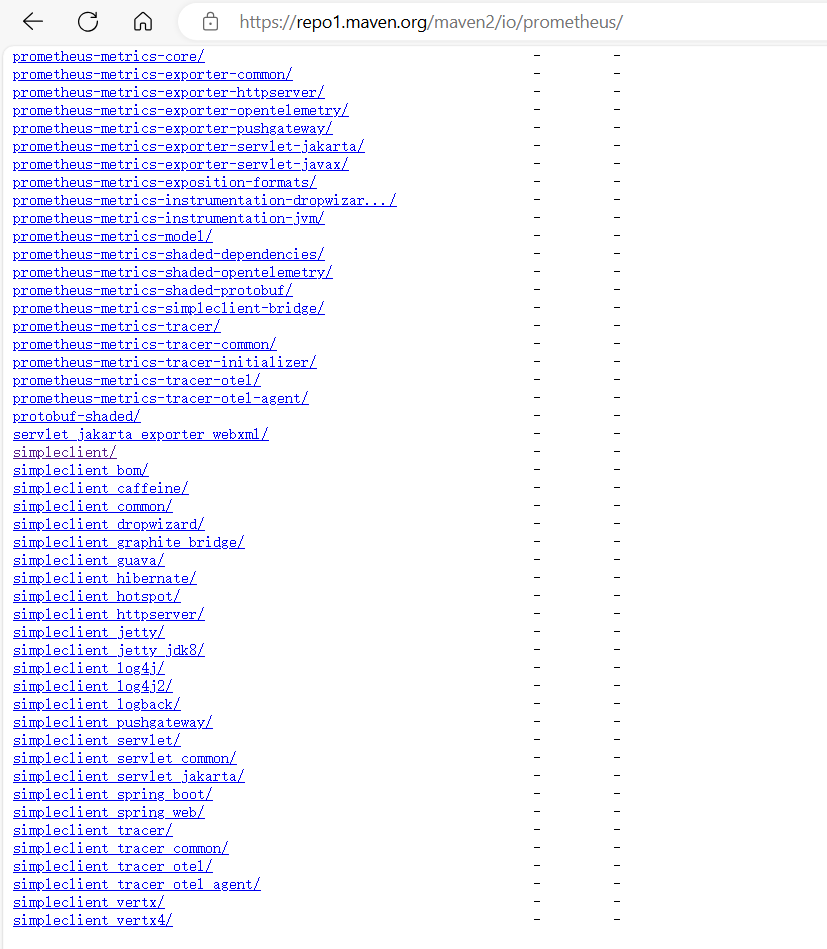
可以用以下脚本
jar文件下载至目录/usr/local/tomcat/lib,/usr/local/tomcat/webapps/root@k8s-master01:/opt/k8s-data/yaml/cbear/tomcat# cat make_jar.sh #/bin/bash TOMCAT_SIMPLECLIENT_VERSION=0.12.0 TOMCAT_EXPORTER_VERSION=0.0.15 curl -v --fail --location https://search.maven.org/remotecontent?filepath=io/prometheus/simpleclient/${TOMCAT_SIMPLECLIENT_VERSION}/simpleclient-${TOMCAT_SIMPLECLIENT_VERSION}.jar --output /usr/local/tomcat/lib/simpleclient-${TOMCAT_SIMPLECLIENT_VERSION}.jar curl -v --fail --location https://search.maven.org/remotecontent?filepath=io/prometheus/simpleclient_common/${TOMCAT_SIMPLECLIENT_VERSION}/simpleclient_common-${TOMCAT_SIMPLECLIENT_VERSION}.jar --output /usr/local/tomcat/lib/simpleclient_common-${TOMCAT_SIMPLECLIENT_VERSION}.jar curl -v --fail --location https://search.maven.org/remotecontent?filepath=io/prometheus/simpleclient_hotspot/${TOMCAT_SIMPLECLIENT_VERSION}/simpleclient_hotspot-${TOMCAT_SIMPLECLIENT_VERSION}.jar --output /usr/local/tomcat/lib/simpleclient_hotspot-${TOMCAT_SIMPLECLIENT_VERSION}.jar curl -v --fail --location https://search.maven.org/remotecontent?filepath=io/prometheus/simpleclient_servlet/${TOMCAT_SIMPLECLIENT_VERSION}/simpleclient_servlet-${TOMCAT_SIMPLECLIENT_VERSION}.jar --output /usr/local/tomcat/lib/simpleclient_servlet-${TOMCAT_SIMPLECLIENT_VERSION}.jar curl -v --fail --location https://search.maven.org/remotecontent?filepath=io/prometheus/simpleclient_servlet_common/${TOMCAT_SIMPLECLIENT_VERSION}/simpleclient_servlet_common-${TOMCAT_SIMPLECLIENT_VERSION}.jar --output /usr/local/tomcat/lib/simpleclient_servlet_common-${TOMCAT_SIMPLECLIENT_VERSION}.jar curl -v --fail --location https://search.maven.org/remotecontent?filepath=nl/nlighten/tomcat_exporter_client/${TOMCAT_EXPORTER_VERSION}/tomcat_exporter_client-${TOMCAT_EXPORTER_VERSION}.jar --output /usr/local/tomcat/lib/tomcat_exporter_client-${TOMCAT_EXPORTER_VERSION}.jar curl -v --fail --location https://search.maven.org/remotecontent?filepath=nl/nlighten/tomcat_exporter_servlet/${TOMCAT_EXPORTER_VERSION}/tomcat_exporter_servlet-${TOMCAT_EXPORTER_VERSION}.war --output /usr/local/tomcat/webapps/metrics.war
编辑
Dockfile文件(基础镜像为官方tomcat镜像 , 加载server.xml, 创建数据目录并加载代码文件到数据目录 , 加载jar包用于暴露tomcat中的指标数据 ,jar包要放在/usr/local/tomcat/lib/目录)FROM tomcat:9.0-jdk17-openjdk-slim ENV TOMCAT_SIMPLECLIENT_VERSION=0.12.0 ENV TOMCAT_EXPORTER_VERSION=0.0.15 ADD server.xml /usr/local/tomcat/conf/server.xml RUN mkdir /data/tomcat/webapps/myapp/ -p ADD index.jsp /data/tomcat/webapps/myapp/ RUN apt-get update && apt-get install -y curl && \ curl -v --fail --location https://search.maven.org/remotecontent?filepath=io/prometheus/simpleclient/${TOMCAT_SIMPLECLIENT_VERSION}/simpleclient-${TOMCAT_SIMPLECLIENT_VERSION}.jar --output /usr/local/tomcat/lib/simpleclient-${TOMCAT_SIMPLECLIENT_VERSION}.jar && \ curl -v --fail --location https://search.maven.org/remotecontent?filepath=io/prometheus/simpleclient_common/${TOMCAT_SIMPLECLIENT_VERSION}/simpleclient_common-${TOMCAT_SIMPLECLIENT_VERSION}.jar --output /usr/local/tomcat/lib/simpleclient_common-${TOMCAT_SIMPLECLIENT_VERSION}.jar && \ curl -v --fail --location https://search.maven.org/remotecontent?filepath=io/prometheus/simpleclient_hotspot/${TOMCAT_SIMPLECLIENT_VERSION}/simpleclient_hotspot-${TOMCAT_SIMPLECLIENT_VERSION}.jar --output /usr/local/tomcat/lib/simpleclient_hotspot-${TOMCAT_SIMPLECLIENT_VERSION}.jar && \ curl -v --fail --location https://search.maven.org/remotecontent?filepath=io/prometheus/simpleclient_servlet/${TOMCAT_SIMPLECLIENT_VERSION}/simpleclient_servlet-${TOMCAT_SIMPLECLIENT_VERSION}.jar --output /usr/local/tomcat/lib/simpleclient_servlet-${TOMCAT_SIMPLECLIENT_VERSION}.jar && \ curl -v --fail --location https://search.maven.org/remotecontent?filepath=io/prometheus/simpleclient_servlet_common/${TOMCAT_SIMPLECLIENT_VERSION}/simpleclient_servlet_common-${TOMCAT_SIMPLECLIENT_VERSION}.jar --output /usr/local/tomcat/lib/simpleclient_servlet_common-${TOMCAT_SIMPLECLIENT_VERSION}.jar && \ curl -v --fail --location https://search.maven.org/remotecontent?filepath=nl/nlighten/tomcat_exporter_client/${TOMCAT_EXPORTER_VERSION}/tomcat_exporter_client-${TOMCAT_EXPORTER_VERSION}.jar --output /usr/local/tomcat/lib/tomcat_exporter_client-${TOMCAT_EXPORTER_VERSION}.jar && \ curl -v --fail --location https://search.maven.org/remotecontent?filepath=nl/nlighten/tomcat_exporter_servlet/${TOMCAT_EXPORTER_VERSION}/tomcat_exporter_servlet-${TOMCAT_EXPORTER_VERSION}.war --output /data/tomcat/webapps/metrics.war EXPOSE 8080 8443 8009 CMD ["/usr/local/tomcat/bin/catalina.sh","run"]另外可以使用以下
dockerfileFROM tomcat:8.5.73 LABEL maintainer="957464230@qq.com" ADD server.xml /usr/local/tomcat/conf/server.xml RUN mkdir /data/tomcat/webapps -p ADD index.jsp /data/tomcat/webapps/myapp/ ADD metrics.war /data/tomcat/webapps ADD simpleclient-0.8.0.jar /usr/local/tomcat/lib/ ADD simpleclient_common-0.8.0.jar /usr/local/tomcat/lib/ ADD simpleclient_hotspot-0.8.0.jar /usr/local/tomcat/lib/ ADD simpleclient_servlet-0.8.0.jar /usr/local/tomcat/lib/ ADD tomcat_exporter_client-0.0.12.jar /usr/local/tomcat/lib/ EXPOSE 8080 8443 8009 CMD ["/usr/local/tomcat/bin/catalina.sh","run"]编辑构建镜像脚本并运行脚本构建镜像
#!/bin/bash nerdctl build -t harbor.cbear.top/prometheus/tomcat-monitoring:v1 . nerdctl push harbor.cbear.top/prometheus/tomcat-monitoring:v1为脚本添加可执行权限
chmod a+x *.sh #如果不添加可执行权限 , 构建镜像会提示权限不足运行脚本构建镜像
bash build-command.sh
1.2 通过自定义镜像构建容器进行验证
通过镜像手动拉起容器验证镜像是否可用 执行命令:
docker run -it -p 9080:8080 harbor.cbear.top/prometheus/tomcat-monitoring:v1浏览器访问:
192.168.71.34:9080/myapp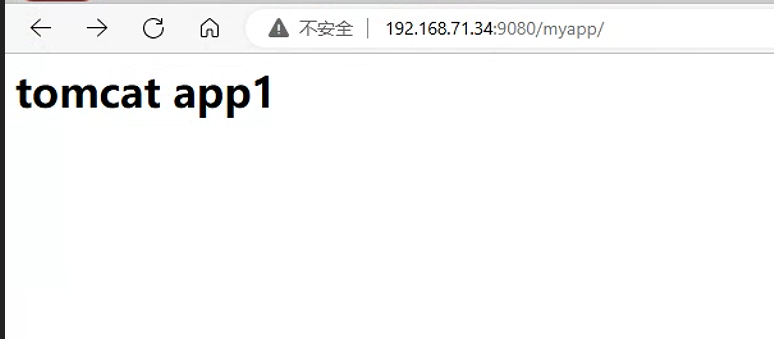
访问
192.168.71.34:9080/metrics, 查看metrics数据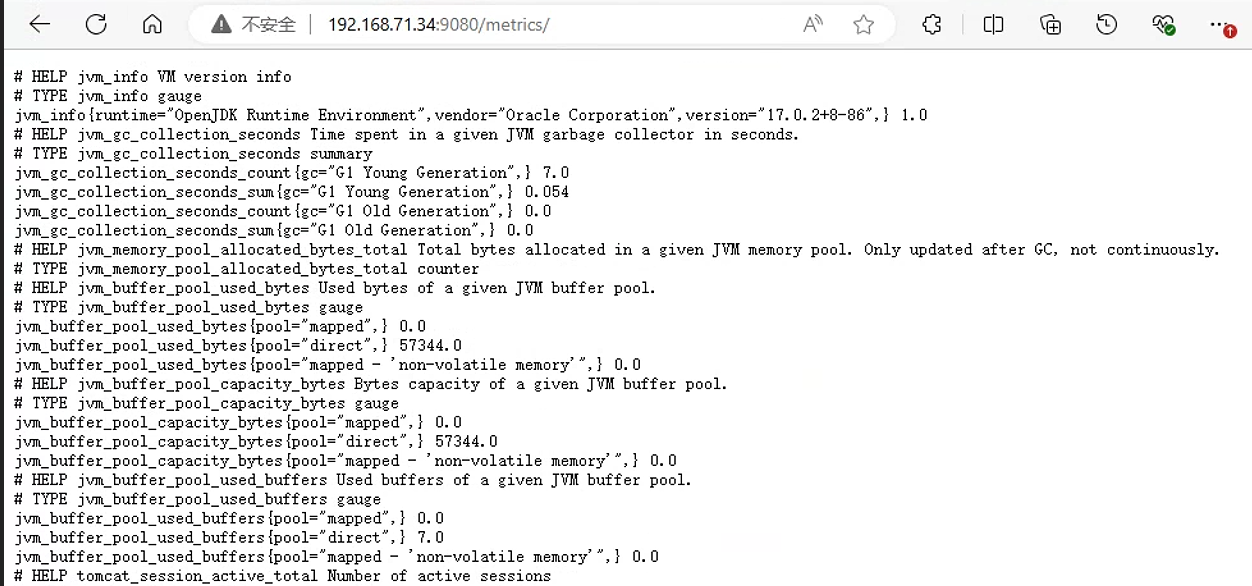
1.3 在k8s集群部署tomcat
部署
tomcat, 编写yaml文件apiVersion: apps/v1 kind: Deployment metadata: name: tomcat-deployment namespace: default spec: selector: matchLabels: app: tomcat replicas: 1 # tells deployment to run 2 pods matching the template template: # create pods using pod definition in this template metadata: labels: app: tomcat annotations: #配置注解 , 便于prometheus条件过滤 prometheus.io/scrape: 'true' #值为true , 可以通过该注解抓取service后端pod数据 spec: containers: - name: tomcat image: harbor.cbear.top/prometheus/tomcat-monitoring:v1 ports: - containerPort: 8080 securityContext: privileged: true部署
tomcatroot@k8s-master01:/opt/k8s-data/yaml/cbear/promethues/tomcat# kubectl apply -f tomcat-deploy.yaml deployment.apps/tomcat-deployment created查看
tomcat, 地址为172.20.13.207
为
tomcat创建service, 暴露端口 , 便于集群外部的prometheus通过该端口抓取数据编辑
yaml文件kind: Service #service 类型 apiVersion: v1 metadata: annotations: prometheus.io/scrape: 'true' name: tomcat-service spec: selector: app: tomcat ports: - nodePort: 31080 port: 80 protocol: TCP targetPort: 8080 type: NodePort部署
service文件root@k8s-master01:/opt/k8s-data/yaml/cbear/promethues/tomcat# kubectl apply -f tomcat-svc.yaml service/tomcat-service created注意:使用
service暴露tomcat数据的方式存在问题: 如果tomcat存在多副本 ,prometheus通过service暴露的端口获取数据 , 获取到的数据可能是多个不同pod的数据 , 而不是同一个pod的数据(这是因为service会把请求后端容器的数据调度到不同的tomcat上)。 因此 ,prometheus最好部署在k8s集群内部 , 可以通过pod发现来抓取不同pod的数据 , 抓取到的数据比较准确
1.4 prometheus采集数据并验证
在
k8s集群外部主机节点192.168.71.47上修改prometheus配置文件- job_name: "prometheus-tomcat-metrics" static_configs: - targets: ["192.168.71.35:31080"]查看监控页面 :
192.168.71.47:9090
由于
prometheus的service开启注解(annotations) , 可以通过k8s集群内部的prometheus对service后端的pod进行数据抓取 查看k8s集群内部部署的prometheus监控页面:192.168.71.35:30900可以看到
ip地址为172.20.13.208:8080的容器已经被监控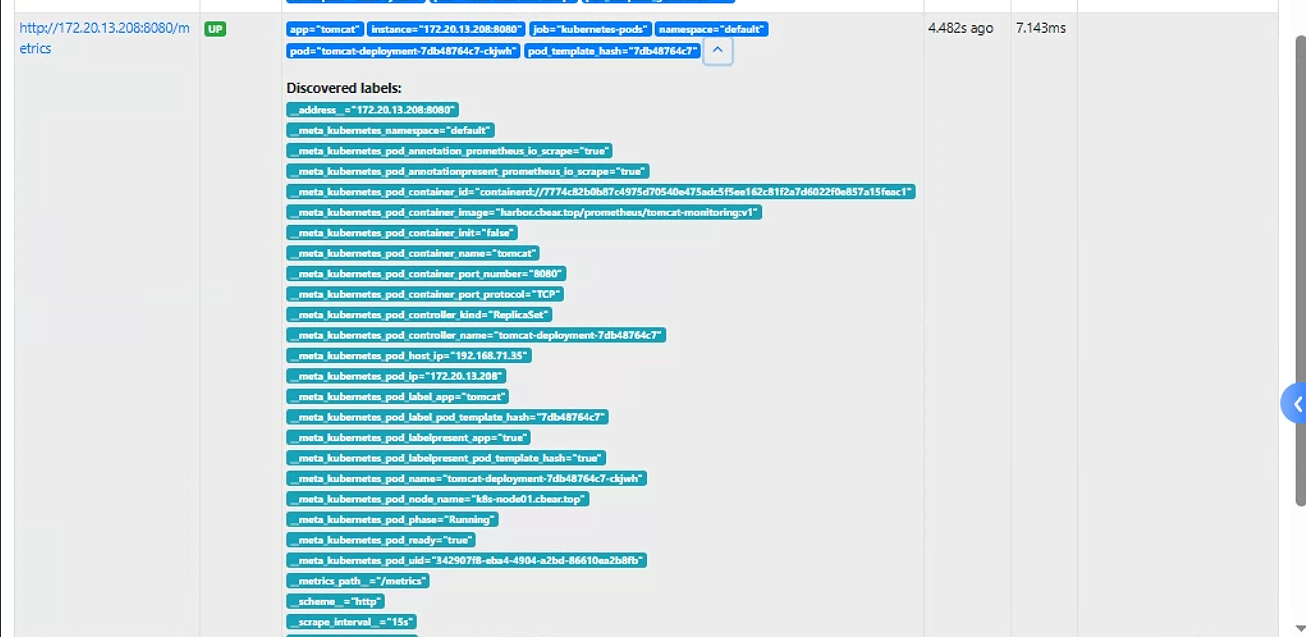
1.5 grafana查看数据
获取监控模板: 可以使用以下
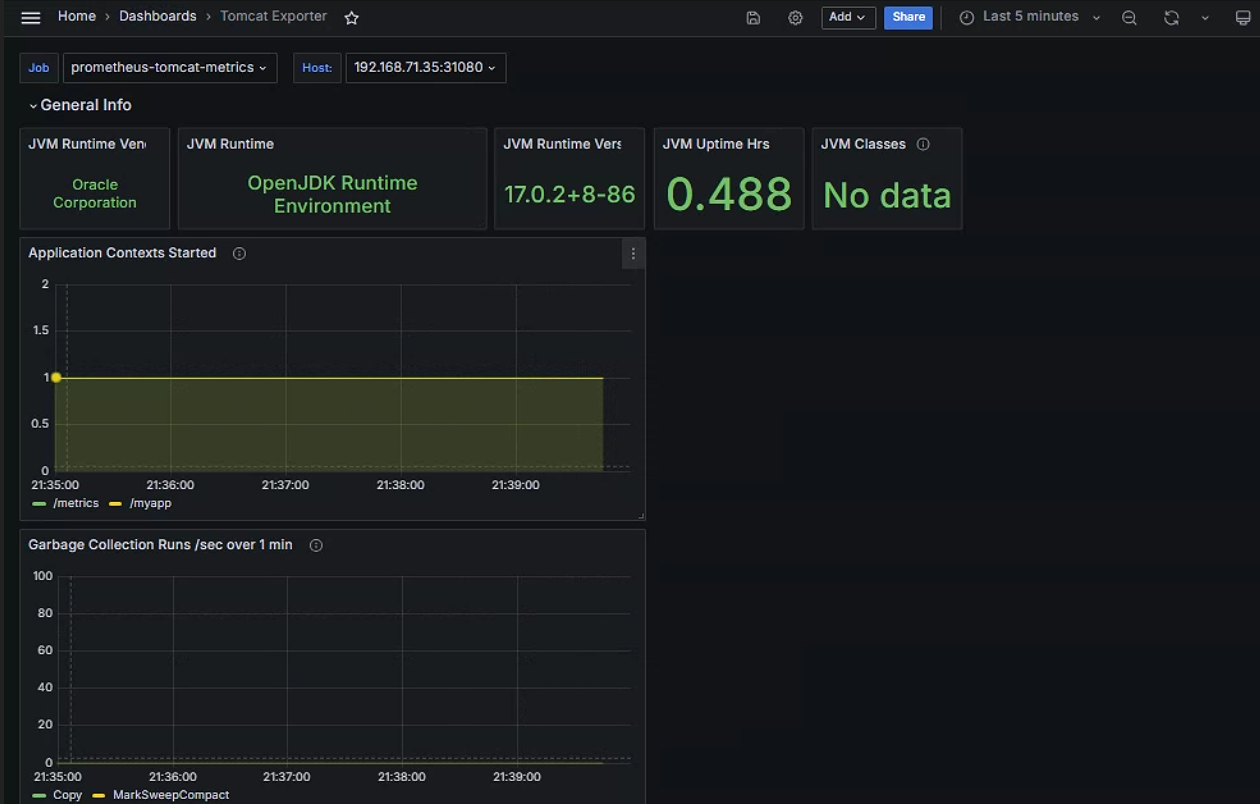
github上的tomcat监控模板 , 也可以从grafana官网获取监控tomcat的模板github下载链接: https://github.com/nlighten/tomcat_exporter/blob/master/dashboard/example.jsonjson文件下载完成后 , 导入grafana或者复制全部文件内容 , 粘贴到grafana中查看监控数据:
2. 监控redis
通过 redis_exporter 监控 redis 服务状态。
github链接 : https://github.com/oliver006/redis_exporter
如果redis运行在虚拟机上 , redis_exporter需要和redis运行在同一个虚拟机中。如果redis运行在k8s集群内 , redis_exporter需要和redis运行在同一个pod中。
2.1 部署redis
编辑
redis的yaml文件apiVersion: apps/v1 kind: Deployment metadata: name: redis namespace: default spec: replicas: 1 selector: matchLabels: app: redis template: metadata: labels: app: redis spec: containers: - name: redis #指定refis容器 image: harbor.cbear.top/prometheus/redis:7.2.5-alpine3.20 #image: redis:7.2.5-alpine3.20 resources: requests: cpu: 100m memory: 100Mi ports: - containerPort: 6379 - name: redis-exporter #指定redis_exporter容器 image: harbor.cbear.top/prometheus/redis-exporter:v1.61.0 #image: oliver006/redis_exporter:v1.61.0 resources: requests: cpu: 100m memory: 100Mi ports: - containerPort: 9121为
redis创建service, 暴露端口, 专用于k8s集群外部的prometheus获取监控数据kind: Service #service 类型 apiVersion: v1 metadata: annotations: prometheus.io/scrape: 'true' prometheus.io/port: "9121" name: redis-exporter-service namespace: default spec: selector: app: redis ports: - nodePort: 31082 name: prom port: 9121 protocol: TCP targetPort: 9121 type: NodePort为
redis创建service暴露端口 , 用于在k8s集群外部访问进行redis测试kind: Service #service 类型 apiVersion: v1 metadata: name: redis-redis-service namespace: default spec: selector: app: redis ports: - nodePort: 31081 name: redis port: 6379 protocol: TCP targetPort: 6379 type: NodePort部署资源文件
root@k8s-master01:/opt/k8s-data/yaml/cbear/promethues/redis# kubectl apply -f ./
deployment.apps/redis unchanged
service/redis-exporter-service created
service/redis-redis-service created
查看对应资源
root@k8s-master01:/opt/k8s-data/yaml/cbear/promethues/redis# kubectl get pods NAME READY STATUS RESTARTS AGE redis-5cd9b77954-lb4ww 2/2 Running 0 11m root@k8s-master01:/opt/k8s-data/yaml/cbear/promethues/redis# kubectl get svc NAME TYPE CLUSTER-IP EXTERNAL-IP PORT(S) AGE redis-exporter-service NodePort 10.68.253.145 <none> 9121:31082/TCP 3m2s redis-redis-service NodePort 10.68.222.148 <none> 6379:31081/TCP 3m2stelnet验证redis端口是否能通
验证通过指标数据端口是否可以正常获取指标数据 执行命令:
curl http://192.168.71.35:31082/metrics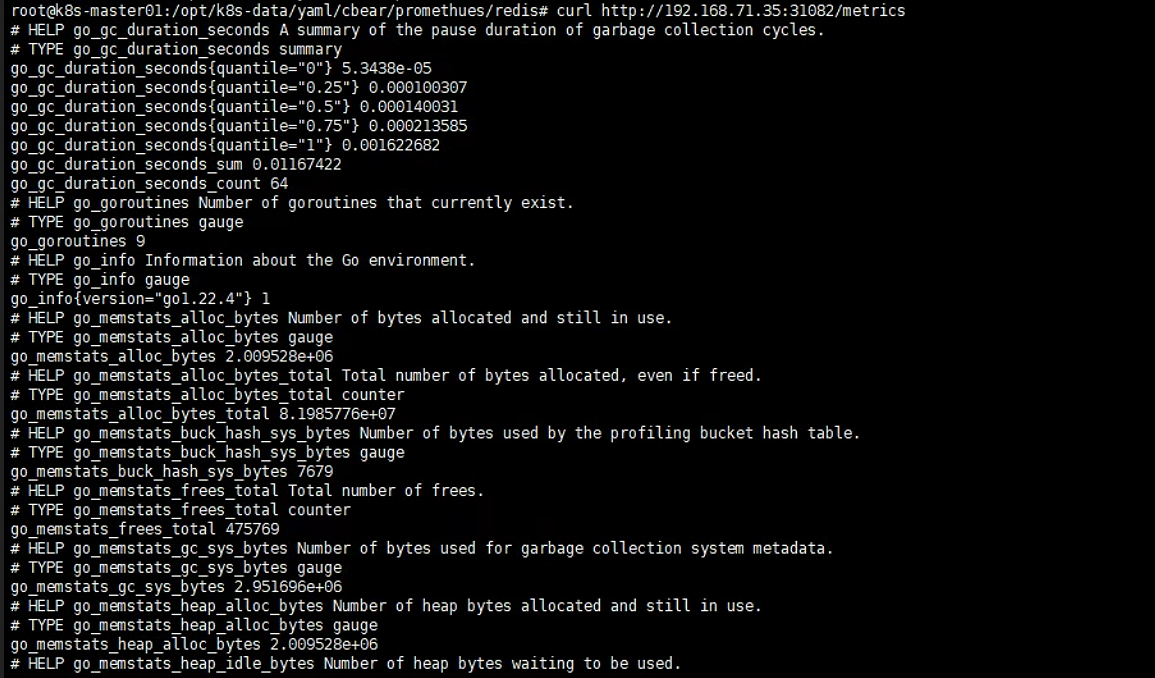
2.2 prometheus采集数据
修改
k8s集群外部的监控主机节点192.168.71.47的prometheus配置文件- job_name: "prometheus-redis-metrics" static_configs: - targets: ["192.168.71.35:31082"]重启服务
root@prometheus01:/usr/local/src/prometheus# curl -X POST http://192.168.71.47:9090/-/reload查看监控页面

由于
redis的service开启了注解 , 因此k8s集群内部的prometheus可以抓取service后端的容器数据 查看prometheus监控页面192.168.71.35:30900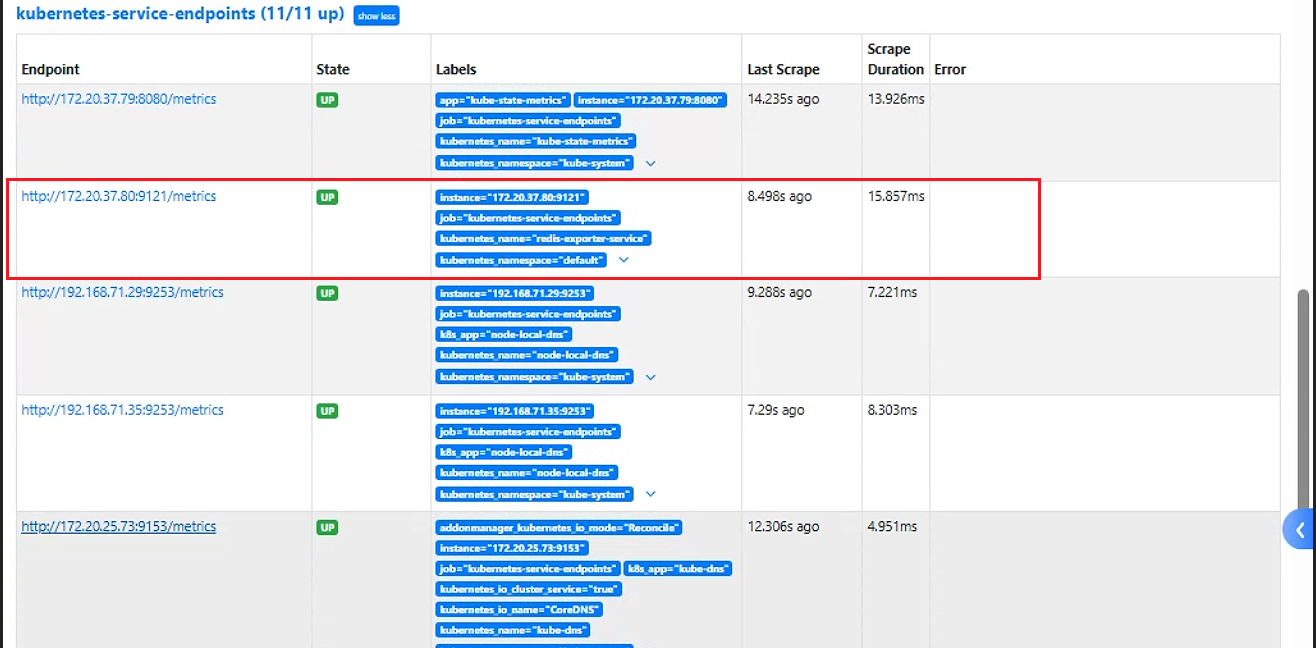
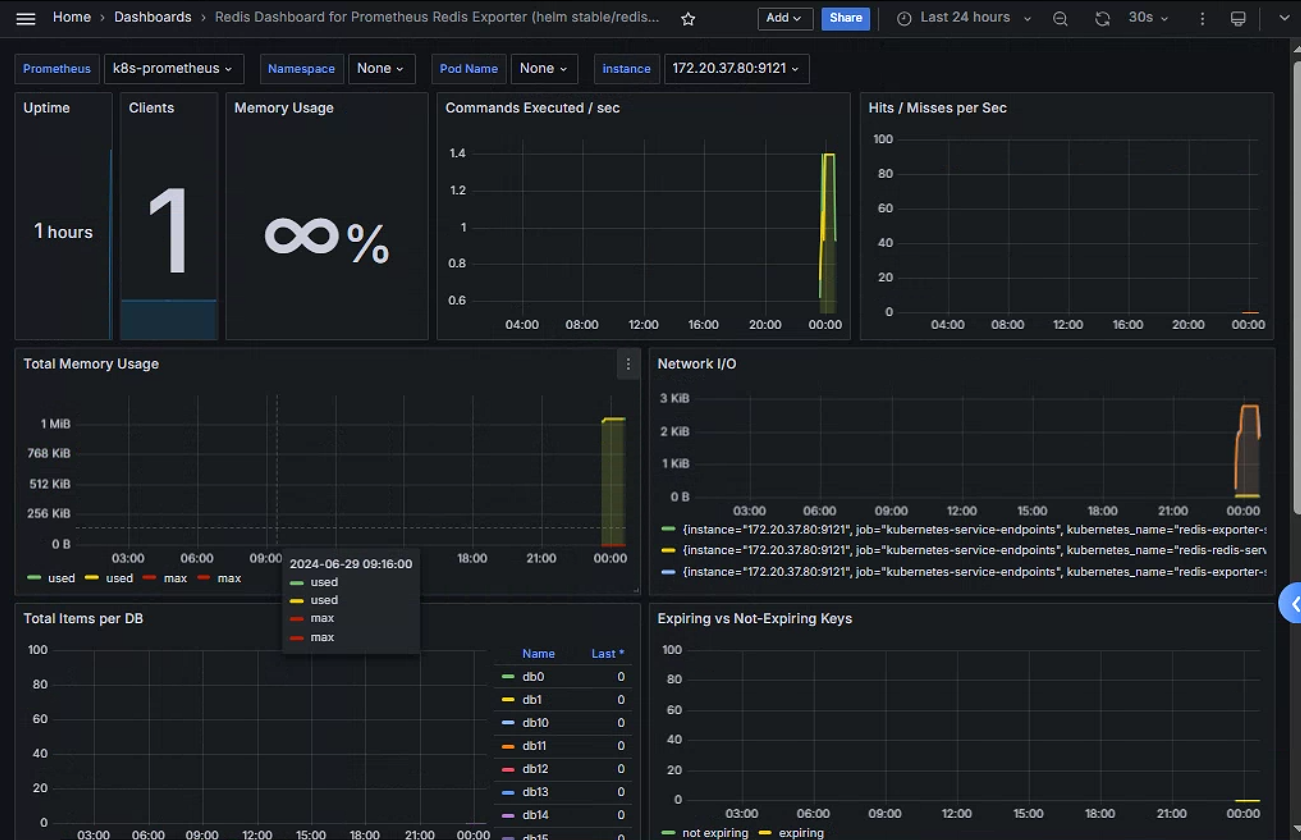
2.3 grafana查看监控数据
模板id:11835
3. 监控mysql
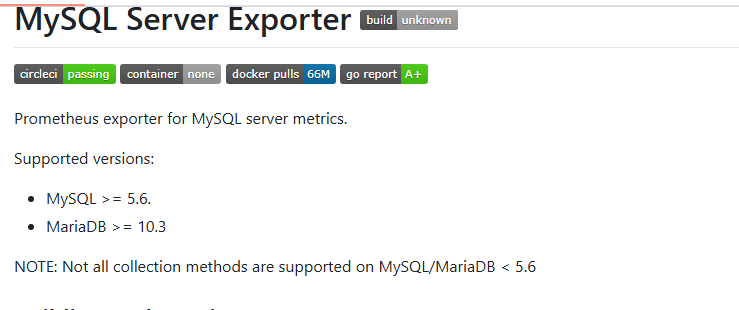
通过 mysqld_exporter 监控 MySQL 服务的运行状态 github链接 : prometheus/mysqld_exporter: Exporter for MySQL server metrics (github.com)
版本要求: 要求mysql版本大于等于5.6 ,mariadb版本大于等于10.3
3.1 部署mysql
在192.168.71.55上部署mariadb
安装
mariadbubuntu安装源sudo apt-get install apt-transport-https curl sudo mkdir -p /etc/apt/keyrings sudo curl -o /etc/apt/keyrings/mariadb-keyring.pgp 'https://mariadb.org/mariadb_release_signing_key.pgp' sudo apt-get update sudo apt-get install mariadb-server启动
mariadb服务root@ndoe01:~# systemctl start mariadb创建用户
#mysql
MariaDB [(none)]> CREATE USER 'mysql_exporter'@'localhost' IDENTIFIED BY '123456';   #允许mysql_exporter账号从本地连接mysql , 由于mysql_exporter和mysql在同一台机器 , 可以通过localhost连接mysql
对用户进行授权
MariaDB [(none)]> GRANT PROCESS, REPLICATION CLIENT, SELECT ON *.* TO 'mysql_exporter'@'localhost';
Query OK, 0 rows affected (0.004 sec)
使用授权账号连接数据库
root@ndoe01:~# mysql -umysql_exporter -p123456  -h localhost
Welcome to the MariaDB monitor.  Commands end with ; or \g.
Your MariaDB connection id is 32
Server version: 10.6.18-MariaDB-0ubuntu0.22.04.1 Ubuntu 22.04

Copyright (c) 2000, 2018, Oracle, MariaDB Corporation Ab and others.

Type 'help;' or '\h' for help. Type '\c' to clear the current input statement.

MariaDB [(none)]>
3.2 部署mysql_exporter
在
192.168.71.55上安装mysql_exporter下载
mysql_exportergithub下载mysql_exporter链接: Tags · prometheus/mysqld_exporter (github.com)root@ndoe01:~# wget https://github.com/prometheus/mysqld_exporter/releases/download/v0.15.1/mysqld_exporter-0.15.1.linux-amd64.tar.gz解压对应压缩包
root@ndoe01:~# tar -xf mysqld_exporter-0.15.1.linux-amd64.tar.gz
root@ndoe01:~# cd mysqld_exporter-0.15.1.linux-amd64/
root@ndoe01:~/mysqld_exporter-0.15.1.linux-amd64# ls
LICENSE  mysqld_exporter  NOTICE
root@ndoe01:~/mysqld_exporter-0.15.1.linux-amd64# cp mysqld_exporter /usr/local/bin/
验证二进制命令可以正常执行
root@ndoe01:~/mysqld_exporter-0.15.1.linux-amd64# mysqld_exporter --help
usage: mysqld_exporter [<flags>]


Flags:
  -h, --[no-]help                Show context-sensitive help (also try --help-long and --help-man).
      --exporter.lock_wait_timeout=2
                                 Set a lock_wait_timeout (in seconds) on the connection to avoid long metadata locking.
      --[no-]exporter.log_slow_filter
                                 Add a log_slow_filter to avoid slow query logging of scrapes. NOTE: Not supported by Oracle MySQL.
      --collect.heartbeat.database="heartbeat"
                                 Database from where to collect heartbeat data
      --collect.heartbeat.table="heartbeat"
                                 Table from where to collect heartbeat data
      --[no-]collect.heartbeat.utc
                                 Use UTC for timestamps of the current server (`pt-heartbeat` is called with `--utc`)
      --collect.info_schema.processlist.min_time=0
                                 Minimum time a thread must be in each state to be counted
      --[no-]collect.info_schema.processlist.processes_by_user
                                 Enable collecting the number of processes by user
      --[no-]collect.info_schema.processlist.processes_by_host
                                 Enable collecting the number of processes by host
      --collect.info_schema.tables.databases="*"
                                 The list of databases to collect table stats for, or '*' for all
      --[no-]collect.mysql.user.privileges
                                 Enable collecting user privileges from mysql.user
      --collect.perf_schema.eventsstatements.limit=250
                                 Limit the number of events statements digests by response time
      --collect.perf_schema.eventsstatements.timelimit=86400
                                 Limit how old the 'last_seen' events statements can be, in seconds
      --collect.perf_schema.eventsstatements.digest_text_limit=120
                                 Maximum length of the normalized statement text
      --collect.perf_schema.file_instances.filter=".*"
                                 RegEx file_name filter for performance_schema.file_summary_by_instance
      --collect.perf_schema.file_instances.remove_prefix="/var/lib/mysql/"
                                 Remove path prefix in performance_schema.file_summary_by_instance
      --collect.perf_schema.memory_events.remove_prefix="memory/"
                                 Remove instrument prefix in performance_schema.memory_summary_global_by_event_name
      --web.telemetry-path="/metrics"
                                 Path under which to expose metrics.
      --timeout-offset=0.25      Offset to subtract from timeout in seconds.
      --config.my-cnf=".my.cnf"  Path to .my.cnf file to read MySQL credentials from.
      --mysqld.address="localhost:3306"
                                 Address to use for connecting to MySQL
      --mysqld.username=MYSQLD.USERNAME
                                 Hostname to use for connecting to MySQL
.....
配置
mysql_exporter用户免密码登录mysql为了便于数据库访问 , 在本地配置
/root/.my.cnf文件 , 使mysql_exporter用户可以免密登录mysqlroot@ndoe01:~# cat /root/.my.cnf [client] user=mysql_exporter password=123456验证:
root@ndoe01:~# mysql -umysql_exporter -hlocalhost
Welcome to the MariaDB monitor.  Commands end with ; or \g.
Your MariaDB connection id is 34
Server version: 10.6.18-MariaDB-0ubuntu0.22.04.1 Ubuntu 22.04

Copyright (c) 2000, 2018, Oracle, MariaDB Corporation Ab and others.

Type 'help;' or '\h' for help. Type '\c' to clear the current input statement.

MariaDB [(none)]>
启动
mysql_exporter为
mysql_exporter创建service文件root@ndoe01:~# cat /etc/systemd/system/mysqld-exporter.service [Unit] Description=Prometheus Node Exporter After=network.target [Service] ExecStart=/usr/local/bin/mysqld_exporter --config.my-cnf=/root/.my.cnf [Install] WantedBy=multi-user.target启动
mysql_exporter并设置为开机自启动root@ndoe01:~# systemctl daemon-reload root@ndoe01:~# systemctl enable --now mysqld-exporter Created symlink /etc/systemd/system/multi-user.target.wants/mysqld-exporter.service → /etc/systemd/system/mysqld-exporter.service. root@ndoe01:~# systemctl status mysqld-exporter ● mysqld-exporter.service - Prometheus Node Exporter Loaded: loaded (/etc/systemd/system/mysqld-exporter.service; enabled; vendor preset: enabled) Active: active (running) since Sun 2024-06-30 06:35:42 UTC; 9s ago Main PID: 49844 (mysqld_exporter) Tasks: 6 (limit: 9389) Memory: 1.7M CPU: 6ms CGroup: /system.slice/mysqld-exporter.service └─49844 /usr/local/bin/mysqld_exporter --config.my-cnf=/root/.my.cnf Jun 30 06:35:42 ndoe01 mysqld_exporter[49844]: ts=2024-06-30T06:35:42.313Z caller=mysqld_exporter.go:220 level=info msg="Starting mysqld_expo> Jun 30 06:35:42 ndoe01 mysqld_exporter[49844]: ts=2024-06-30T06:35:42.313Z caller=mysqld_exporter.go:221 level=info msg="Build context" build> Jun 30 06:35:42 ndoe01 mysqld_exporter[49844]: ts=2024-06-30T06:35:42.313Z caller=mysqld_exporter.go:233 level=info msg="Scraper enabled" scr> Jun 30 06:35:42 ndoe01 mysqld_exporter[49844]: ts=2024-06-30T06:35:42.313Z caller=mysqld_exporter.go:233 level=info msg="Scraper enabled" scr> Jun 30 06:35:42 ndoe01 mysqld_exporter[49844]: ts=2024-06-30T06:35:42.313Z caller=mysqld_exporter.go:233 level=info msg="Scraper enabled" scr> Jun 30 06:35:42 ndoe01 mysqld_exporter[49844]: ts=2024-06-30T06:35:42.313Z caller=mysqld_exporter.go:233 level=info msg="Scraper enabled" scr> Jun 30 06:35:42 ndoe01 mysqld_exporter[49844]: ts=2024-06-30T06:35:42.313Z caller=mysqld_exporter.go:233 level=info msg="Scraper enabled" scr> Jun 30 06:35:42 ndoe01 mysqld_exporter[49844]: ts=2024-06-30T06:35:42.313Z caller=mysqld_exporter.go:233 level=info msg="Scraper enabled" scr> Jun 30 06:35:42 ndoe01 mysqld_exporter[49844]: ts=2024-06-30T06:35:42.314Z caller=tls_config.go:274 level=info msg="Listening on" address=[::> Jun 30 06:35:42 ndoe01 mysqld_exporter[49844]: ts=2024-06-30T06:35:42.314Z caller=tls_config.go:277 level=info msg="TLS is disabled." http2=f> lines 1-20/20 (END)验证端口
9104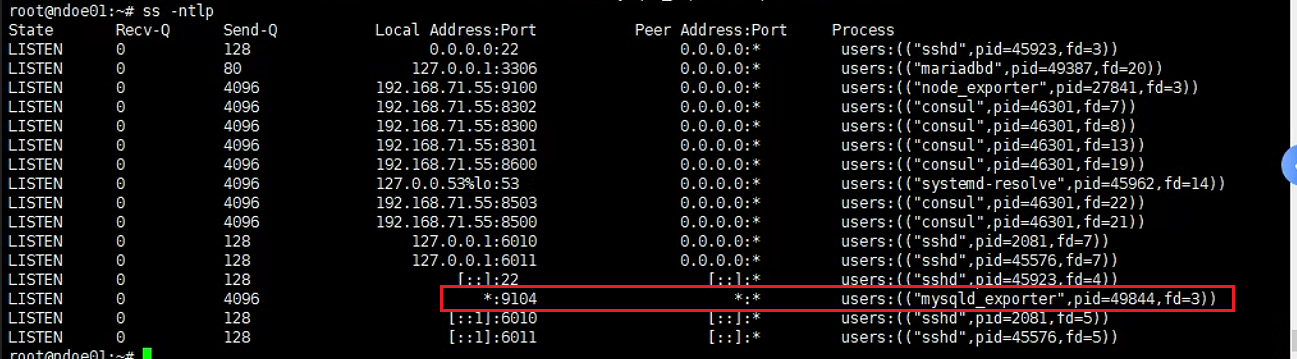
使用浏览器访问:
192.168.71.55:9104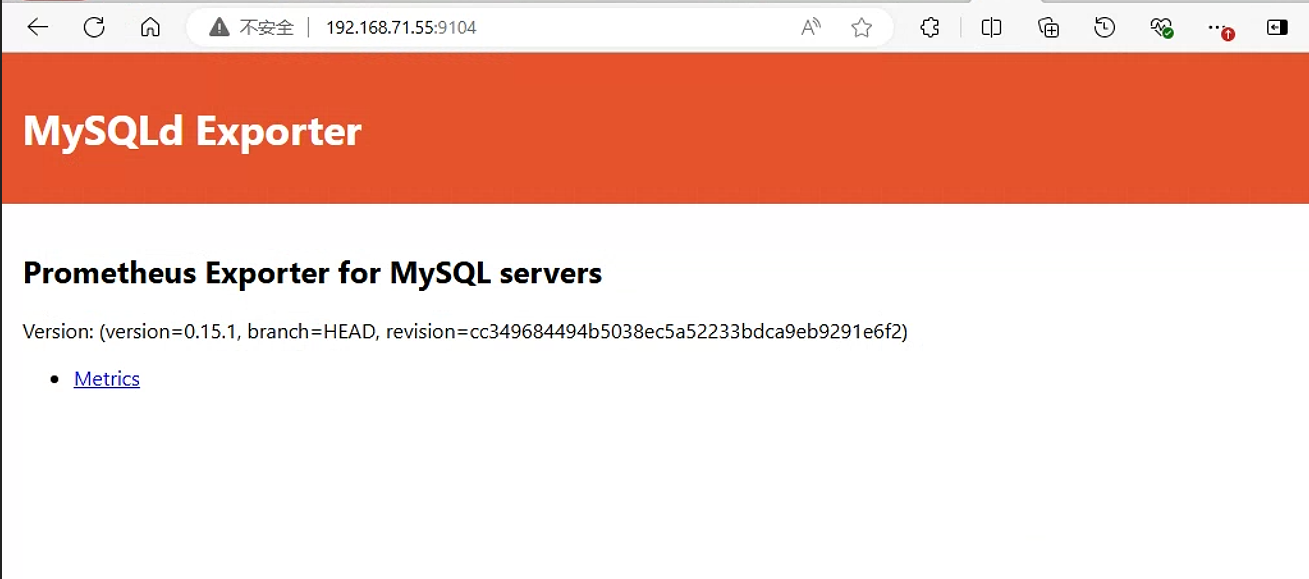
点击
Metrics按钮 , 查看指标数据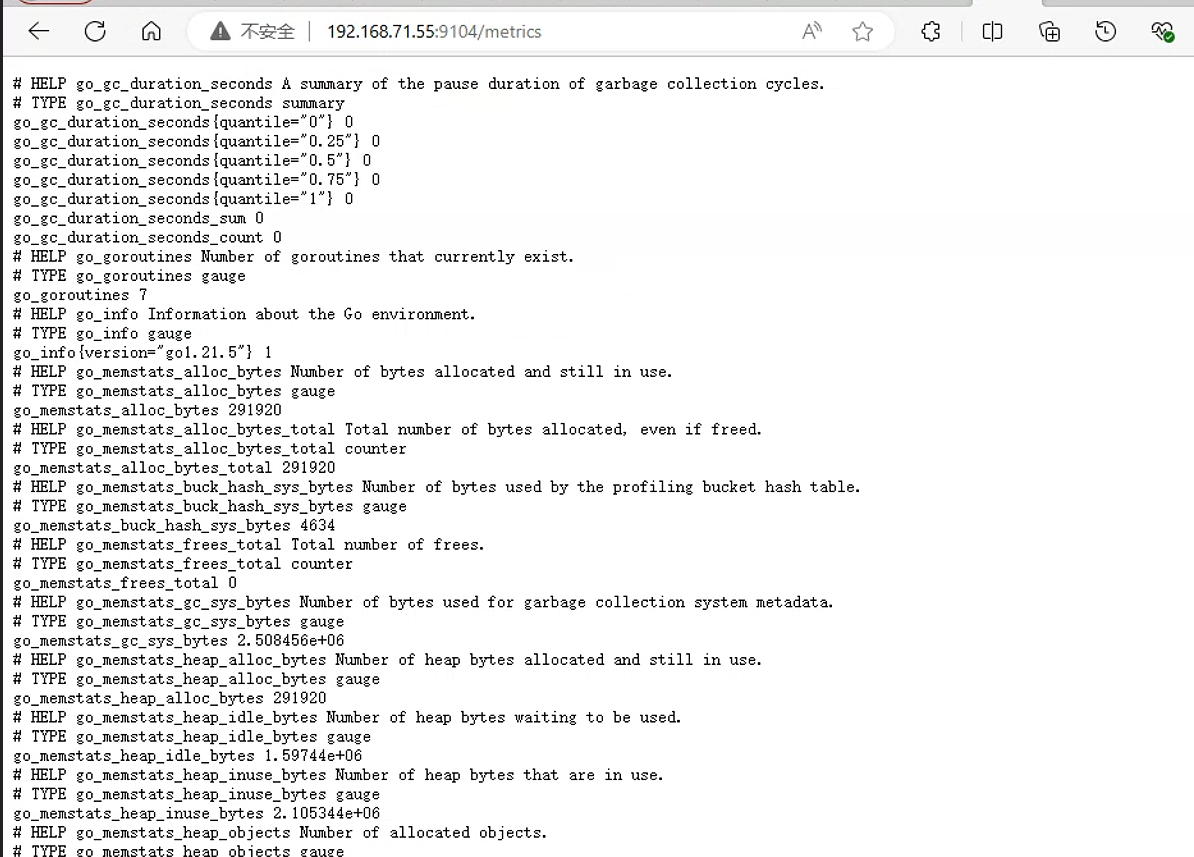
3.3 prometheus采集数据
在prometheus监控主机192.168.71.47上
修改配置文件
  - job_name: "prometheus-mysql-metrics"
    static_configs:
      - targets: ["192.168.71.55:9104"]
重启服务
root@prometheus01:/usr/local/src/prometheus# curl -X POST http://192.168.71.47:9090/-/reload查看监控页面

3.4 grafana查看监控数据
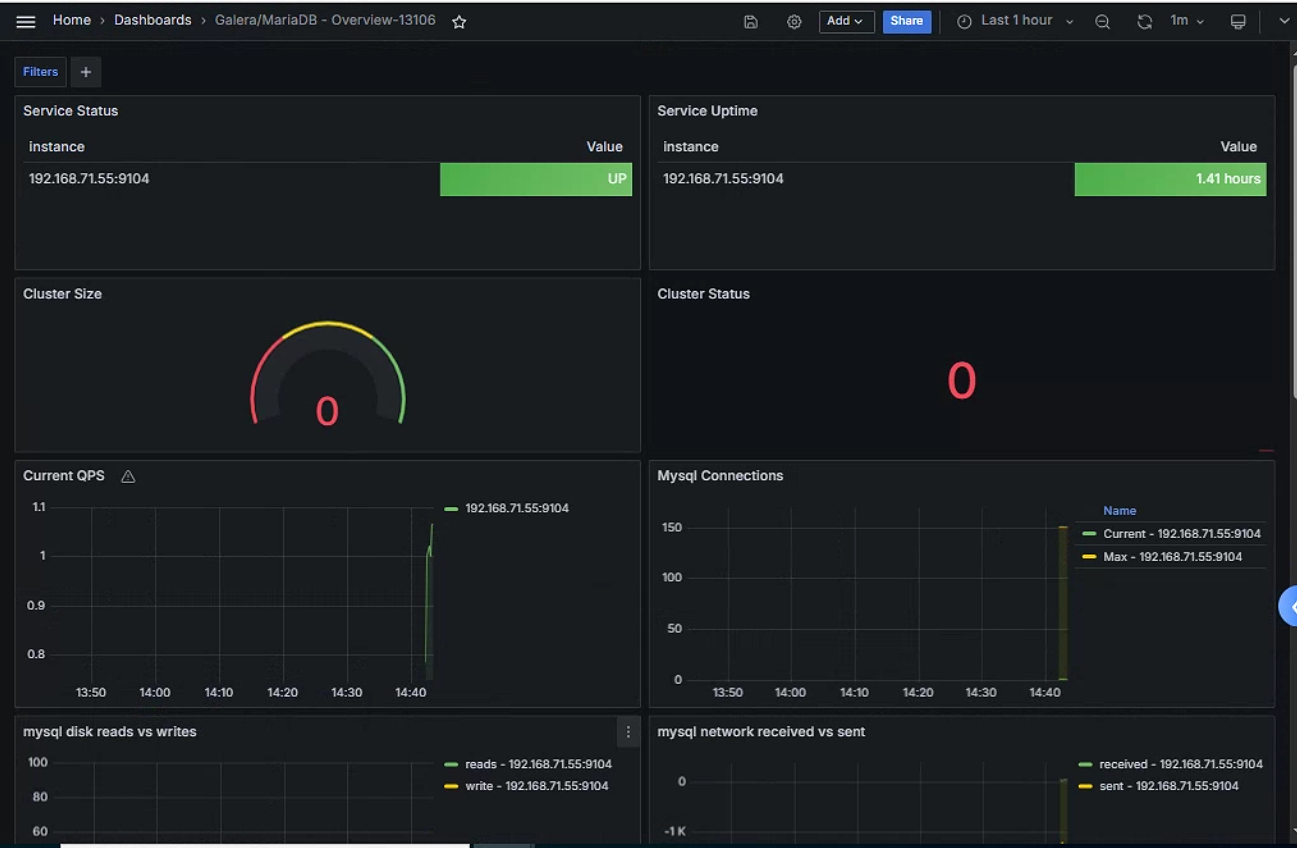
模板id:13106
查看监控数据
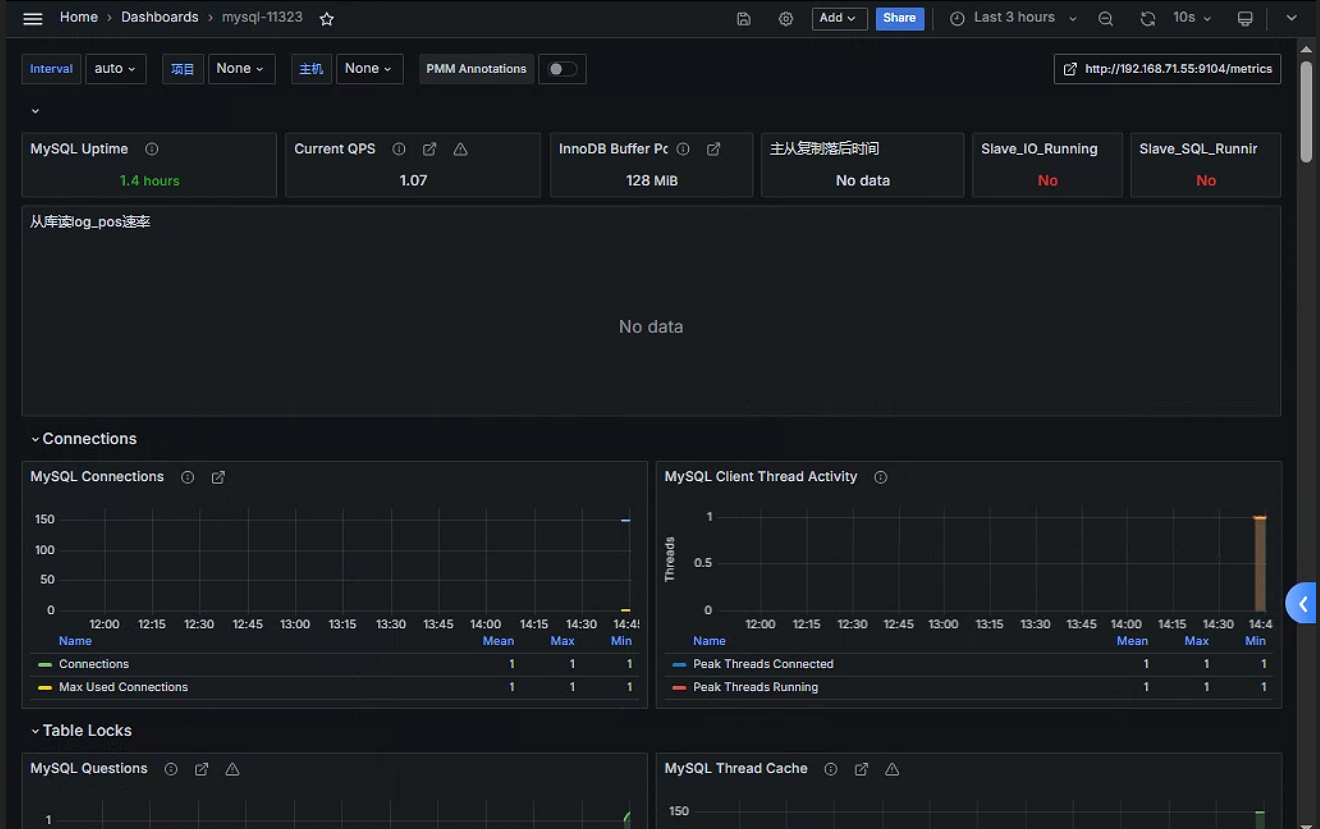
模板id : 11323
由于没有配置数据库主从 , 因此没有获取从库数据
4. 监控haproxy
通过 haproxy_exporter 监控 haproxy github链接 : https://github.com/prometheus/haproxy_exporter haproxy支持两种数据采集方式 :
通过
unix socket方式通过
uri方式
4.1 部署haproxy
在
192.168.71.32上部署haproxy使用yum安装apt install -y haproxy修改
haproxy配置文件root@ha1:~# cat /etc/haproxy/haproxy.cfg global log /dev/log local0 log /dev/log local1 notice chroot /var/lib/haproxy #修改socket为admin权限 , 可以通过socket对haproxy进行增删改查权限 stats socket /run/haproxy/admin.sock mode 660 level admin expose-fd listeners stats timeout 30s user haproxy group haproxy daemon # Default SSL material locations ca-base /etc/ssl/certs crt-base /etc/ssl/private # See: https://ssl-config.mozilla.org/#server=haproxy&server-version=2.0.3&config=intermediate ssl-default-bind-ciphers ECDHE-ECDSA-AES128-GCM-SHA256:ECDHE-RSA-AES128-GCM-SHA256:ECDHE-ECDSA-AES256-GCM-SHA384:ECDHE-RSA-AES256-GCM-SHA384:ECDHE-ECDSA-CHACHA20-POLY1305:ECDHE-RSA-CHACHA20-POLY1305:DHE-RSA-AES128-GCM-SHA256:DHE-RSA-AES256-GCM-SHA384 ssl-default-bind-ciphersuites TLS_AES_128_GCM_SHA256:TLS_AES_256_GCM_SHA384:TLS_CHACHA20_POLY1305_SHA256 ssl-default-bind-options ssl-min-ver TLSv1.2 no-tls-tickets defaults log global mode http option httplog option dontlognull timeout connect 5000 timeout client 50000 timeout server 50000 errorfile 400 /etc/haproxy/errors/400.http errorfile 403 /etc/haproxy/errors/403.http errorfile 408 /etc/haproxy/errors/408.http errorfile 500 /etc/haproxy/errors/500.http errorfile 502 /etc/haproxy/errors/502.http errorfile 503 /etc/haproxy/errors/503.http errorfile 504 /etc/haproxy/errors/504.http #开启状态页 , 可以通过uri的方式抓取haproxy数据 listen stats mode http bind 0.0.0.0:9999 stats enable log global stats uri /haproxy-status stats auth haadmin:123456 listen k8s-6443 bind 192.168.71.150:6443 mode tcp balance roundrobin server 192.168.71.29 192.168.71.29:6443 check inter 2s fall 3 rise 5 server 192.168.71.30 192.168.71.30:6443 check inter 2s fall 3 rise 5 server 192.168.71.31 192.168.71.31:6443 check inter 2s fall 3 rise 5 listen nginx-svc-80 bind 192.168.71.150:80 mode tcp server k8s-node01 192.168.71.37:30090 check inter 2000 fall 3 rise 5 server k8s-node02 192.168.71.35:30090 check inter 2000 fall 3 rise 5 server k8s-node03 192.168.71.36:30090 check inter 2000 fall 3 rise 5 listen k8s-jenkins-8080 bind 192.168.71.150:8080 mode tcp server k8s-node01 192.168.71.37:38080 check inter 2000 fall 3 rise 5 server k8s-node02 192.168.71.35:38080 check inter 2000 fall 3 rise 5 server k8s-node03 192.168.71.36:38080 check inter 2000 fall 3 rise 5 #为了便于查看监控效果 , 配置haproxy监听 , 便于产生访问数据(通过haproxy负载prometheus监控) listen prometheus bind 192.168.71.150:9090 mode http server prometheus01 192.168.71.47:9090 check inter 3s fall 3 rise 5启动
haproxy服务systemctl restart haproxy通过负载均衡访问
prometheus监控页面 在haproxy配置文件中 , 配置了haproxy负载的后端server是prometheus, 所以可以通过访问haproxy地址访问prometheus监控页面浏览器输入:
192.168.71.150:9090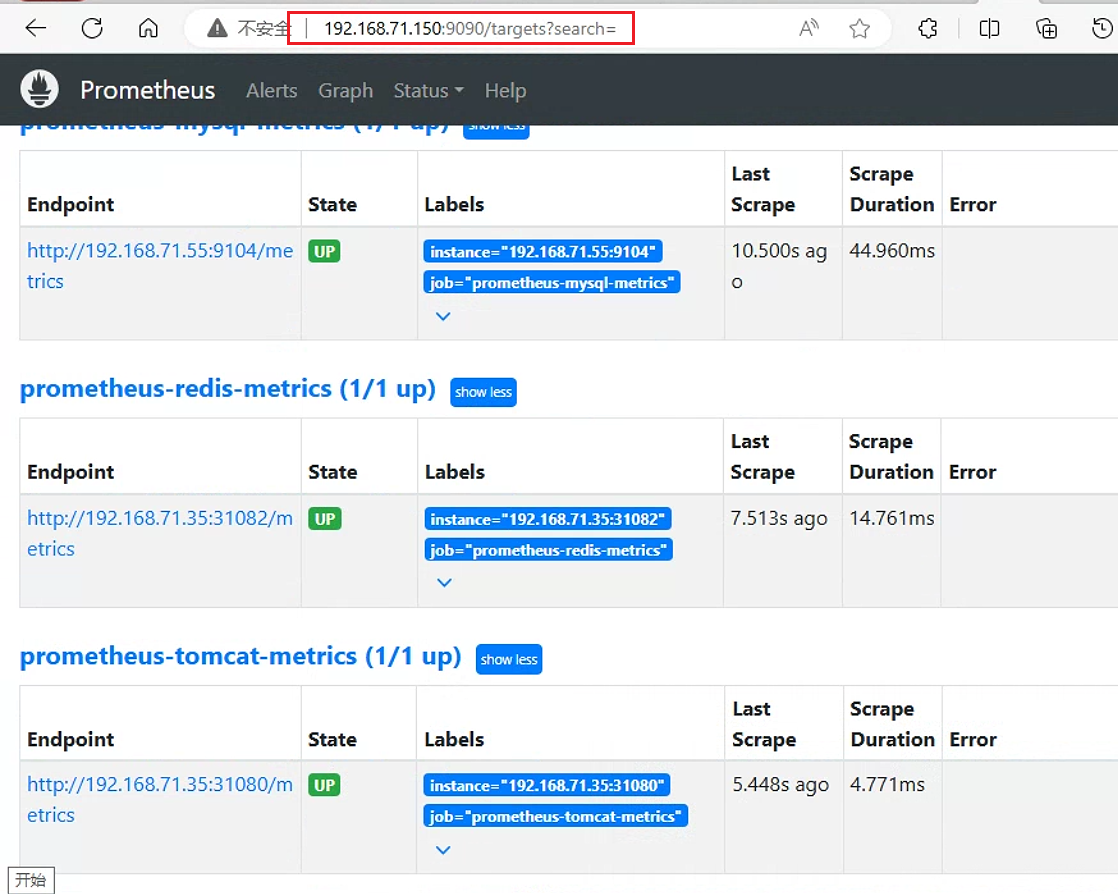
访问状态页:
账号密码:
haadmin/123456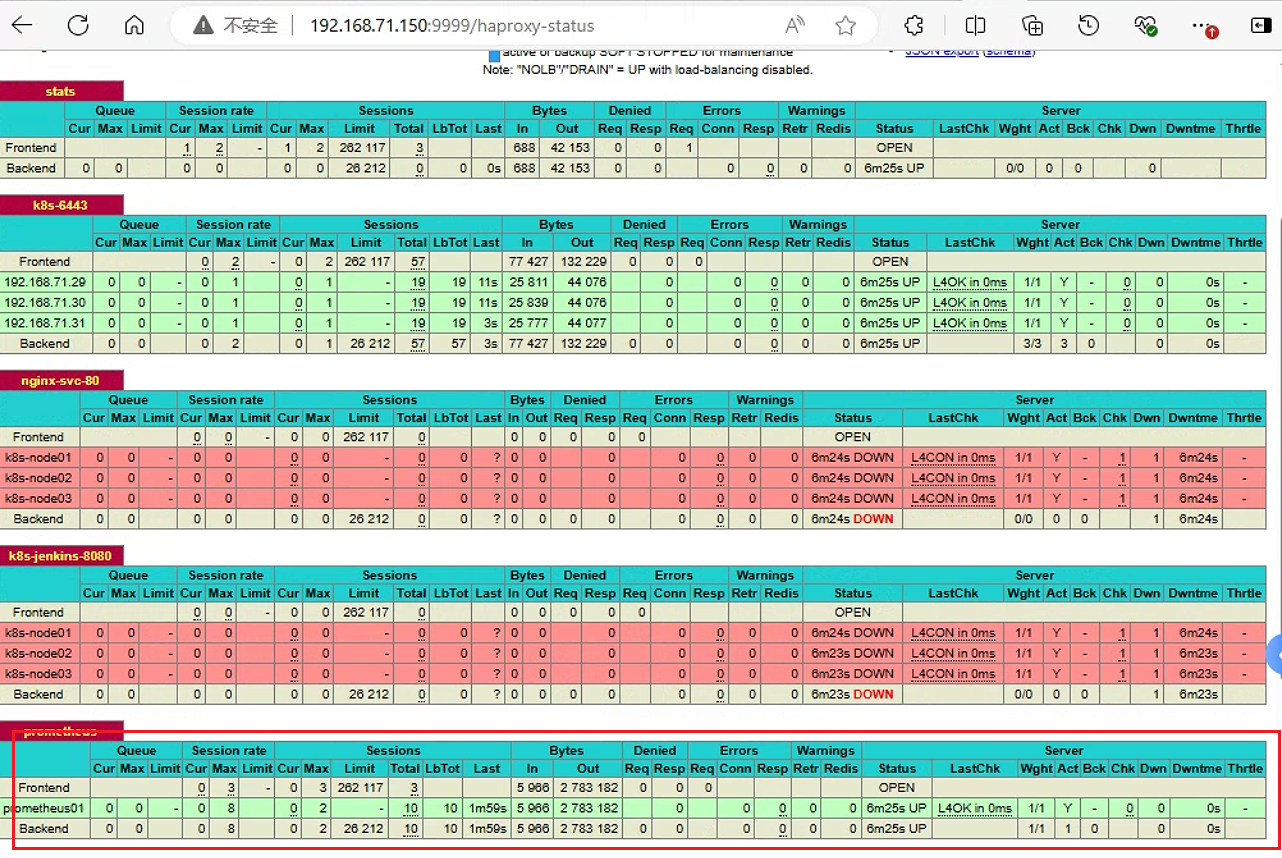
4.2 部署haproxy_exporter
在haproxy节点192.168.71.32中安装haproxy_exporter访问
下载
haproxy_exporterwget https://github.com/prometheus/haproxy_exporter/releases/download/v0.15.0/haproxy_exporter-0.15.0.linux-amd64.tar.gz解压并安装
root@ha1:~# tar -xf haproxy_exporter-0.15.0.linux-amd64.tar.gz
root@ha1:~# cp haproxy_exporter-0.15.0.linux-amd64/haproxy_exporter  /usr/local/bin/
验证二进制命令可正常执行
haproxy_exporter --help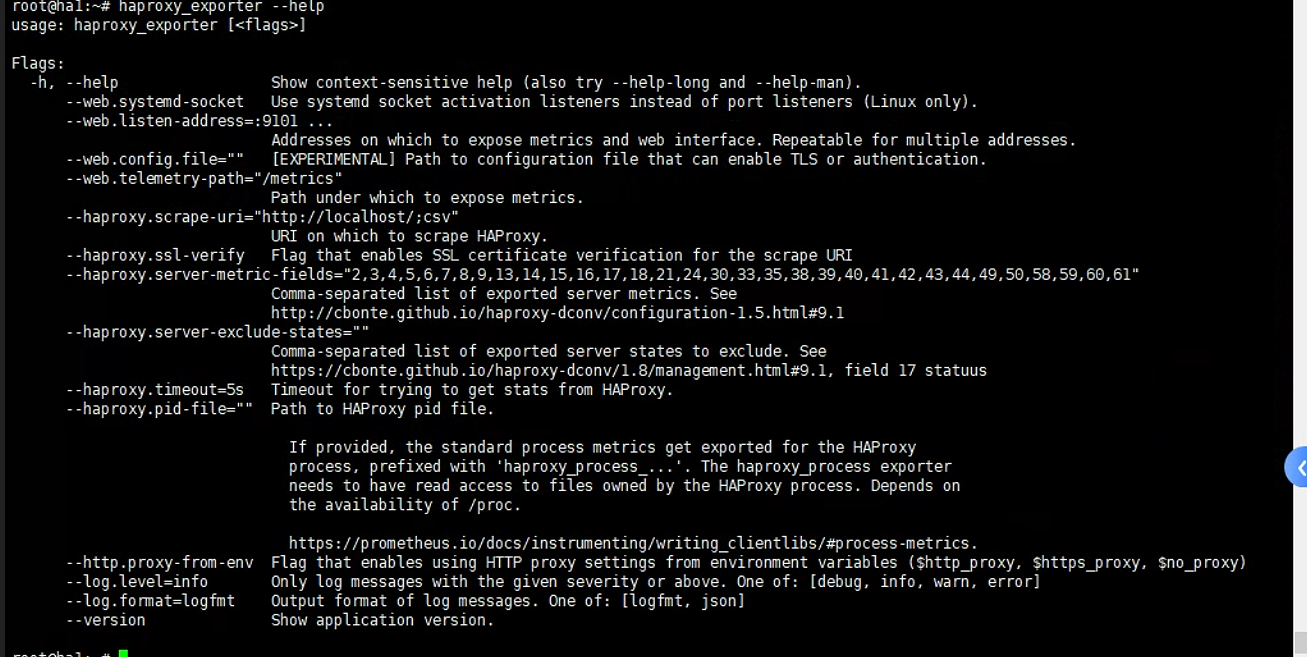
在前面提到过两种启动方式 , 下面是第一种数据抓取方式 : 通过
socket启动haproxy_exporter抓取数据启动
haproxy_exporter(通过socket方式启动)haproxy_exporter --haproxy.scrape-uri=unix:/run/haproxy/admin.sock &
验证: 查看
9101端口是否被监听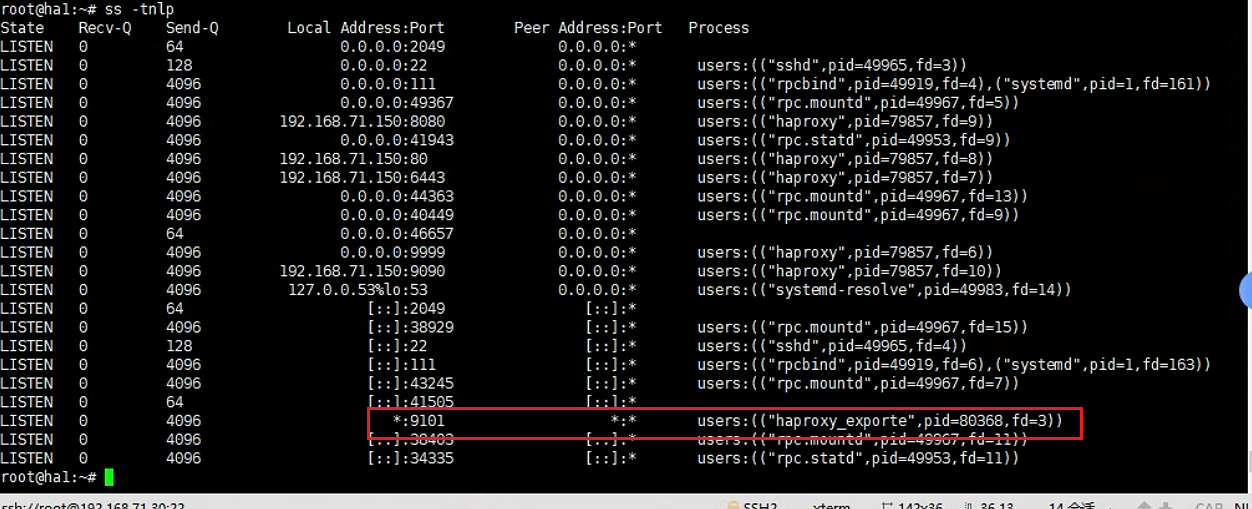
访问指标数据页面

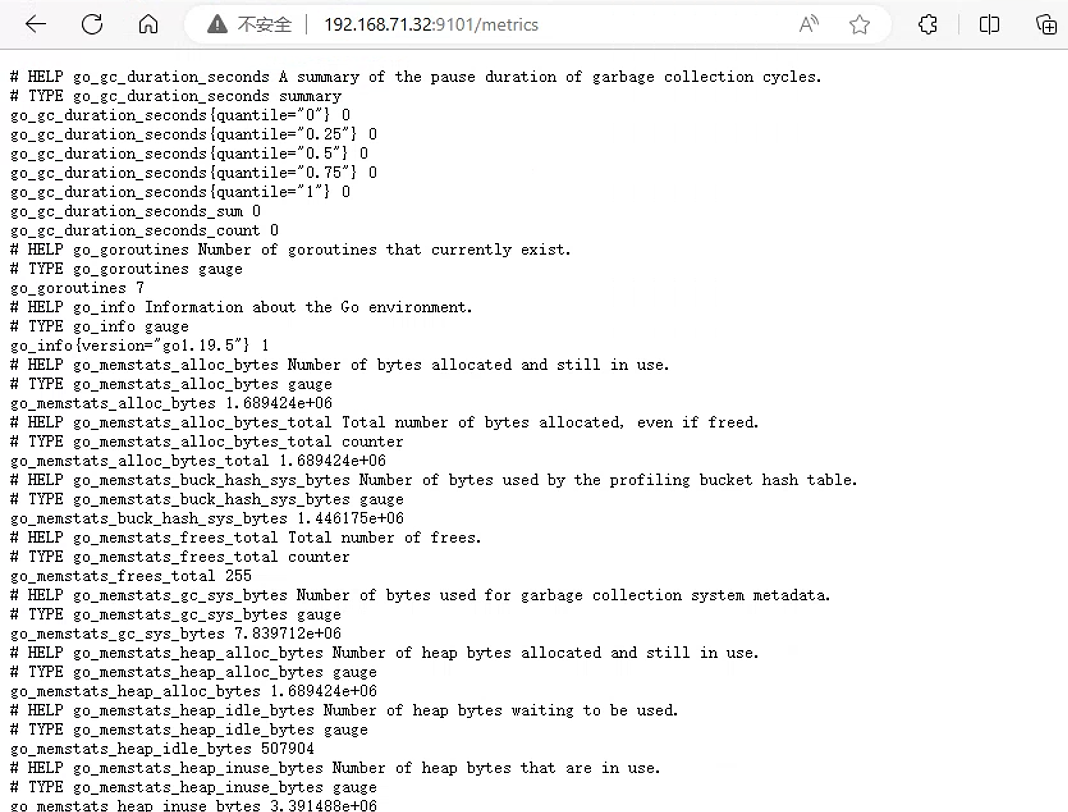
第二种数据抓取方式:通过
uri启动haproxy_exporter抓取数据由于通过
uri抓取数据是通过状态页获取指标数据 , 因此这种方式一定要开启haproxy的状态页 启动haproxy_exporter命令:root@ha1:~# haproxy_exporter --haproxy.scrape-uri="http://haadmin:123456@192.168.71.150:9999/haproxy-status;csv"&
4.3 prometheus采集数据
在
prometheus监控主机192.168.71.47上, 修改配置文件- job_name: "prometheus-haproxy-metrics" static_configs: - targets: ["192.168.71.32:9101"]重启服务
root@prometheus01:/usr/local/src/prometheus# curl -X POST http://192.168.71.47:9090/-/reload查看监控页面

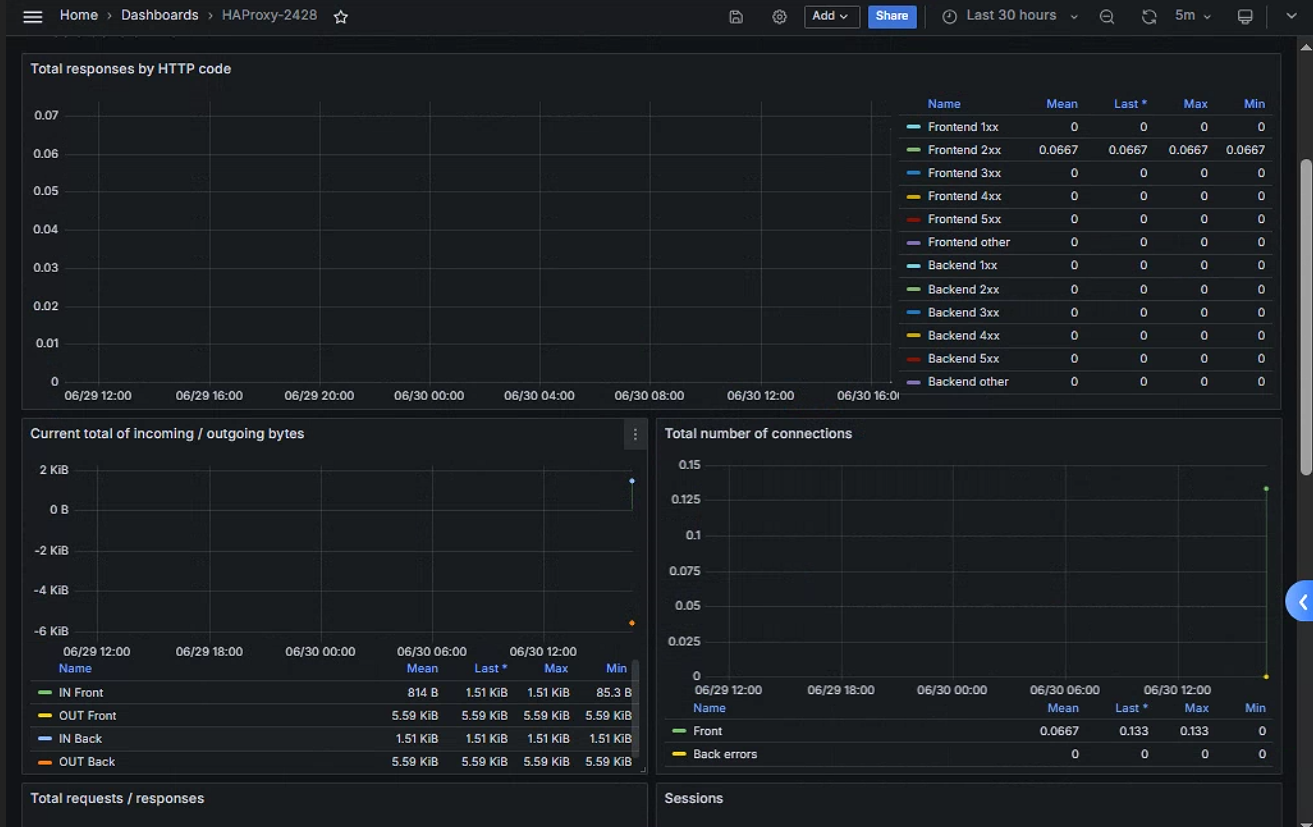
4.4 grafana查看监控数据
模板id : 367
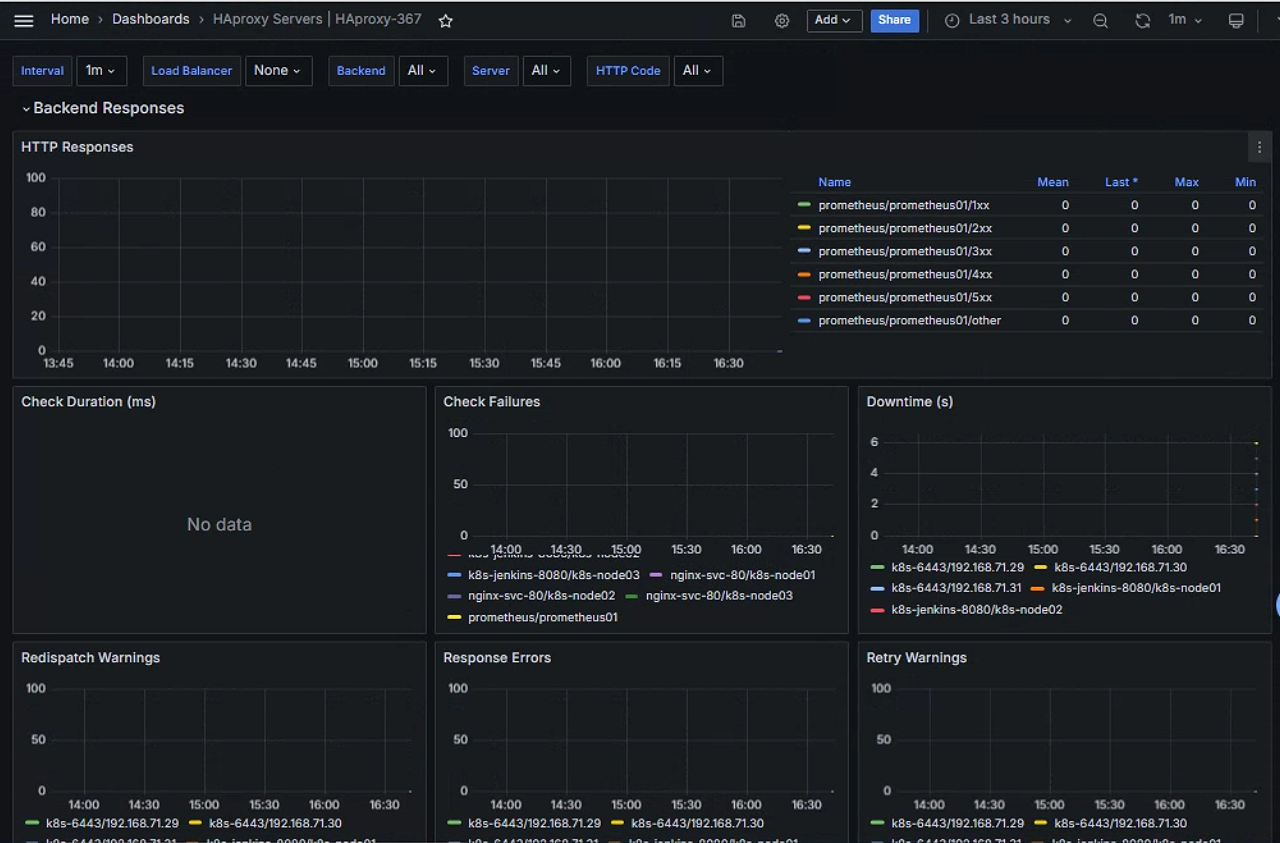
模板id :2428
5. 监控nginx
通过 prometheus 监控 nginx 需要在编译安装 nginx 的时候添加 nginx-module-vts 模块
github地址链接 : vozlt/nginx-module-vts: Nginx virtual host traffic status module (github.com)
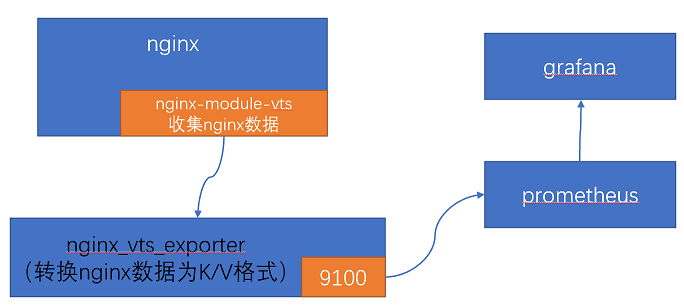
数据收集过程 :
编译安装
nginx, 在nginx内置nginx-module-vts模块 , 收集nginx数据 , 以html格式(状态页)显示 , 但该模块不能转换数据 , 需要安装nginx_vts_exporter安装
nginx_vts_exporter, 将状态页数据收集过来 , 转换为prometheus可以识别的key/value格式的数据 , 通过服务端看将数据暴露出去prometheus通过服务端口获取nginx_vts_exporter收集的数据grafana导入模板 , 展示监控数据
5.1 编译安装nginx
在192.168.71.55上安装nginx
将
github上的源码colne下来root@ndoe01:~# git clone https://github.com/vozlt/nginx-module-vts.git Cloning into 'nginx-module-vts'... remote: Enumerating objects: 1052, done. remote: Counting objects: 100% (251/251), done. remote: Compressing objects: 100% (87/87), done. remote: Total 1052 (delta 177), reused 194 (delta 158), pack-reused 801 Receiving objects: 100% (1052/1052), 1.14 MiB | 3.43 MiB/s, done. Resolving deltas: 100% (700/700), done.下载
nginx源码包并解压root@ndoe01:~# wget https://nginx.org/download/nginx-1.26.1.tar.gz root@ndoe01:~# tar -xf nginx-1.26.1.tar.gz root@ndoe01:~# ls consul mysqld_exporter-0.15.1.linux-amd64 nginx-1.26.1.tar.gz snap consul_1.19.0_linux_amd64.zip mysqld_exporter-0.15.1.linux-amd64.tar.gz nginx-module-vts LICENSE.txt nginx-1.26.1 node_exporter-1.8.1.linux-amd64.tar.gz编译安装
nginxyum install -y vim wget tree lrzsz gcc gcc-c++ automake pcre pcre-devel zlib zlib-devel openssl openssl-devel iproute net-tools iotop make apt install -y vim wget tree lrzsz gcc g++ automake libpcre3 libpcre3-dev zlib1g zlib1g-dev libssl-dev libtool iproute2 net-tools iotop make运行编译命令
root@ndoe01:~# mkdir /apps/nginx -pv
mkdir: created directory '/apps'
mkdir: created directory '/apps/nginx'
root@ndoe01:~# cd nginx-1.26.1/
root@ndoe01:~/nginx-1.26.1# ./configure --prefix=/apps/nginx \
--with-http_ssl_module \
--with-http_v2_module \
--with-http_realip_module \
--with-http_stub_status_module \
--with-http_gzip_static_module \
--with-pcre \
--with-file-aio \
--with-stream \
--with-stream_ssl_module \
--with-stream_realip_module \
--add-module=/root/nginx-module-vts/

root@ndoe01:~/nginx-1.26.1# make && make install


./configure --prefix=/apps/nginx \
--with-http_ssl_module \
--with-http_v2_module \
--with-http_realip_module \
--with-http_stub_status_module \
--with-http_gzip_static_module \
--with-pcre \
--with-file-aio \
--with-stream \
--with-stream_ssl_module \
--with-stream_realip_module \
--add-module=/root/nginx-module-vts/
修改
nginx配置文件root@ndoe01:~/nginx-1.26.1# cat /apps/nginx/conf/nginx.conf #user nobody; worker_processes 1; #error_log logs/error.log; #error_log logs/error.log notice; #error_log logs/error.log info; #pid logs/nginx.pid; events { worker_connections 1024; } http { include mime.types; default_type application/octet-stream; #log_format main '$remote_addr - $remote_user [$time_local] "$request" ' # '$status $body_bytes_sent "$http_referer" ' # '"$http_user_agent" "$http_x_forwarded_for"'; #access_log logs/access.log main; sendfile on; #tcp_nopush on; #keepalive_timeout 0; keepalive_timeout 65; #gzip on; vhost_traffic_status_zone; ##打开数据传输状态页 server { listen 80; server_name localhost; #charset koi8-r; #access_log logs/host.access.log main; location / { root html; index index.html index.htm; } #配置以下页面 location /status { vhost_traffic_status_display; #显示状态页 vhost_traffic_status_display_format html; #以html格式显示状态页 } #error_page 404 /404.html; # redirect server error pages to the static page /50x.html # error_page 500 502 503 504 /50x.html; location = /50x.html { root html; } # proxy the PHP scripts to Apache listening on 127.0.0.1:80 # #location ~ \.php$ { # proxy_pass http://127.0.0.1; #} # pass the PHP scripts to FastCGI server listening on 127.0.0.1:9000 # #location ~ \.php$ { # root html; # fastcgi_pass 127.0.0.1:9000; # fastcgi_index index.php; # fastcgi_param SCRIPT_FILENAME /scripts$fastcgi_script_name; # include fastcgi_params; #} # deny access to .htaccess files, if Apache's document root # concurs with nginx's one # #location ~ /\.ht { # deny all; #} } # another virtual host using mix of IP-, name-, and port-based configuration # #server { # listen 8000; # listen somename:8080; # server_name somename alias another.alias; # location / { # root html; # index index.html index.htm; # } #} # HTTPS server # #server { # listen 443 ssl; # server_name localhost; # ssl_certificate cert.pem; # ssl_certificate_key cert.key; # ssl_session_cache shared:SSL:1m; # ssl_session_timeout 5m; # ssl_ciphers HIGH:!aNULL:!MD5; # ssl_prefer_server_ciphers on; # location / { # root html; # index index.html index.htm; # } #} }检查
nginx配置并启动检查配置
root@ndoe01:~/nginx-1.26.1# /apps/nginx/sbin/nginx -t
nginx: the configuration file /apps/nginx/conf/nginx.conf syntax is ok
nginx: configuration file /apps/nginx/conf/nginx.conf test is successful
启动
nginxroot@ndoe01:~/nginx-1.26.1# /apps/nginx/sbin/nginx
验证
访问
nginx:192.168.71.55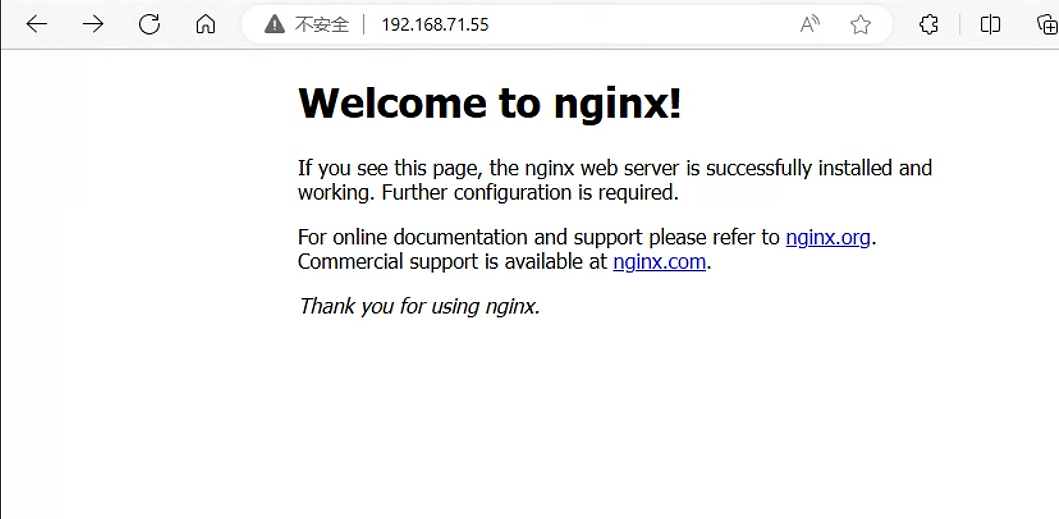
访问
nginx状态页 :192.168.71.55/status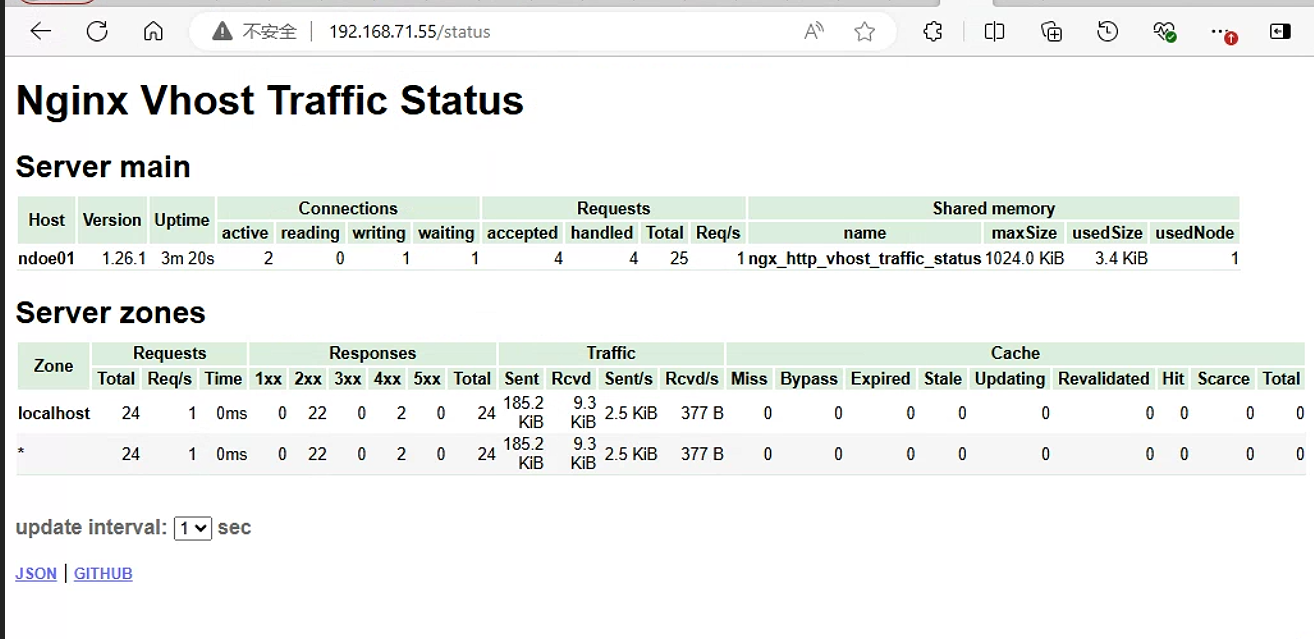
查看
json格式的数据 :http://192.168.71.55/status/format/json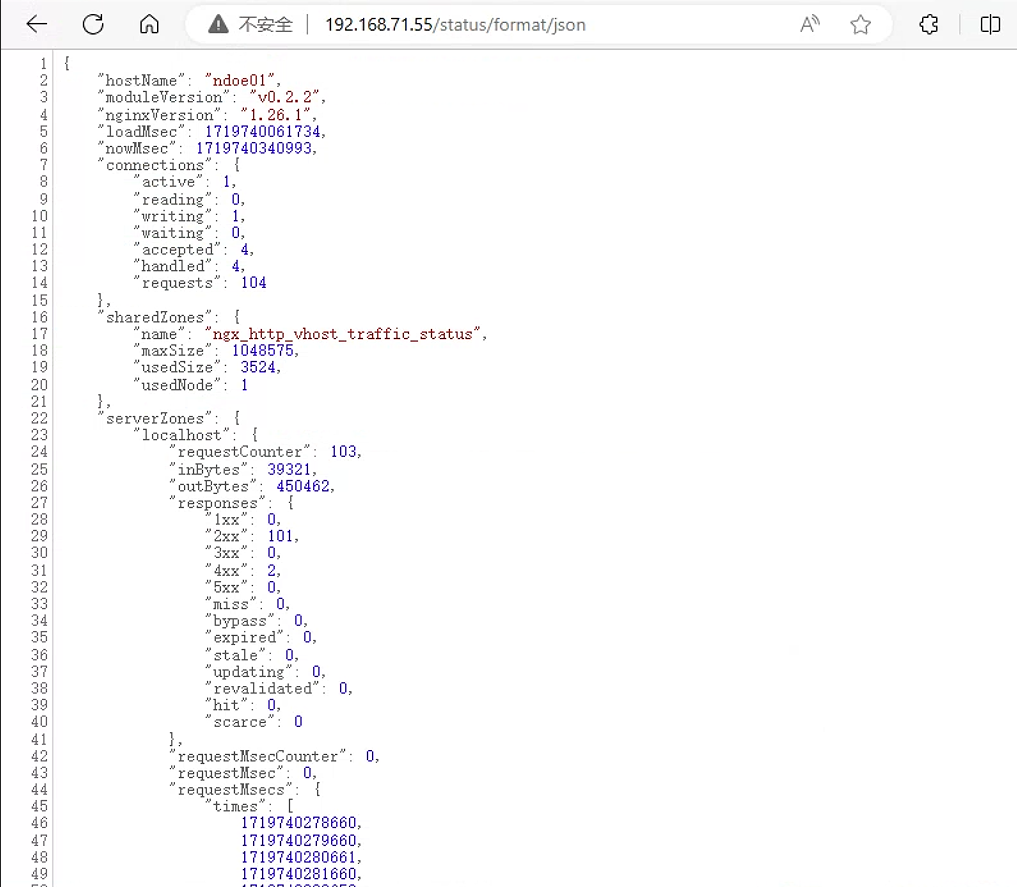
5.2 安装nginx-vts-exporter
在nginx所在主机192.168.71.55上安装nginx-vts-exporter
github链接: https://github.com/hnlq715/nginx-vts-exporter/releases
下载
nginx-vts-exporterroot@ndoe01:~/nginx-1.26.1# cd /usr/local/src/ root@ndoe01:/usr/local/src# wget https://github.com/sysulq/nginx-vts-exporter/releases/download/v0.10.8/nginx-vtx-exporter_0.10.8_linux_amd64.tar.gz解压并安装
root@ndoe01:/usr/local/src# tar -xf nginx-vtx-exporter_0.10.8_linux_amd64.tar.gz
root@ndoe01:/usr/local/src# cp nginx-vtx-exporter /usr/local/bin/
验证二进制命令是否可以正常使用
root@ndoe01:/usr/local/src# nginx-vtx-exporter --help
Usage of nginx-vtx-exporter:
  -go.metrics
    	Export process and go metrics.
  -insecure
    	Ignore server certificate if using https (default true)
  -metrics.namespace string
    	Prometheus metrics namespace. (default "nginx")
  -nginx.scrape_timeout int
    	The number of seconds to wait for an HTTP response from the nginx.scrape_uri (default 2)
  -nginx.scrape_uri string
    	URI to nginx stub status page (default "http://localhost/status")
  -telemetry.address string
    	Address on which to expose metrics. (default ":9913")
  -telemetry.endpoint string
    	Path under which to expose metrics. (default "/metrics")
  -version
    	Print version information.
启动
nginx-vtx-exporter并验证启动
nginx-vtx-exporter,后台运行(这里的地址是nginx-vts-exporter安装的主机地址)root@ndoe01:/usr/local/src# nginx-vtx-exporter -nginx.scrape_uri http://192.168.71.55/status/format/json &验证:
查看
9913端口是否被监听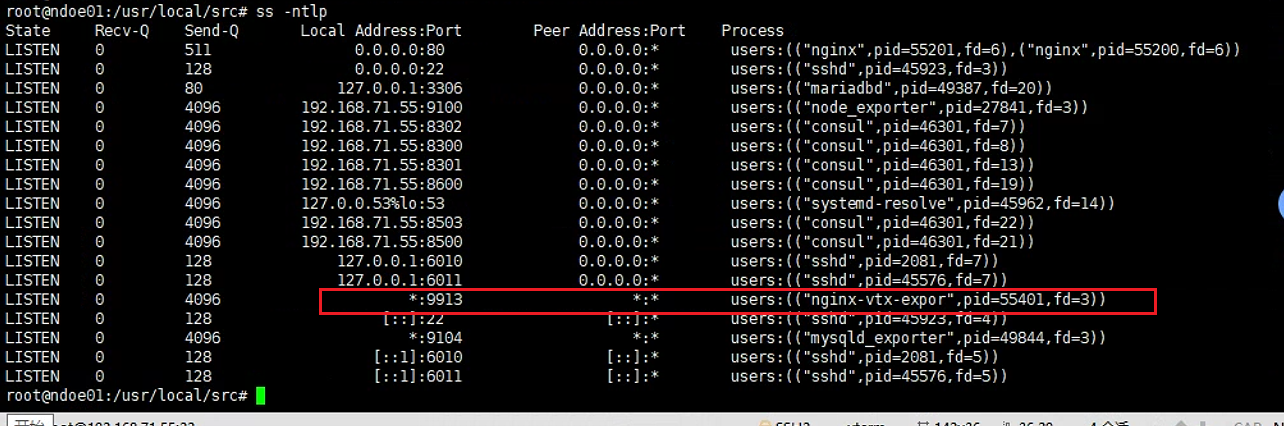
查看指标数据:
192.168.71.55:9913/metrics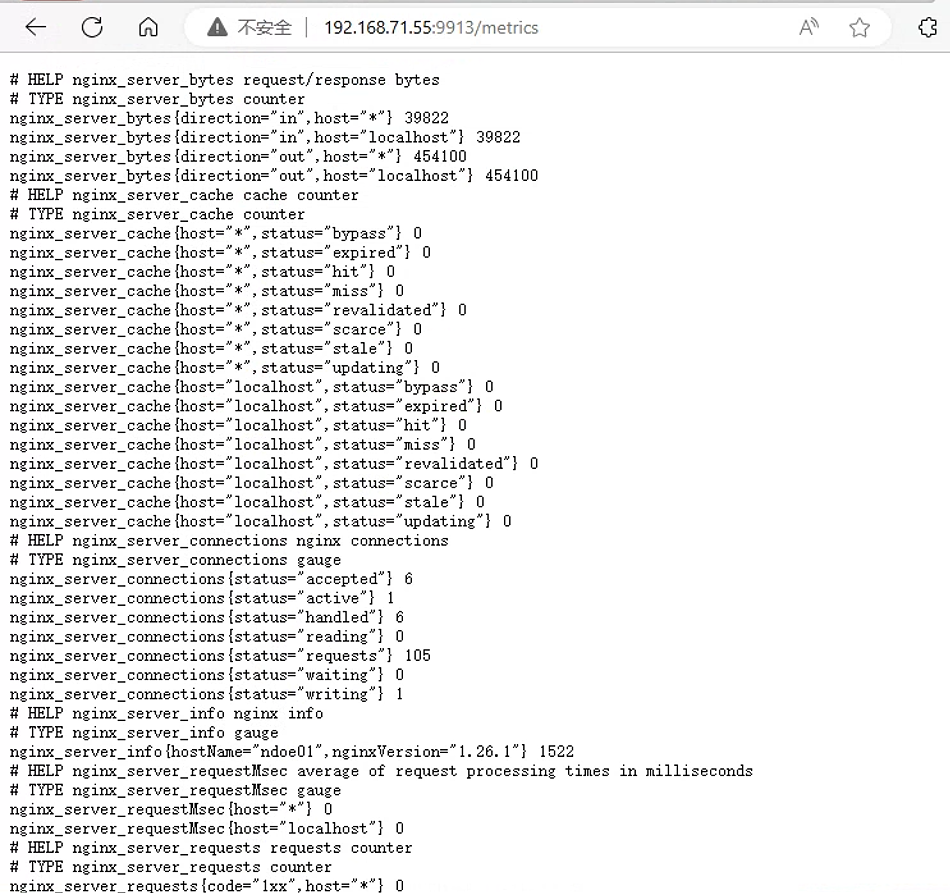
5.3 prometheus采集数据
在prometheus监控主机192.168.71.47上
修改配置
  - job_name: "prometheus-nginx-metrics"
    static_configs:
      - targets: ["192.168.71.55:9913"]
重启配置
root@prometheus01:/usr/local/src/prometheus# curl -X POST http://192.168.71.47:9090/-/reload查看监控页面

5.4 grafana查看监控数据
模板id : 2949
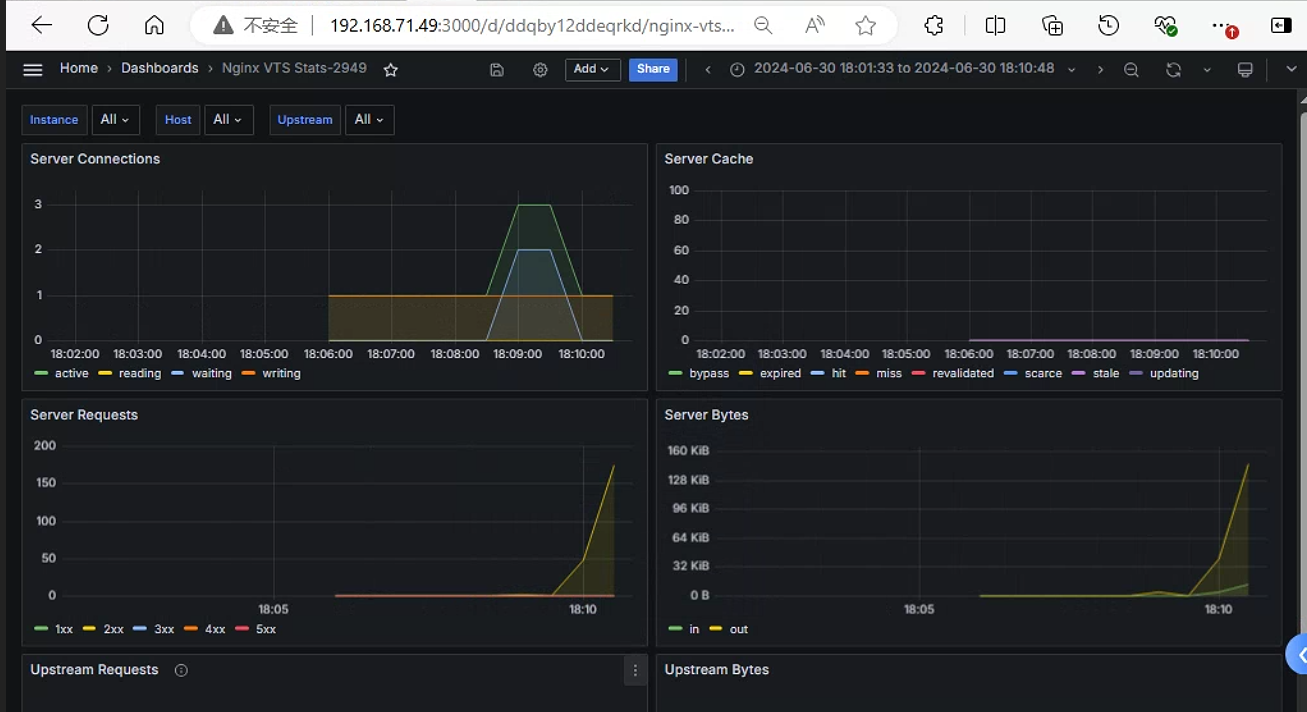
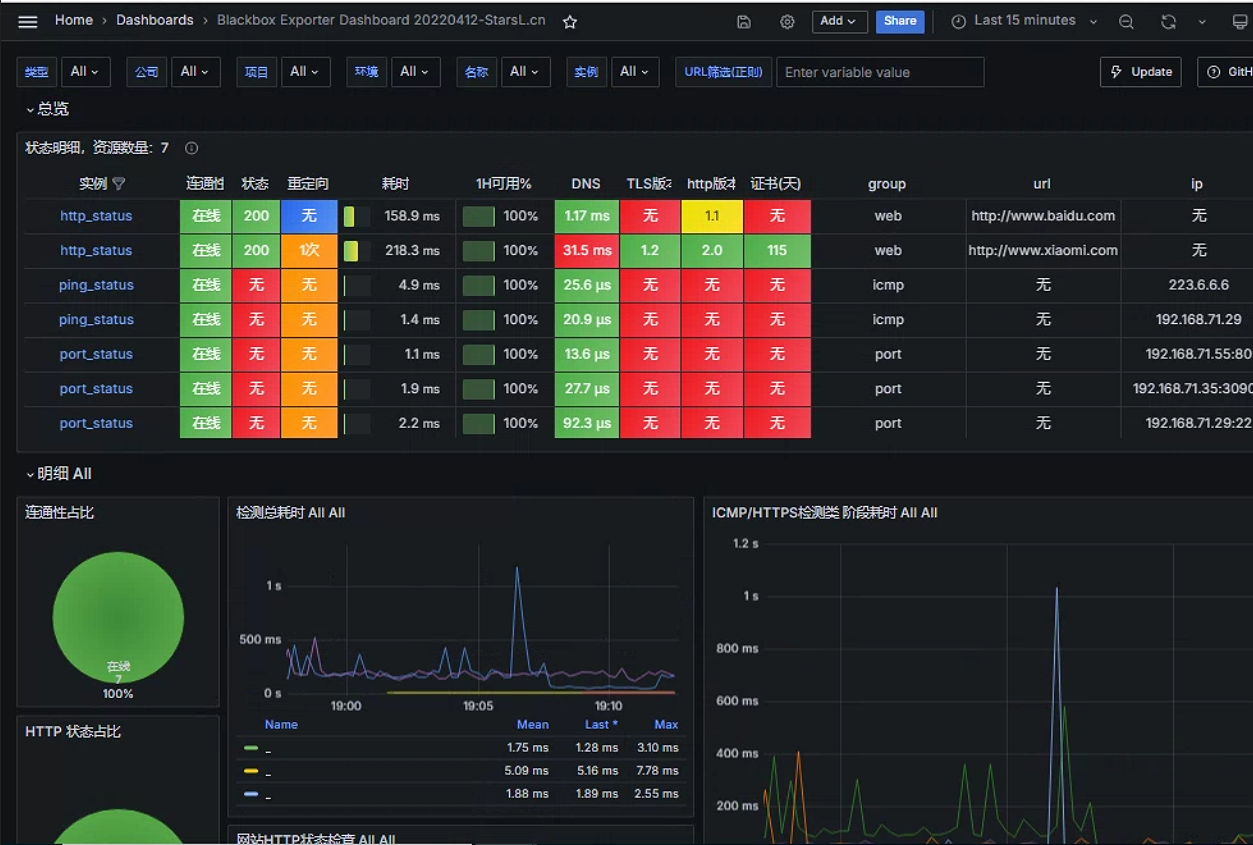
6. blackbox_exporter监控URL
官网链接 : https://prometheus.io/download/#blackbox_exporter
blackbox_exporter是Prometheus官方提供的一个exporter , 可以通过 HTTP,HTTPS, DNS, TCP 和 ICMP 对被监控节点进行监控和数据采集。
各协议用途说明:
HTTP/HTPPS:URL/API可用性检测TCP: 端口监听检测ICMP: 主机存活检测DNS: 域名解析
6.1 部署blackbox_exporter
官网下载界面 : https://prometheus.io/download/#blackbox_exporter blackbox_exporter可以和prometheus不在同一个主机,将blackbox_exporter部署在192.168.71.56上
下载
blackbox_exporterroot@node02:/apps# wget https://github.com/prometheus/blackbox_exporter/releases/download/v0.25.0/blackbox_exporter-0.25.0.linux-amd64.tar.gz解压并做软链接
root@node02:/apps# tar -xvf blackbox_exporter-0.25.0.linux-amd64.tar.gz
blackbox_exporter-0.25.0.linux-amd64/
blackbox_exporter-0.25.0.linux-amd64/NOTICE
blackbox_exporter-0.25.0.linux-amd64/blackbox_exporter
blackbox_exporter-0.25.0.linux-amd64/LICENSE
blackbox_exporter-0.25.0.linux-amd64/blackbox.yml
root@node02:/apps# ln -sv /apps/blackbox_exporter-0.25.0.linux-amd64 /apps/blackbox_exporter
'/apps/blackbox_exporter' -> '/apps/blackbox_exporter-0.25.0.linux-amd64'
通过
service文件启动blackbox_exporterroot@node02:/apps# cat /etc/systemd/system/blackbox-exporter.service [Unit] Description=Prometheus Blackbox Exporter After=network.target [Service] Type=simple User=root Group=root ExecStart=/apps/blackbox_exporter/blackbox_exporter --config.file=/apps/blackbox_exporter/blackbox.yml --web.listen-address=:9115 Restart=on-failure [Install] WantedBy=multi-user.target注意 : 配置文件
/apps/blackbox_exporter/blackbox.yml使用默认配置即可 , 无需更改启动
blackbox-exporter并设置为开机自启动root@node02:/apps# systemctl enable --now blackbox-exporter Created symlink /etc/systemd/system/multi-user.target.wants/blackbox-exporter.service → /etc/systemd/system/blackbox-exporter.service.验证:
查看端口
9115是否被监听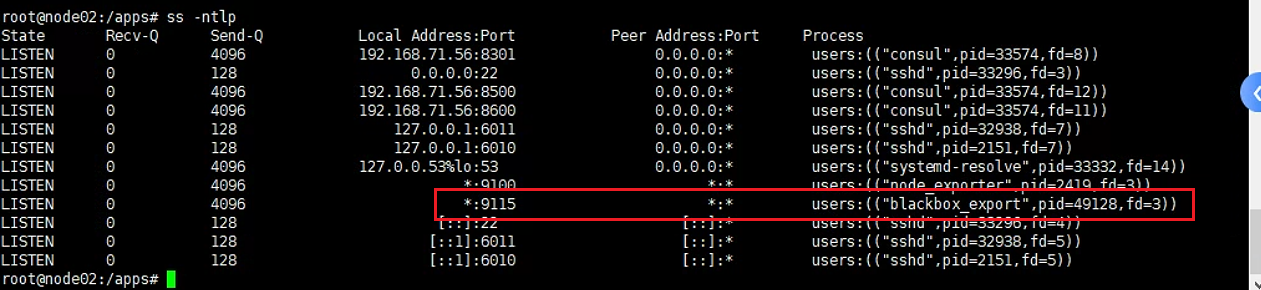
访问页面
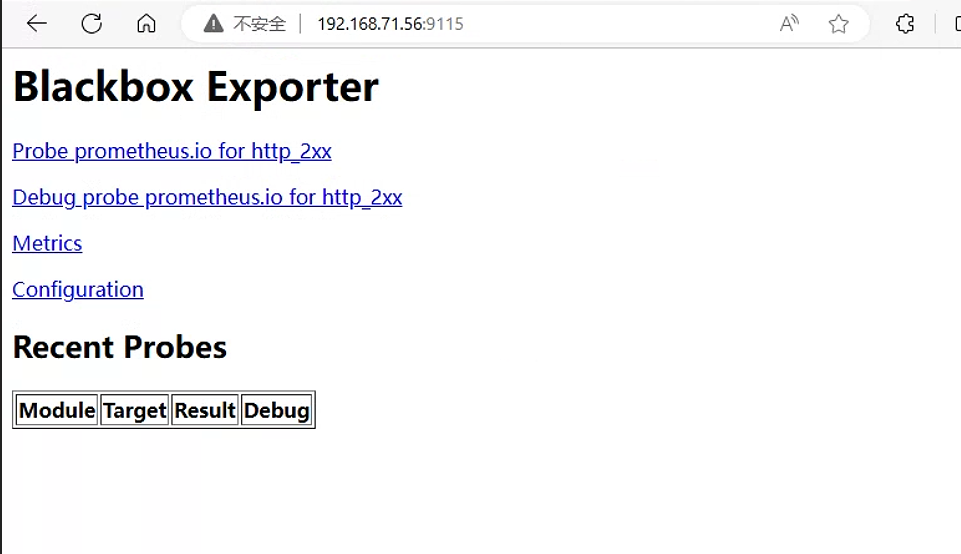
点击
Metrics按钮,查看blackbox_exporter指标数据页面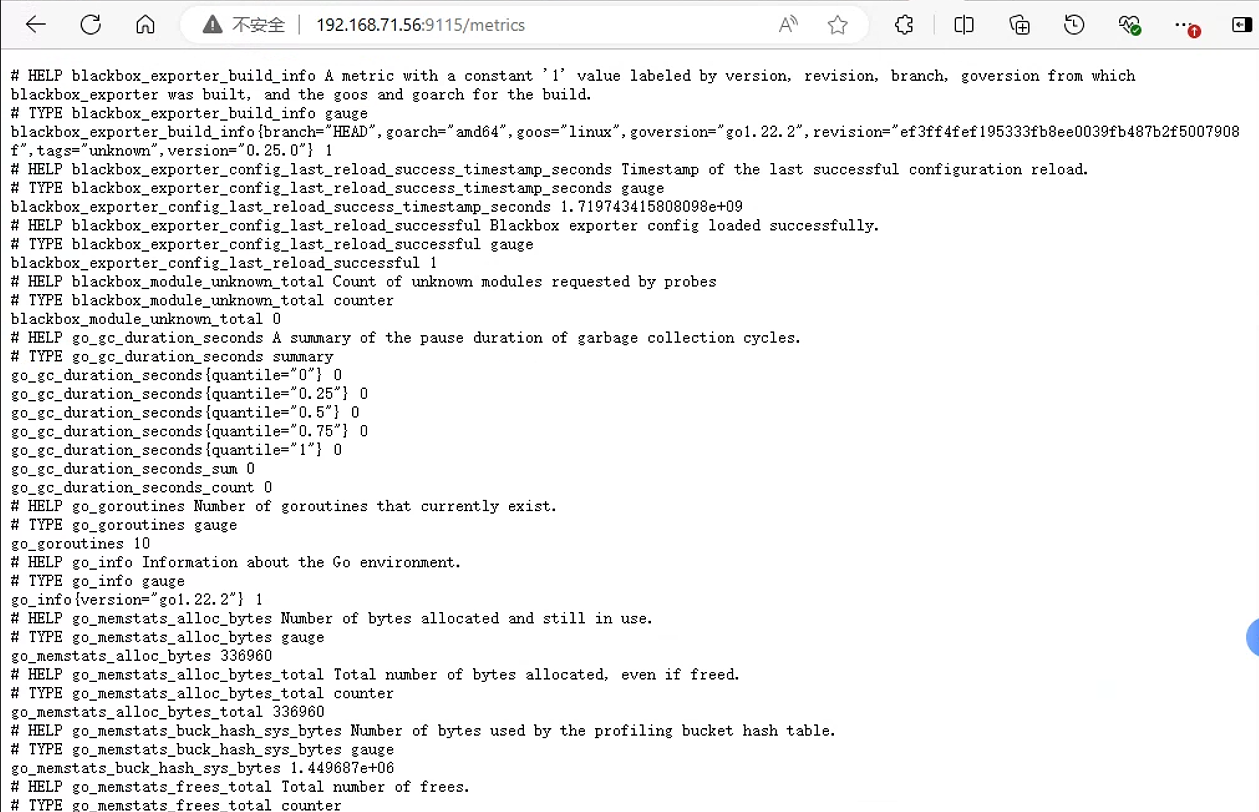
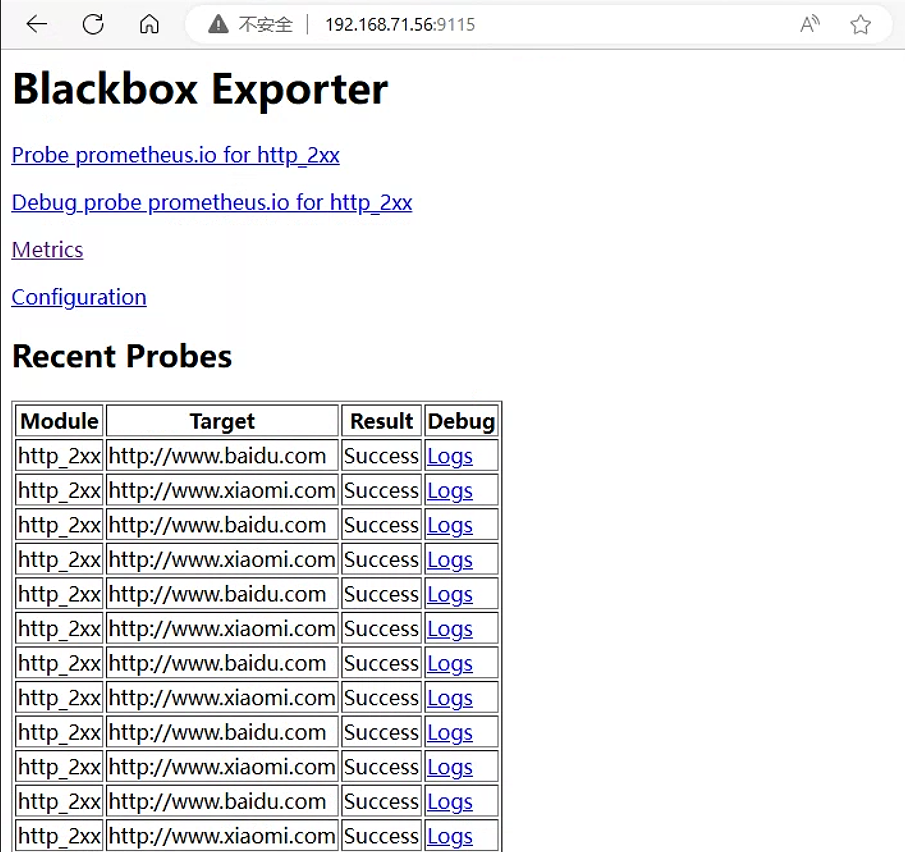
6.2 blackbox exporter实现 URL 监控
prometheus 调用 blackbox exporter 实现对 URL/ICMP 的监控。
注意:要通过blackbox exporter监控url时,并不是通过修改blackbox exporter的配置文件实现,而是修改prometheus的配置文件,通过prometheus调用blackbox exporter,把要监控的目标告知blackbox exporter,再由blackbox exporter去抓取数据,然后把数据返回给prometheus,prometheus对数据进行监控
6.2.1 prometheus URL监控配置
在
prometheus监控主机192.168.71.55上- job_name: 'http_status' metrics_path: /probe params: module: [http_2xx] static_configs: - targets: ['http://www.xiaomi.com', 'http://www.baidu.com'] #由于网站会自动跳转到https,因此写http协议也可以正常监控 labels: instance: http_status group: web relabel_configs: - source_labels: [__address__] #relabel通过将__address__(当前目标地址)写入__param_target标签来创建一个label。 target_label: __param_target #监控目标www.xiaomi.com,作为__address__的value - source_labels: [__param_target] #监控目标 target_label: url #将监控目标与url创建一个label - target_label: __address__ replacement: 192.168.71.56:9115 #这里要写blackbox_exporter所在主机的ip和端口重启对应
prometheus服务root@prometheus01:/usr/local/src/prometheus# curl -X POST http://192.168.71.47:9090/-/reload
6.2.2 验证
查看prometheus监控页面 192.168.71.55:9090
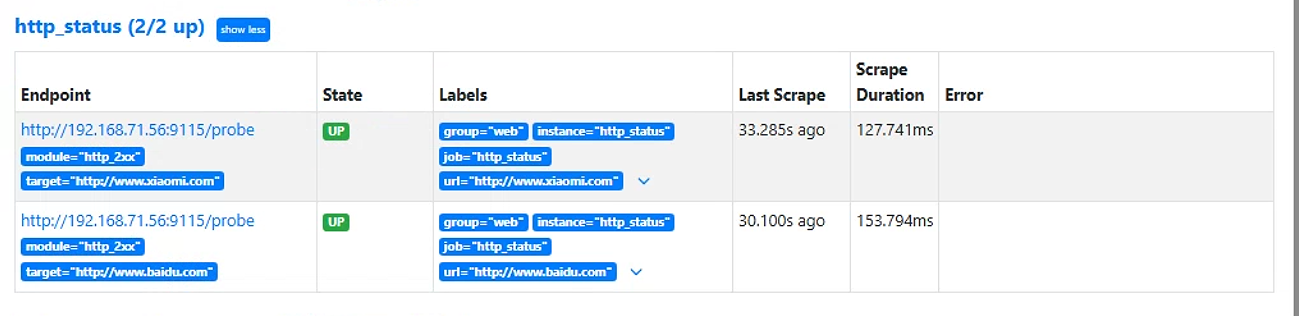
查看blackbox_exporter的web页面 , 可以看到对url的监控结果
6.3 blackbox exporter实现icmp监控
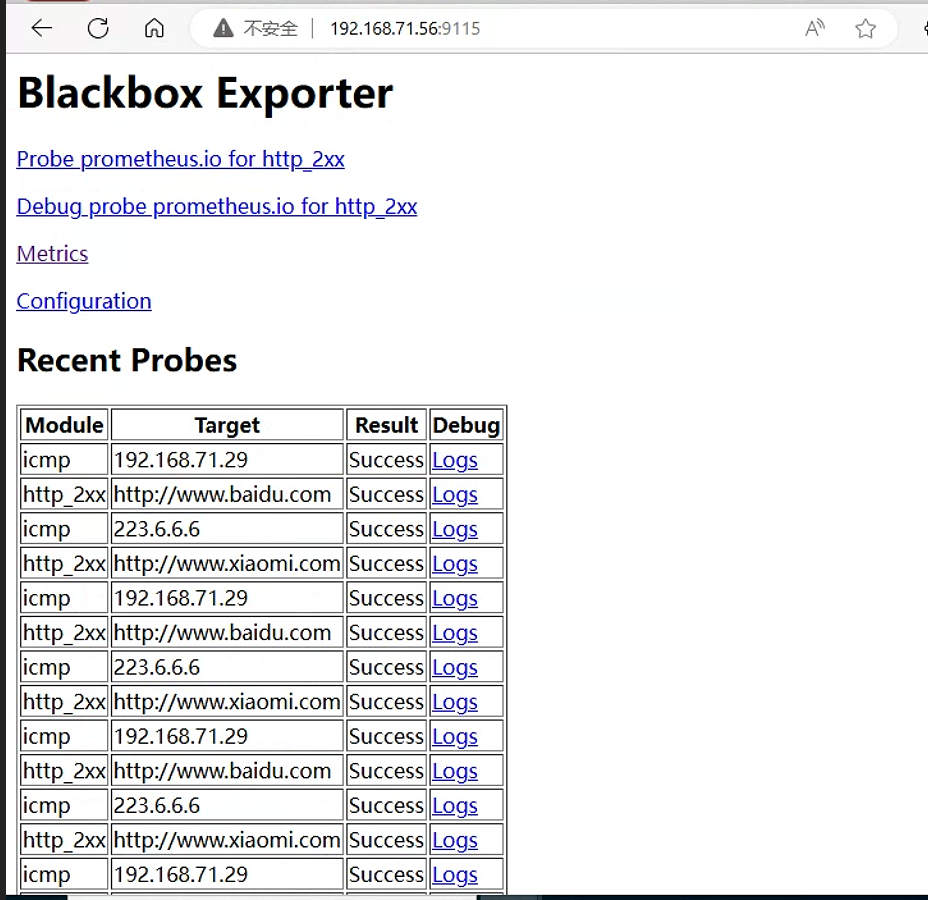
主要是监控ip地址的连通性
6.3.1 Prometheus ICMP 监控配置
在prometheus监控主机192.168.71.47上
# icmp 检测
  - job_name: 'ping_status'
    metrics_path: /probe
    params:
      module: [icmp]
    static_configs:
      - targets: ['192.168.71.29',"223.6.6.6"]     #监控地址分别是本机虚拟机网关地址和阿里dns服务器地址
        labels:
          instance: 'ping_status'
          group: 'icmp'
    relabel_configs:
      - source_labels: [__address__]
        target_label: __param_target
      - source_labels: [__param_target]
        target_label: ip #将ip与__param_target创建一个label
      - target_label: __address__
        replacement: 192.168.71.56:9115
之后重启服务
root@prometheus01:/usr/local/src/prometheus# curl -X POST http://192.168.71.47:9090/-/reload6.3.2 验证
查看prometheus监控页面 : http://192.168.71.47:9090/

查看blackbox_exporter数据页面 , 可以看到icmp的返回结果
6.4 blackbox exporter 实现端口监控
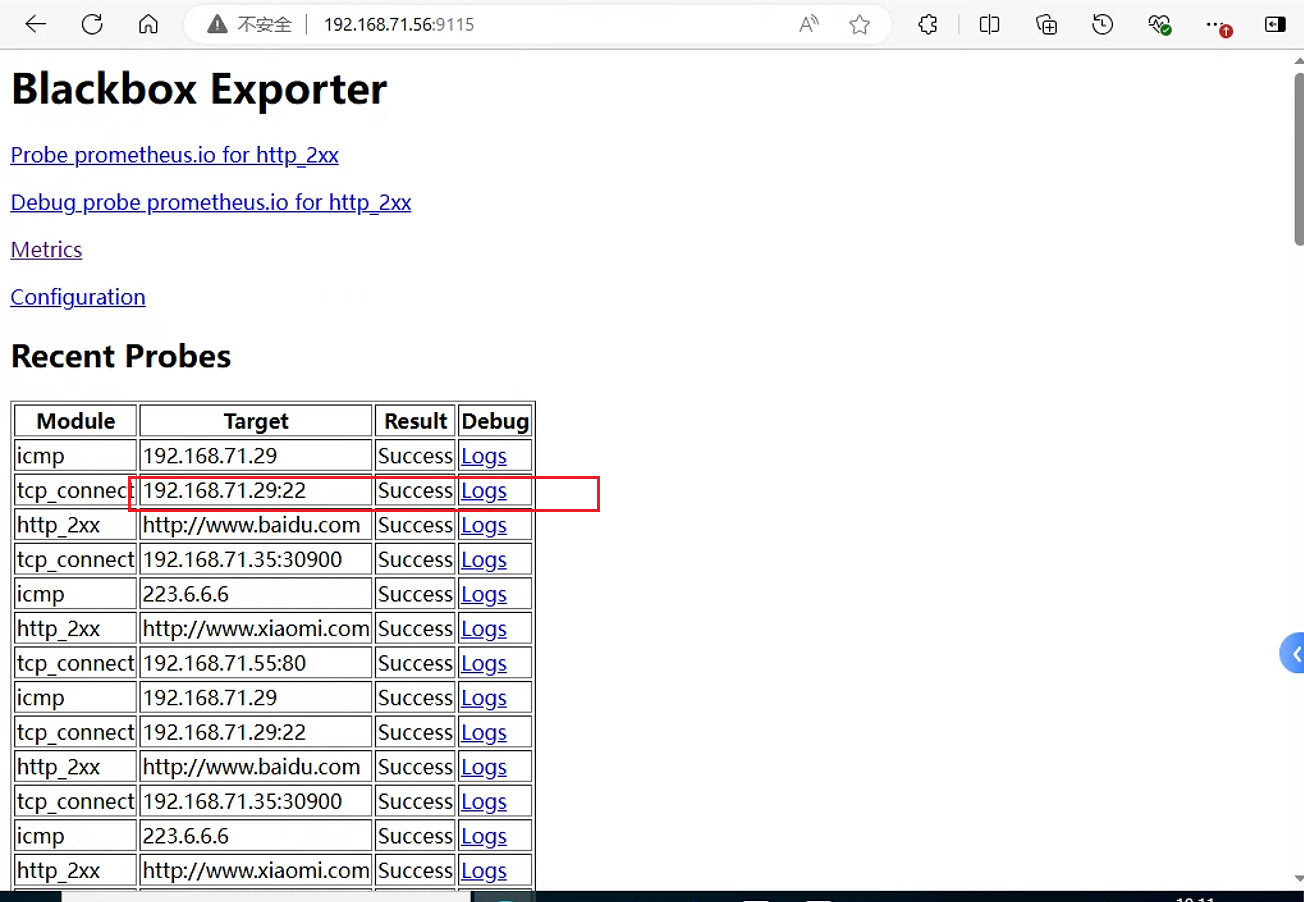
主要是监控端口是否被监听 , 可以用来对服务进行监控
6.4.1 Prometheus 端口 监控配置
在prometheus监控主机192.168.71.47上
# 端口监控
  - job_name: 'port_status'
    metrics_path: /probe
    params:
      module: [tcp_connect]
    static_configs:
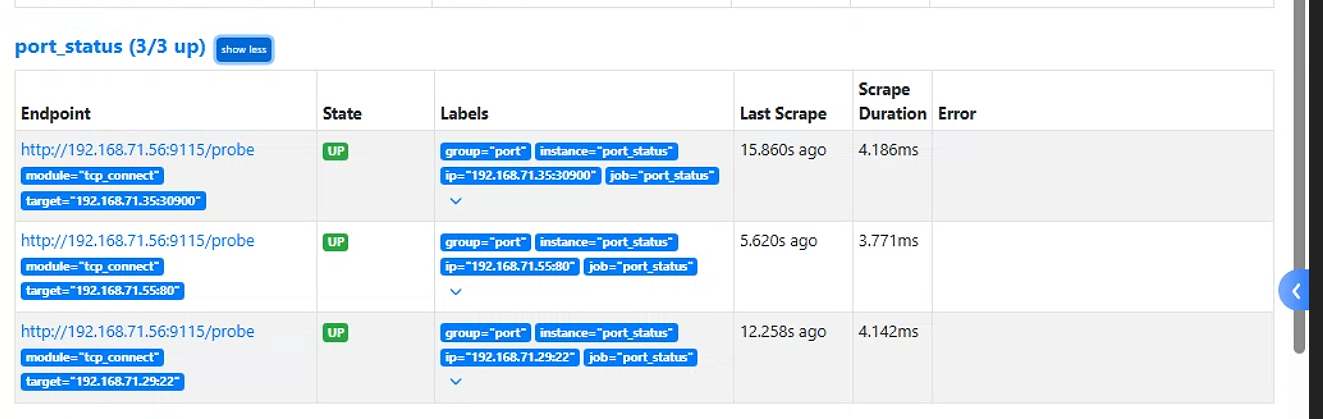
      - targets: ['192.168.71.35:30900', '192.168.71.55:80','192.168.71.29:22']   #分别是prometheus server的端口9090,nginx的80端口以及master1节点的22端口
        labels:
          instance: 'port_status'
          group: 'port'
    relabel_configs:
      - source_labels: [__address__]
        target_label: __param_target
      - source_labels: [__param_target]
        target_label: ip
      - target_label: __address__
        replacement: 192.168.71.56:9115
重启服务
root@prometheus01:/usr/local/src/prometheus# curl -X POST http://192.168.71.47:9090/-/reload6.4.2 验证
查看prometheus监控页面http://172.31.7.201:9090/
查看blackbox_exporter数据页面 , 可以看到tcp_connect的返回结果
6.5 grafana查看监控数据
模板id : 9965
参考链接
七、监控扩展 - 袁党生博客 (yuandangsheng.top)